Akiflow review: My honest thoughts about this AI planner
Some links on this page are affiliate links. If you buy something, I get a small cut, at no extra cost to you. I only recommend tools I’d genuinely tell a friend to use. Learn more.
Akiflow pulls tasks from every tool you use into one screen, then lets you drag them onto your calendar.
That’s the pitch.
Tasks from Todoist, action items from Slack, emails from Gmail, issues from GitHub—all in one place, ready to time-block.
The question is whether it actually works and whether it’s worth $228 per year.
I tested Akiflow against the workflow most people use now: Google Calendar plus a task manager plus manual consolidation every morning.
I connected it to every tool I rely on.
I used the AI assistant (Aki) to move things around my calendar. I built workflows. I compared it to Sunsama, which costs less but has fewer integrations.
If you’re spending thirty minutes every morning trying to figure out what you’re doing today, this will tell you if Akiflow is the answer.
My take on Akiflow
Akiflow consolidates tasks from 20+ apps into one calendar view, reducing daily planning from 30 minutes to under 5. AI assistant handles rescheduling. Command bar works system-wide. $228/year makes it expensive, but worth it for professionals managing multiple tools who value time savings.
The paid plan costs $34/month ($19/month if billed yearly)
What is Akiflow?
Akiflow is a daily planner that pulls your tasks and calendar into one screen.
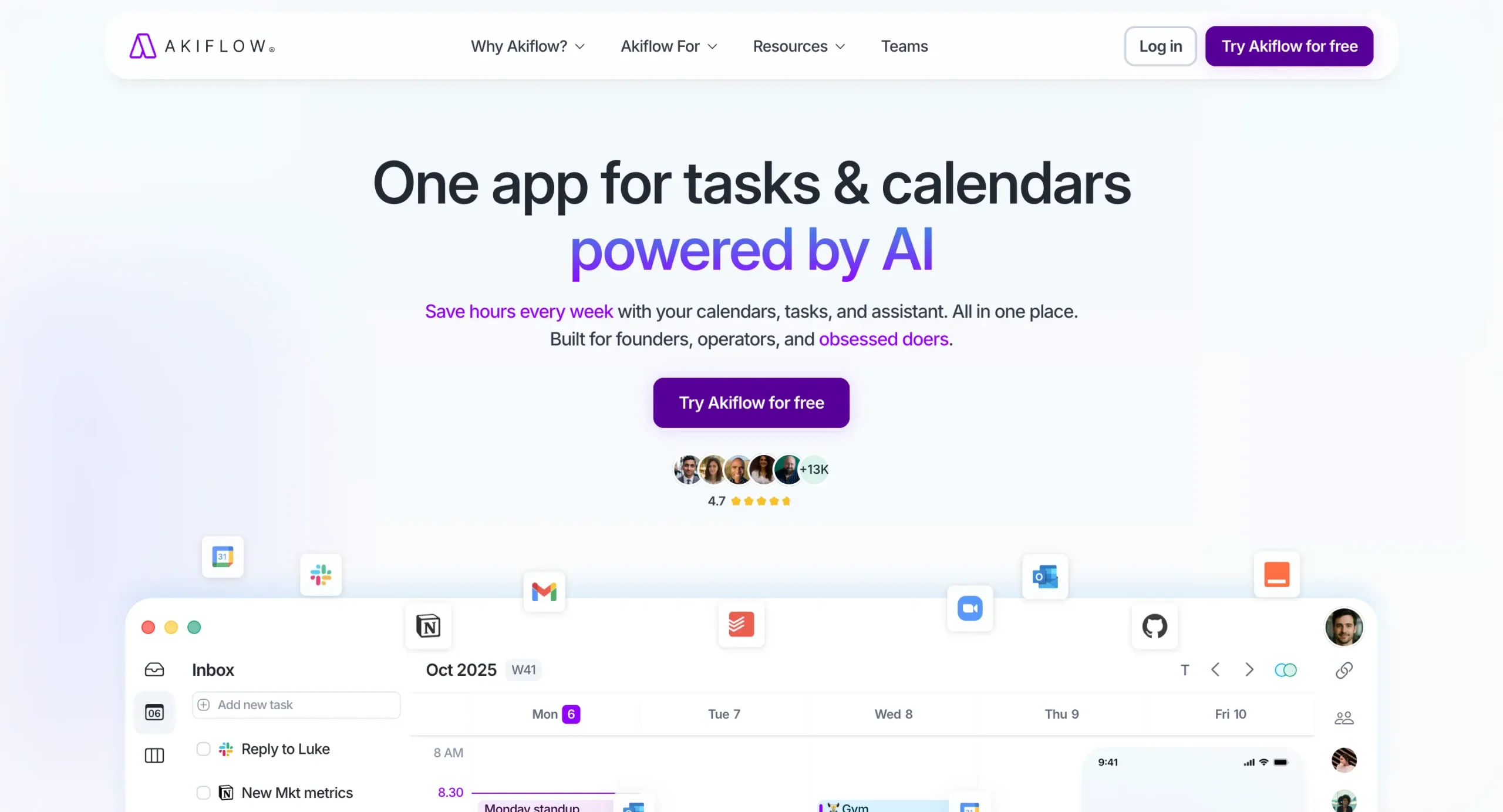
Think about how you work now. You probably have tasks in Todoist or Asana, meetings in Google Calendar, action items in Slack, and emails you need to follow up on.
Every morning you open five different apps trying to figure out what you’re actually doing today. By the time you’ve consolidated everything, 30 minutes are gone.
That’s the problem Akiflow solves. It connects to your existing tools and builds a single view of your day.
Everything lands in what they call the Universal Inbox, and from there you drag items into time blocks on your calendar.
The interface looks cleaner than you’d expect for something doing this much.
Akiflow kept it minimal. When I open it in the morning, I don’t feel overwhelmed—I just see what needs to happen today.
Here’s what makes it different from other time-blocking tools: the AI assistant actually works.
It’s called Aki, and you can talk to it like a person. Ask “what’s my day look like?” and it reads your schedule back. The Workflows feature lets you create custom commands.
Sunsama, which costs about the same, doesn’t have anything like this.
Akiflow also replaces tools like Calendly. You can share your availability and let people book time with you directly. Small feature, but it means one less $10/month subscription.
The mobile app exists, but you’ll do most of your work on desktop. That’s intentional—the Mac and Windows apps have features the mobile version doesn’t (one-click meeting joins, offline access, menu bar shortcuts).
Getting started with Akiflow
When you download Akiflow and open it for the first time, you’ll hit an onboarding screen. It’s long. And you can’t skip it.
This might annoy you. You probably just want to poke around and figure things out yourself. But Akiflow makes you sit through about a few minutes minutes of guided setup.
Here’s why that matters: the onboarding actually works.
They show you exactly how to use each feature. By the end, you know how to use Akiflow.
The Akiflow team even tells you upfront why they designed it this way.
It’s paternalistic, but it works.
Once you finish, you land on the dashboard. It’s clean. Lots of white space. The sidebar collapses if you want more room for your calendar view.
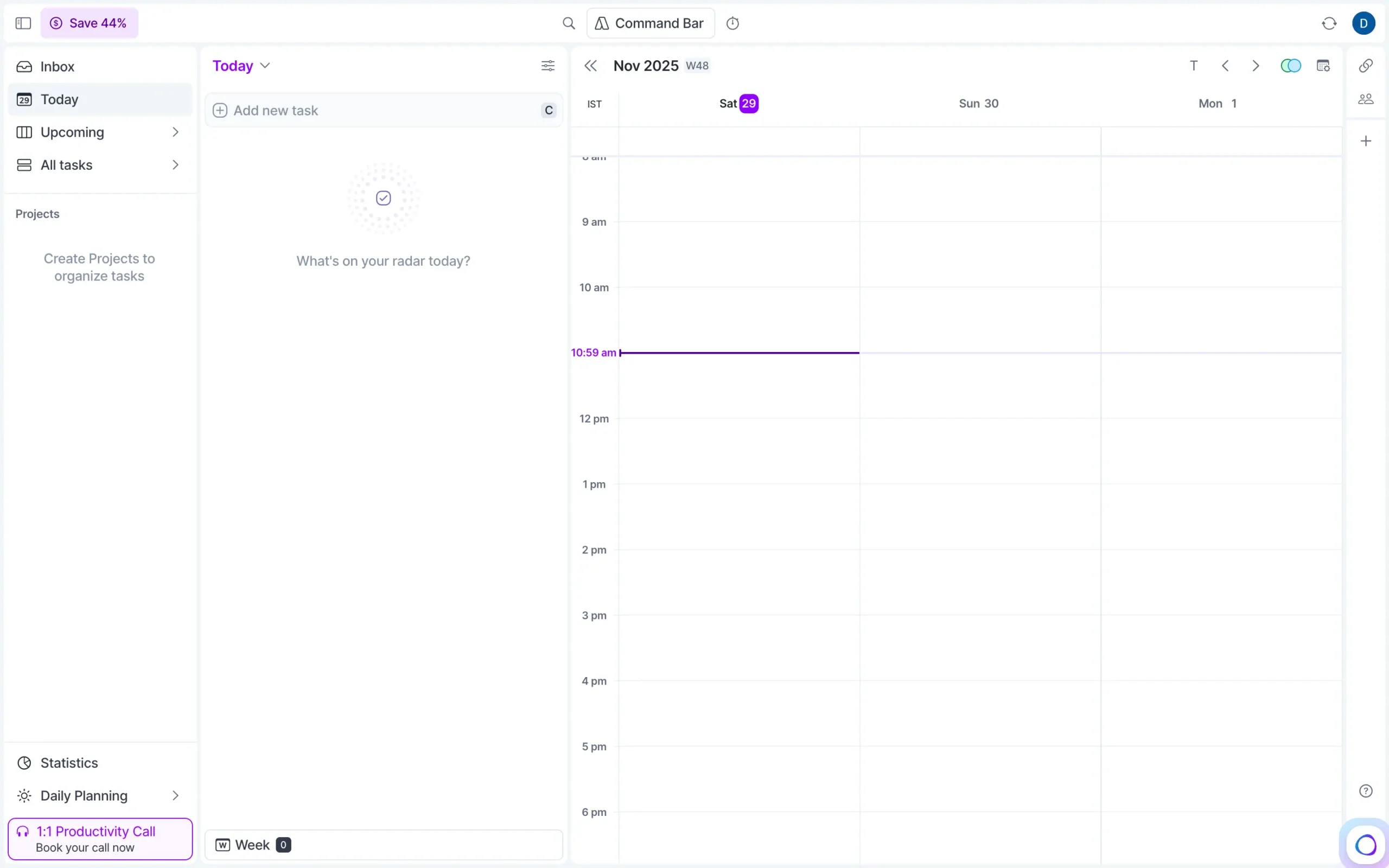
You can switch between light and dark mode with one click.
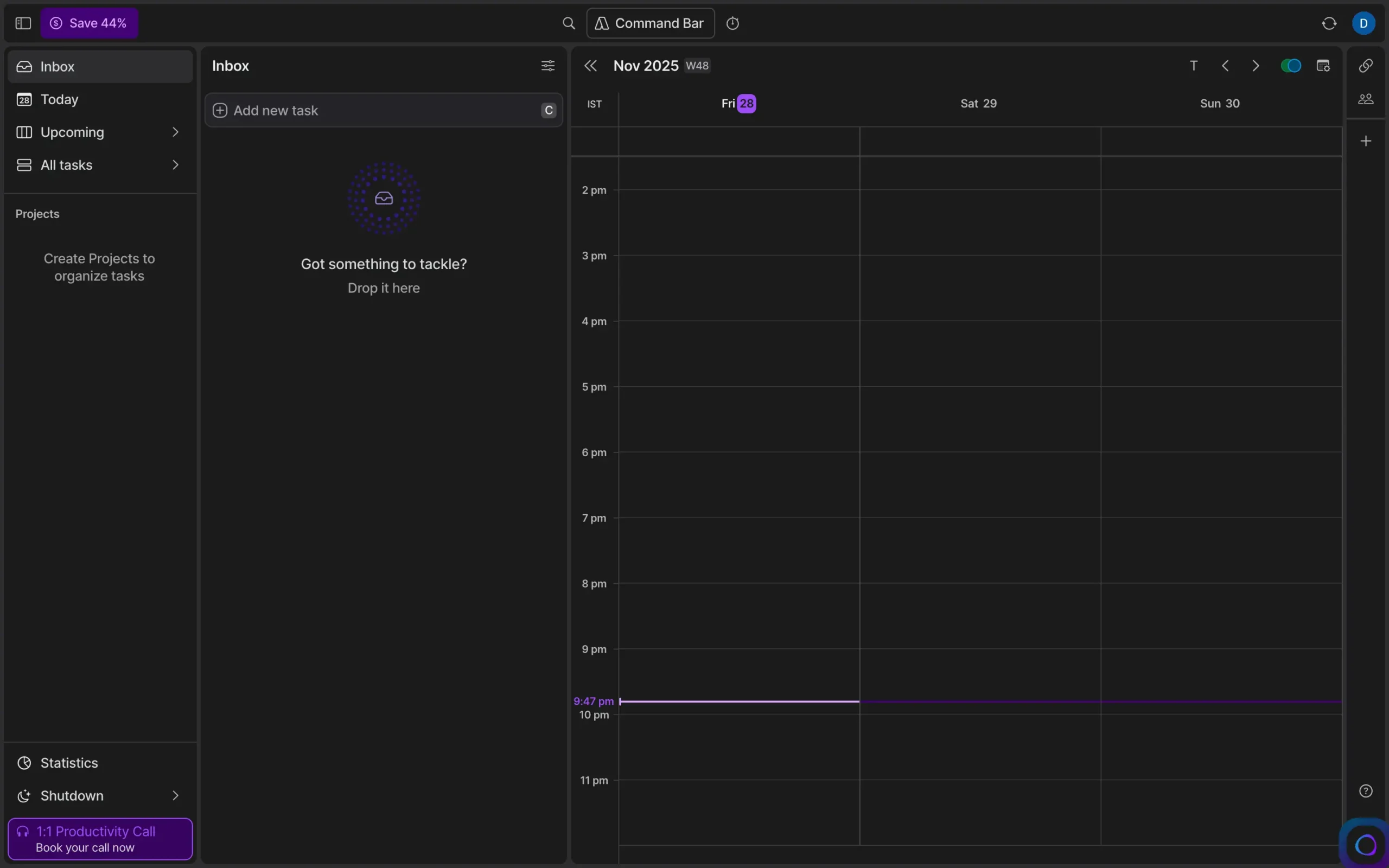
The interface doesn’t feel overwhelming, which is unusual for a tool that’s doing this much behind the scenes.
When you open it, you’re not staring at a wall of settings or features. Just your inbox on the left, your calendar on the right.
One thing to know: download the desktop app, not the web version. The desktop version gets you menu bar access, offline mode, one-click meeting joins and more. The web version works, but you’re missing the good stuff.
Once you’re set up, the next step is connecting your tools—Gmail, Slack, your task manager, whatever you use. That’s where Akiflow starts pulling everything together.
What features does Akiflow offer?
Most productivity tools have too many features. You end up using three of them and ignoring the rest.
Akiflow is different because almost everything connects to the core problem: getting your tasks and calendar in one place so you can see what you’re actually doing today.
Some features work better than others. I’ll tell you which ones actually matter and which ones you’ll probably ignore.
Akiflow consolidates tasks from more apps than competitors
This is what Akiflow does best.
You know the problem. You’ve got tasks in Todoist. Action items buried in Slack threads. Emails you need to follow up on. GitHub issues assigned to you. Projects in Asana.
Every morning, you’re opening six different apps trying to figure out what you’re actually supposed to do today.
Akiflow pulls all of it into one place.
Creating a task inside Akiflow is stupidly simple. Click “Add new task” in your inbox. Type something. Hit enter. Done.
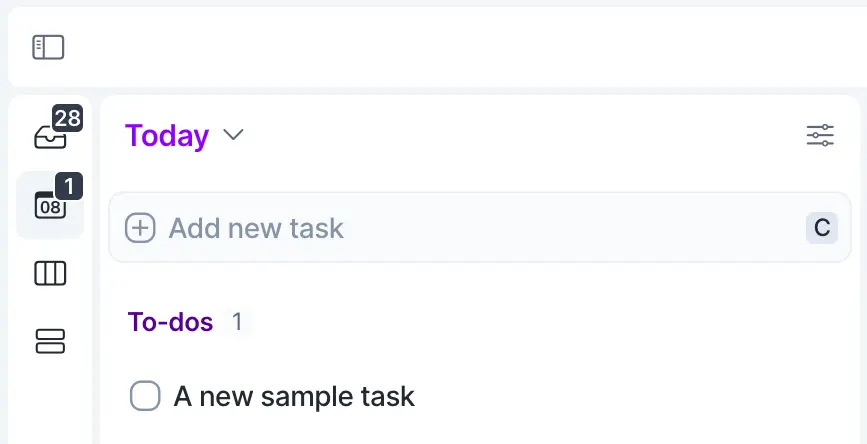
Click on the task to see what else you can do with it.
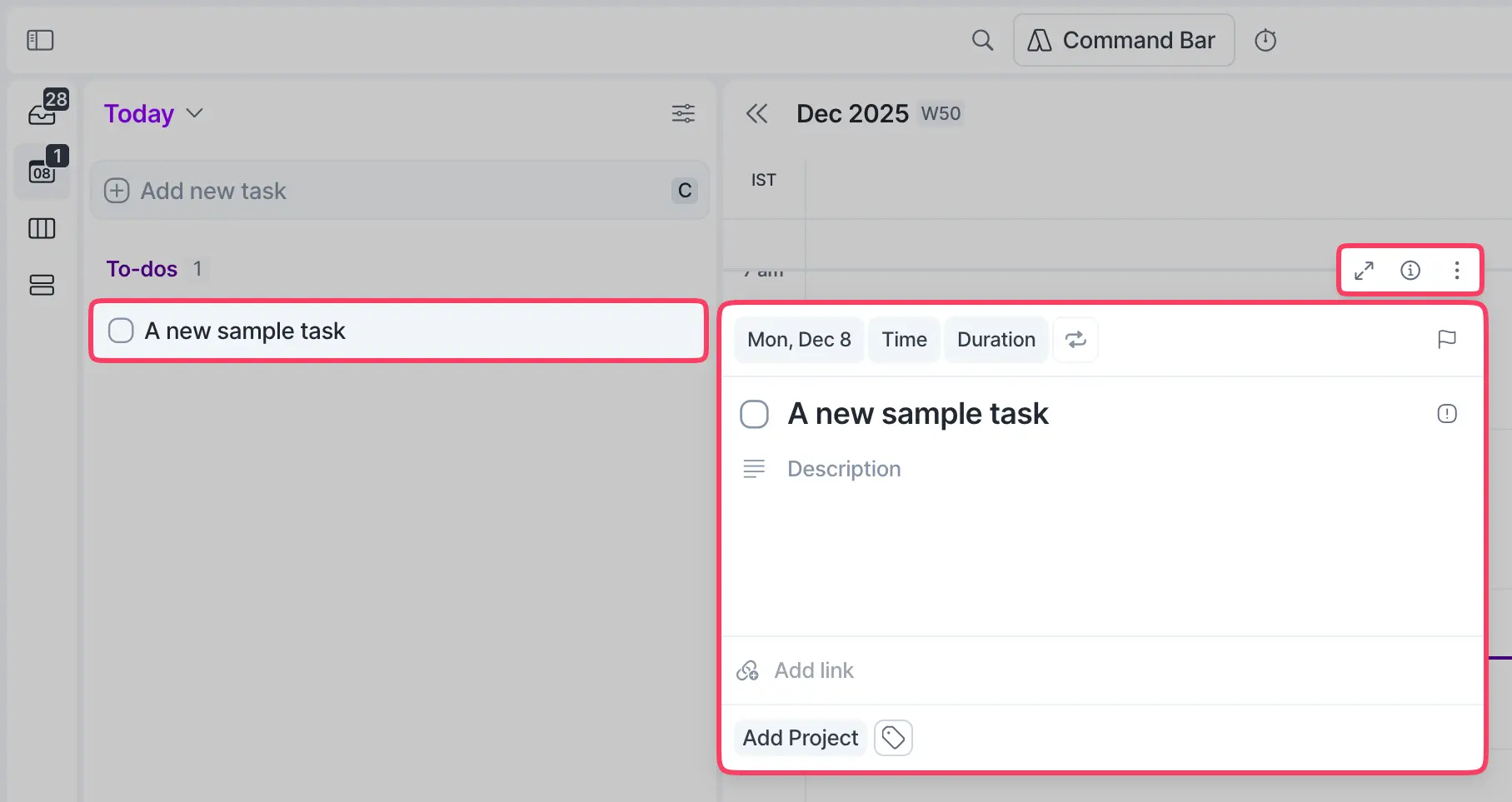
You can drag it onto your calendar to time-block it. Add tags, set a priority (Goal, High, Medium, Low), attach links, write descriptions, and set deadlines.
The stuff you’d expect from any task manager.
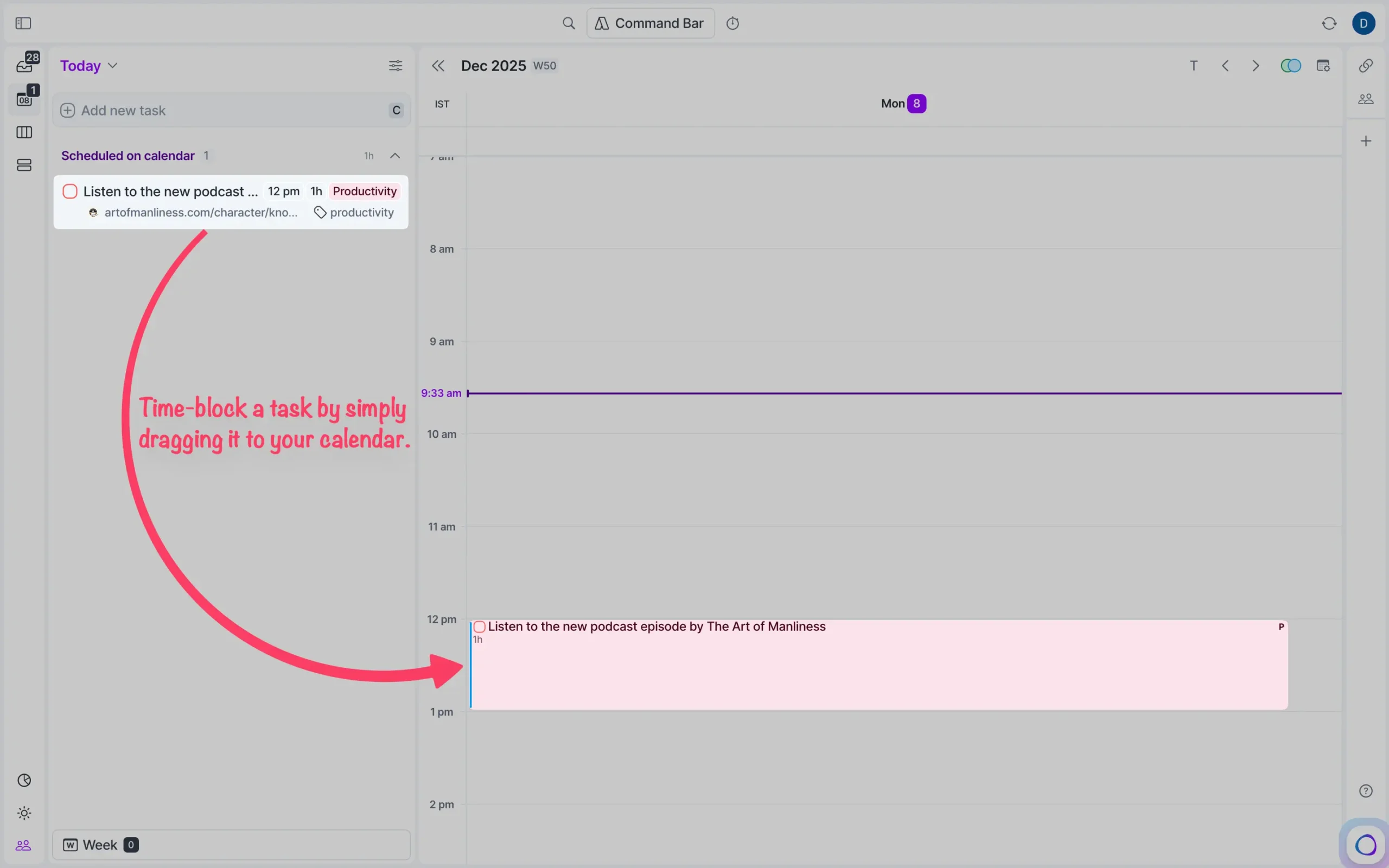
But here’s the interesting part. If you’re using the desktop app, press Command+E (Control + E on Windows).
From anywhere. I mean, literally anywhere on your computer.
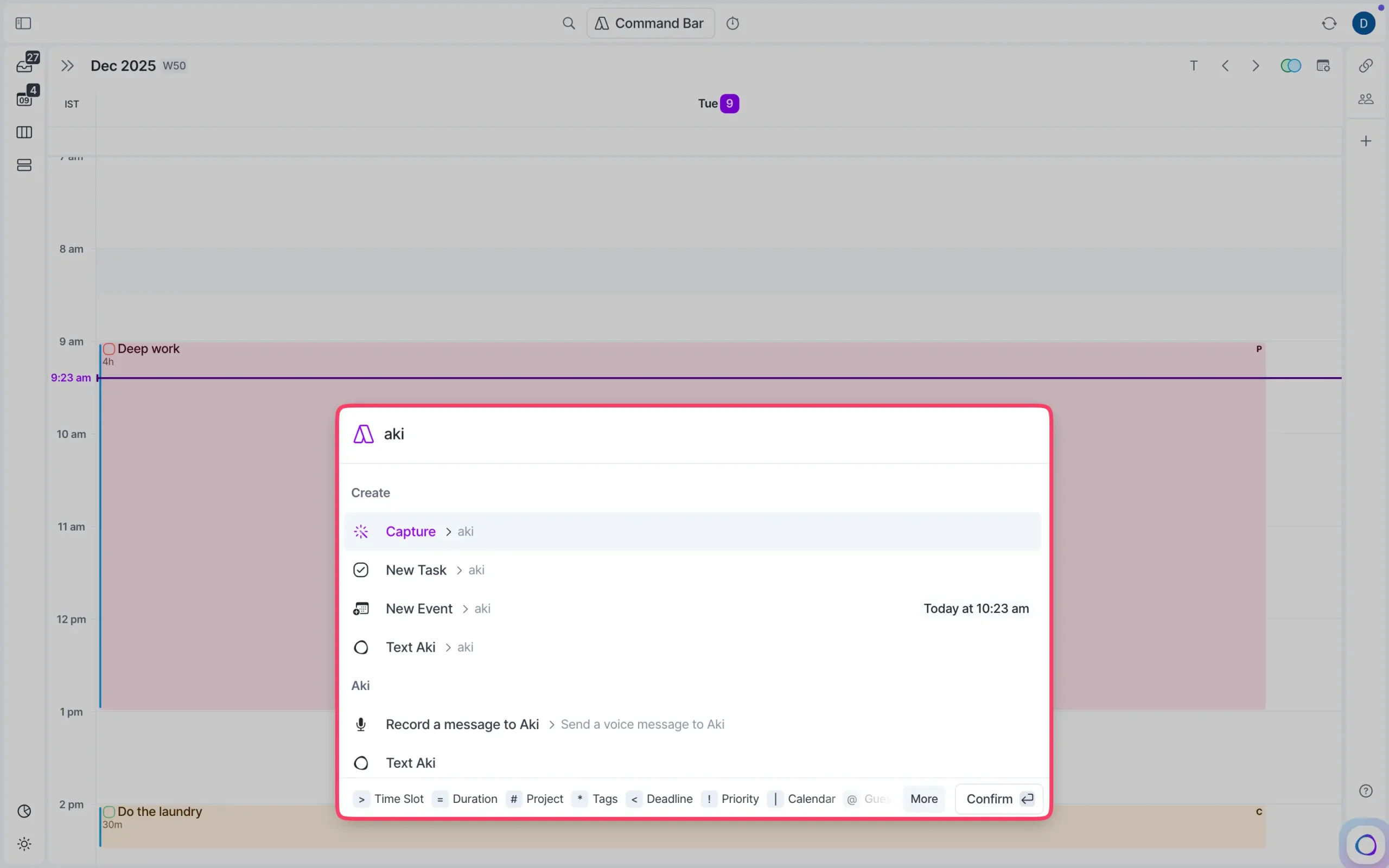
You could be reading an article in Chrome, reviewing a doc, scrolling Twitter—doesn’t matter. Hit Command + E, and a quick capture window appears.
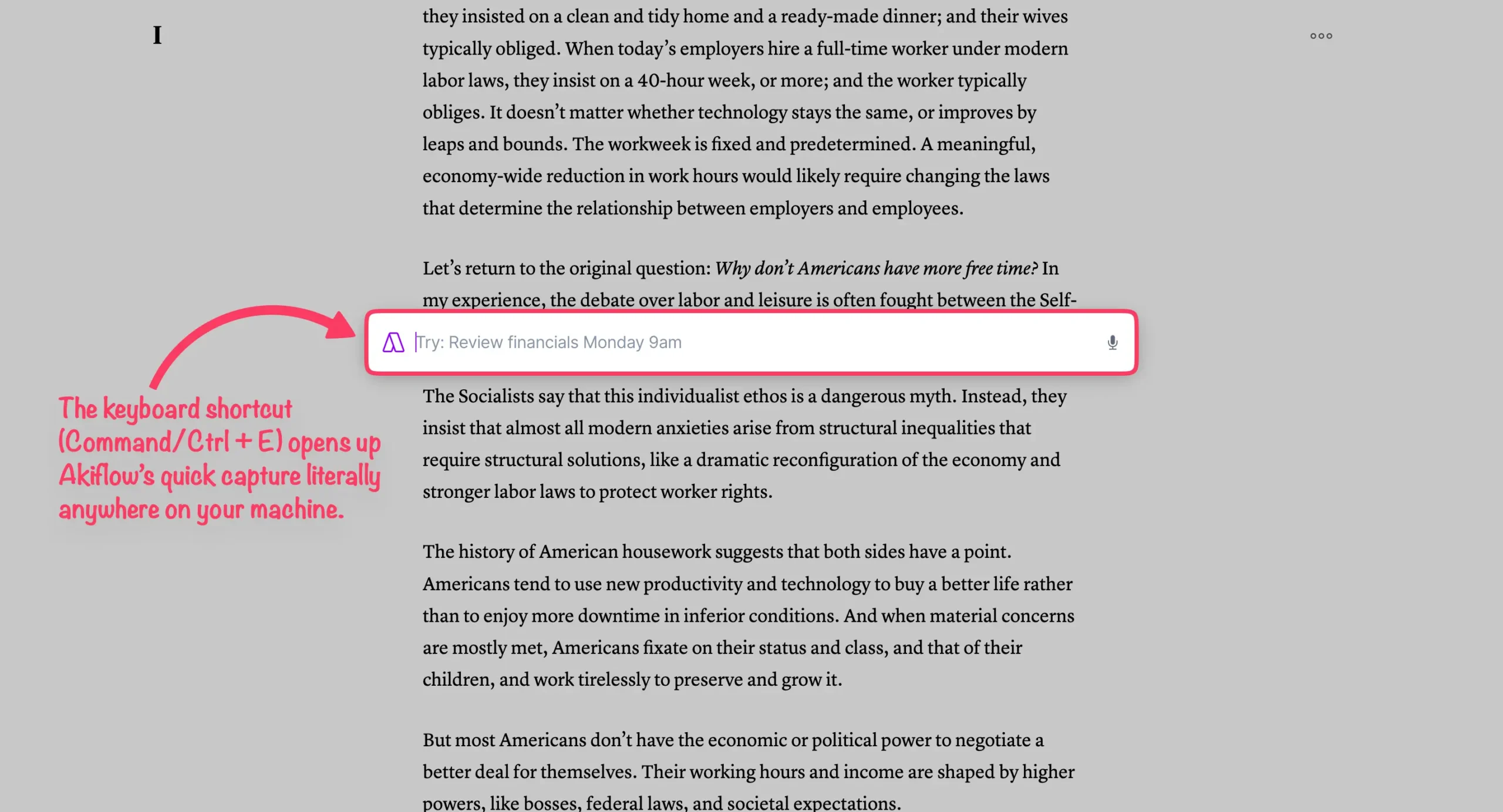
Start typing, and Akiflow gives you options. Quick capture for later. Create a new task. Create a calendar event. Or send what you wrote directly to Aki, the AI assistant.
This is more convenient than anything except maybe Todoist. The difference is Todoist doesn’t pull in your other tools.
That’s where integrations make everything work.
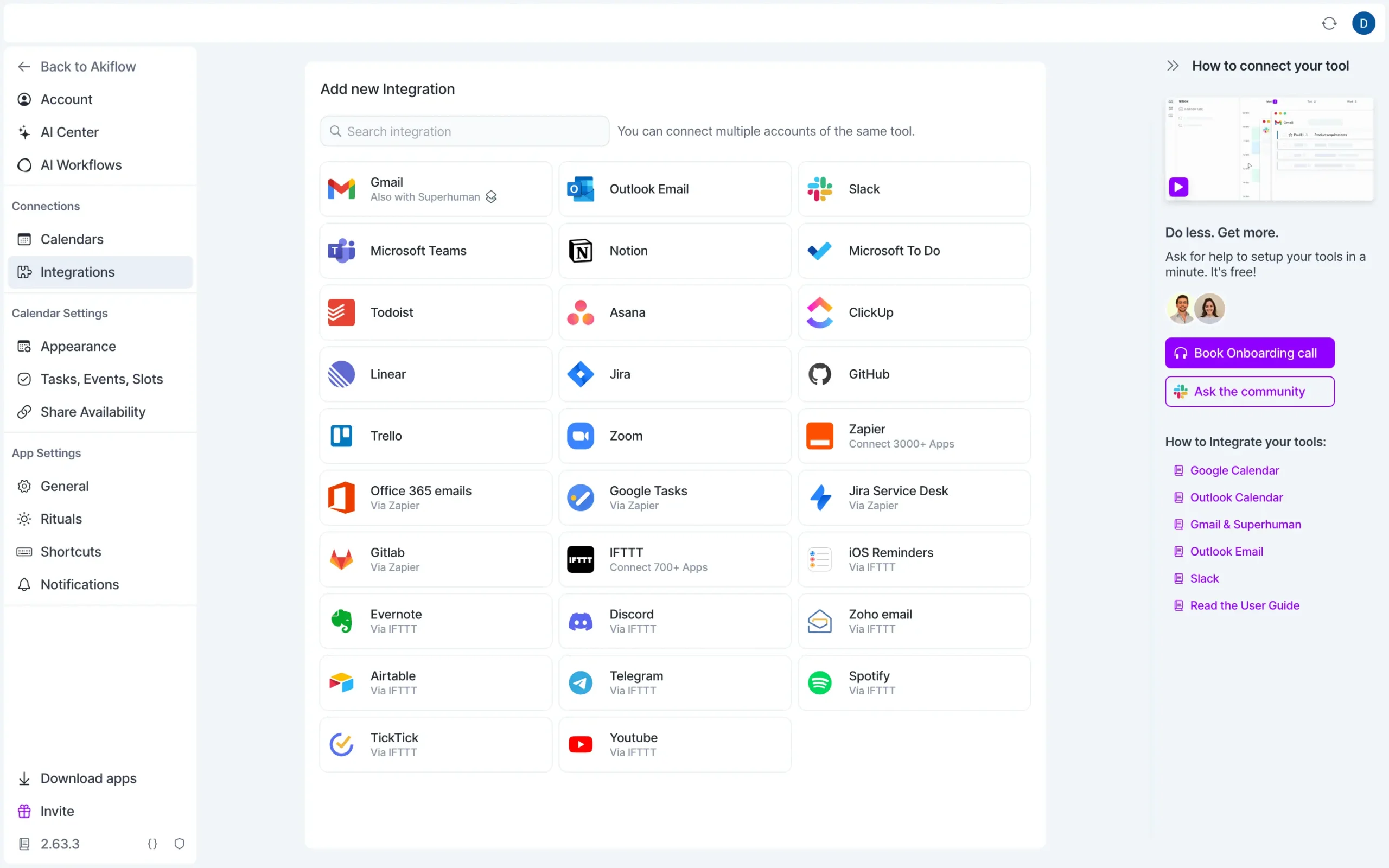
I’ll show you how it works with Todoist. Connect your account, click “Start Sync,” and choose whether you want projects and sub-tasks included.
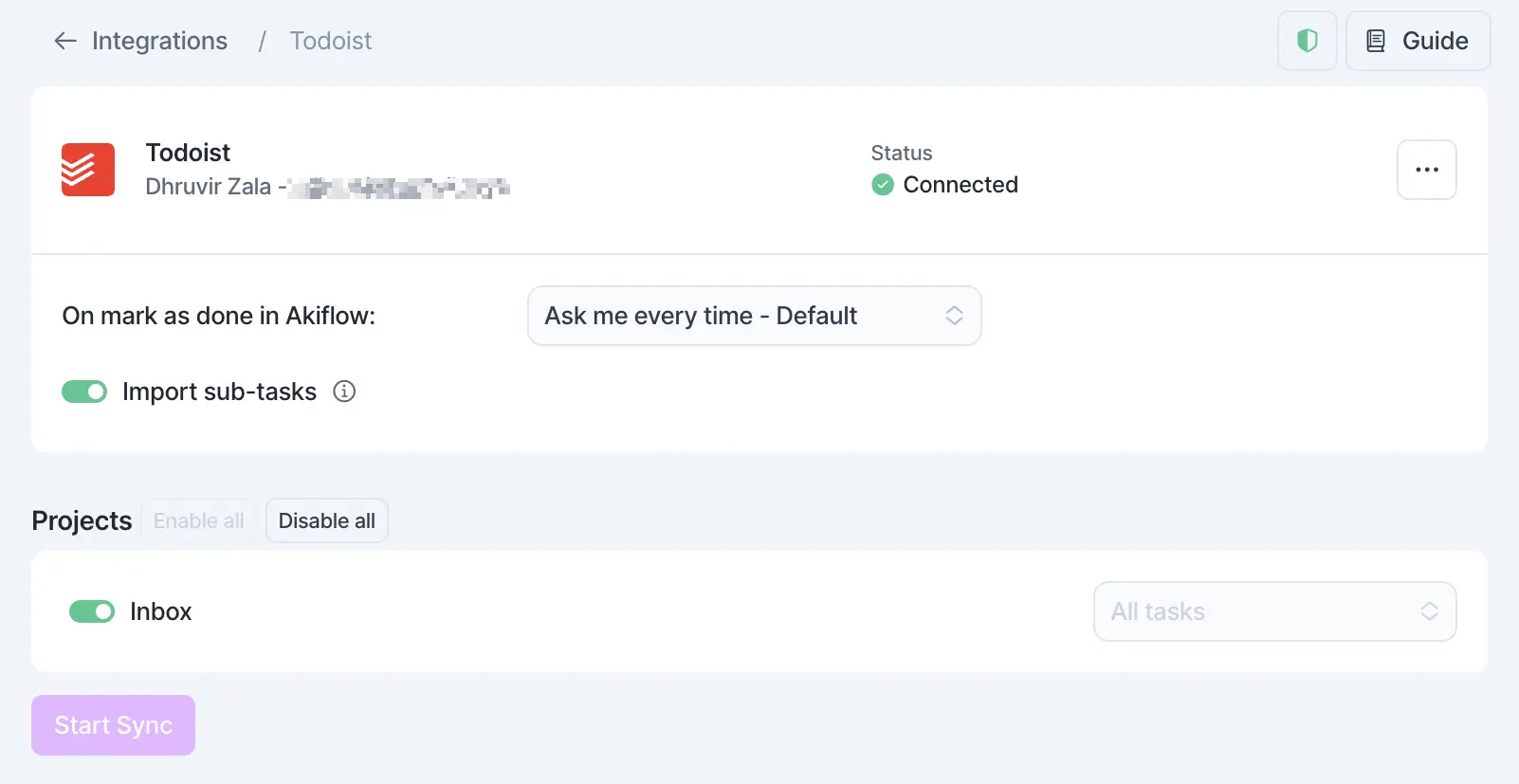
Akiflow gives you basic automations for each integration. With Todoist, you can decide what happens when you complete a task in Akiflow—whether it completes in Todoist too, gets archived, or something else.
Now every Todoist task shows up in Akiflow’s Inbox section.
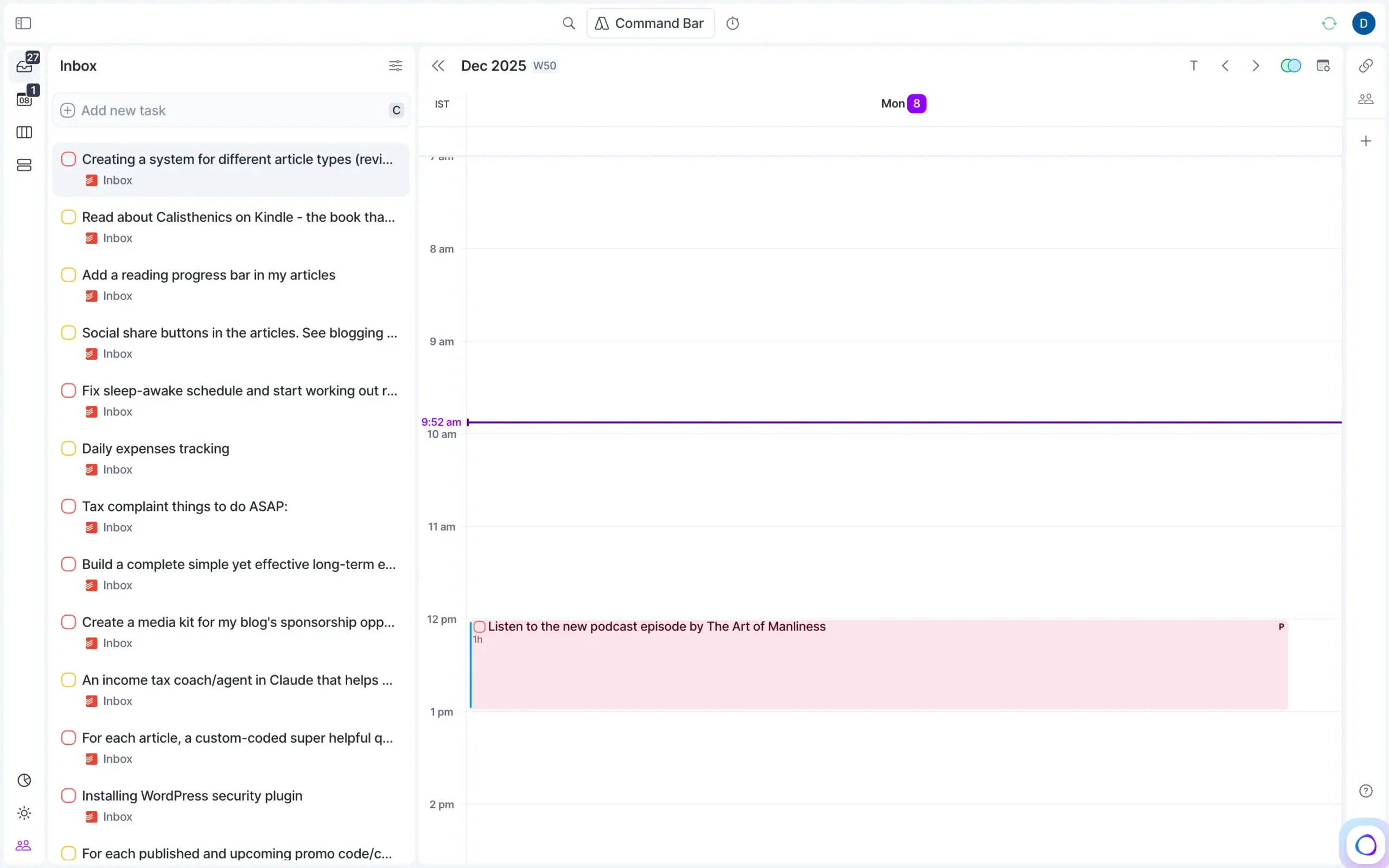
You can time-block them just like native Akiflow tasks. Drag them to your calendar. Set deadlines and priorities. Everything updates in real-time in both places.
And you can do this with every other app you use.
There’s also Zapier and IFTTT. Between them, you can connect to about 8,800 more apps.
Most people won’t need this, but if you’re using some obscure tool, you can probably hook it up.
The comparison to Sunsama matters here.
Sunsama costs more than Akiflow ($240/year vs. $228/year for Akiflow). But Akiflow has more native integrations and deeper automatic syncing.
If you’re a power user running a bunch of tools, Akiflow is the better choice.
The real test is whether this actually saves you time. That’s it. That’s the whole point of this feature.
Akiflow unifies calendar and tasks for effortless time blocking
Here’s the actual problem with time blocking: your calendar and your to-do list live in different places.
You look at your calendar and see meetings. You look at your task manager and see work. But you never see them together.
So you don’t know if you actually have time to do the things you’re planning to do.
Akiflow fixes this by putting everything on one screen.
You already saw how to drag tasks onto your calendar. But before you can do that, you need to connect your calendar. If you did this during onboarding, you’re done. If not, here’s how.
Click your profile icon in the top right corner. Go to Settings.
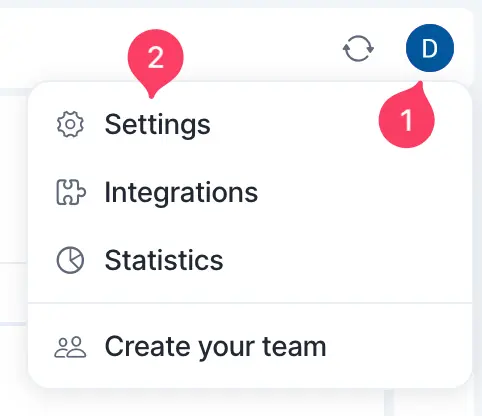
Find “Calendars” in the left sidebar. Click it. You can add Google Calendar or Outlook Calendar from here.
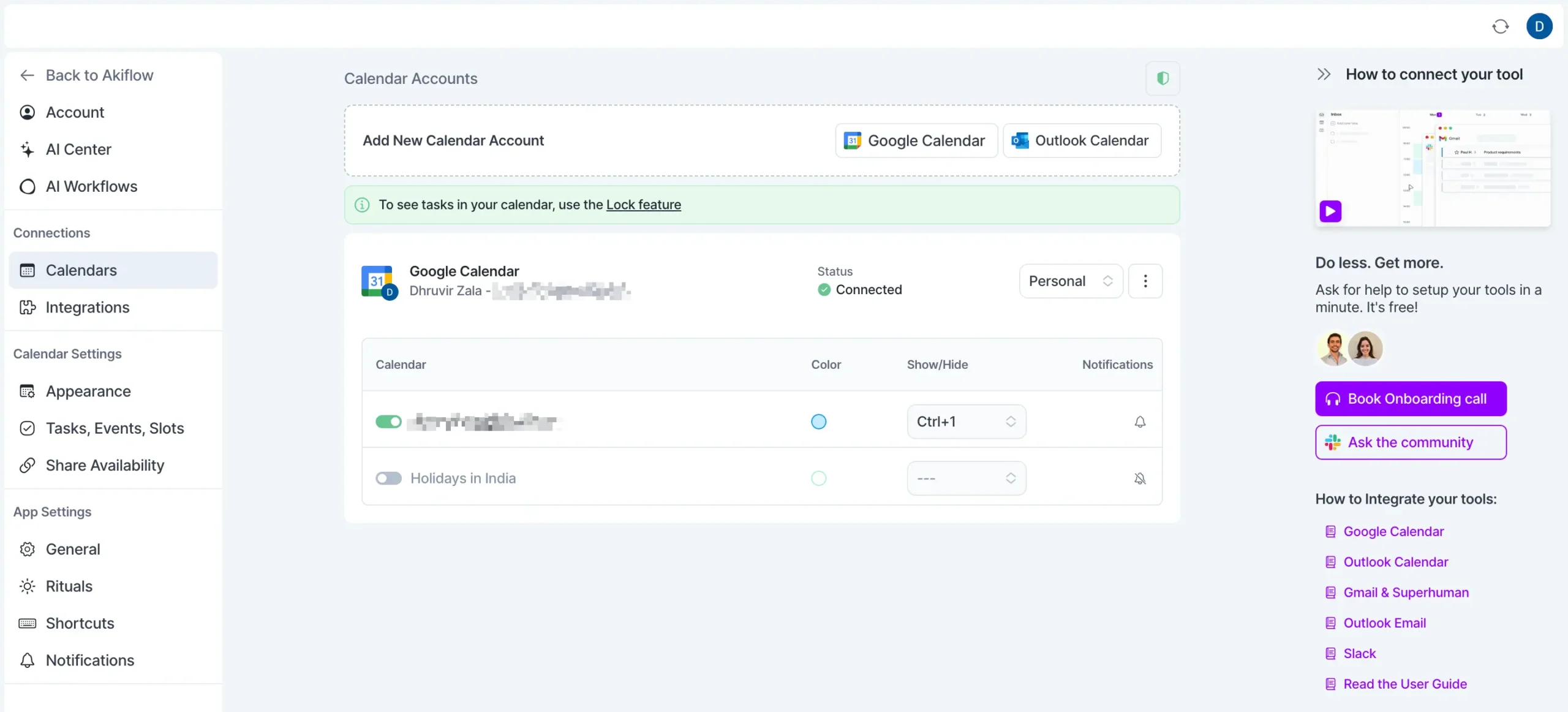
Once your calendar is connected, you’ll see all your events inside Akiflow.
Like any good time-blocking tool, Akiflow lets you show or hide sub-calendars. You probably have a personal calendar, a work calendar, and maybe a holiday calendar. You don’t always need to see all of them.
You can view your calendar in different ways: 1–6 days, 1 week, or 1 month. Pick whatever matches how you think about your schedule.
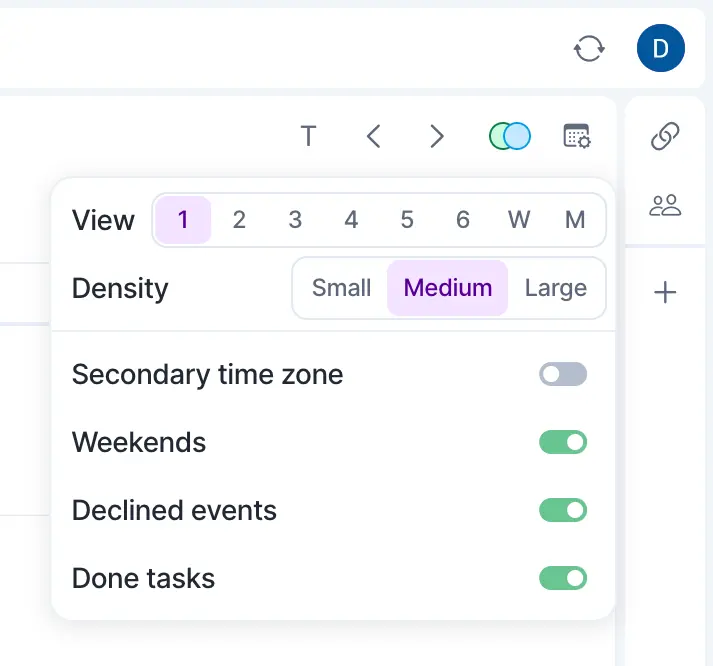
Here’s something useful: you can add multiple time zones to your calendar. If you’re scheduling a call with someone in London or Tokyo, you can see their timezone right below yours.
To do this, open the command bar. Either click it at the top or press Command+K (or Control+K on Windows). Search for “Edit Secondary Time Zone.” Pick the timezone you want and add it.
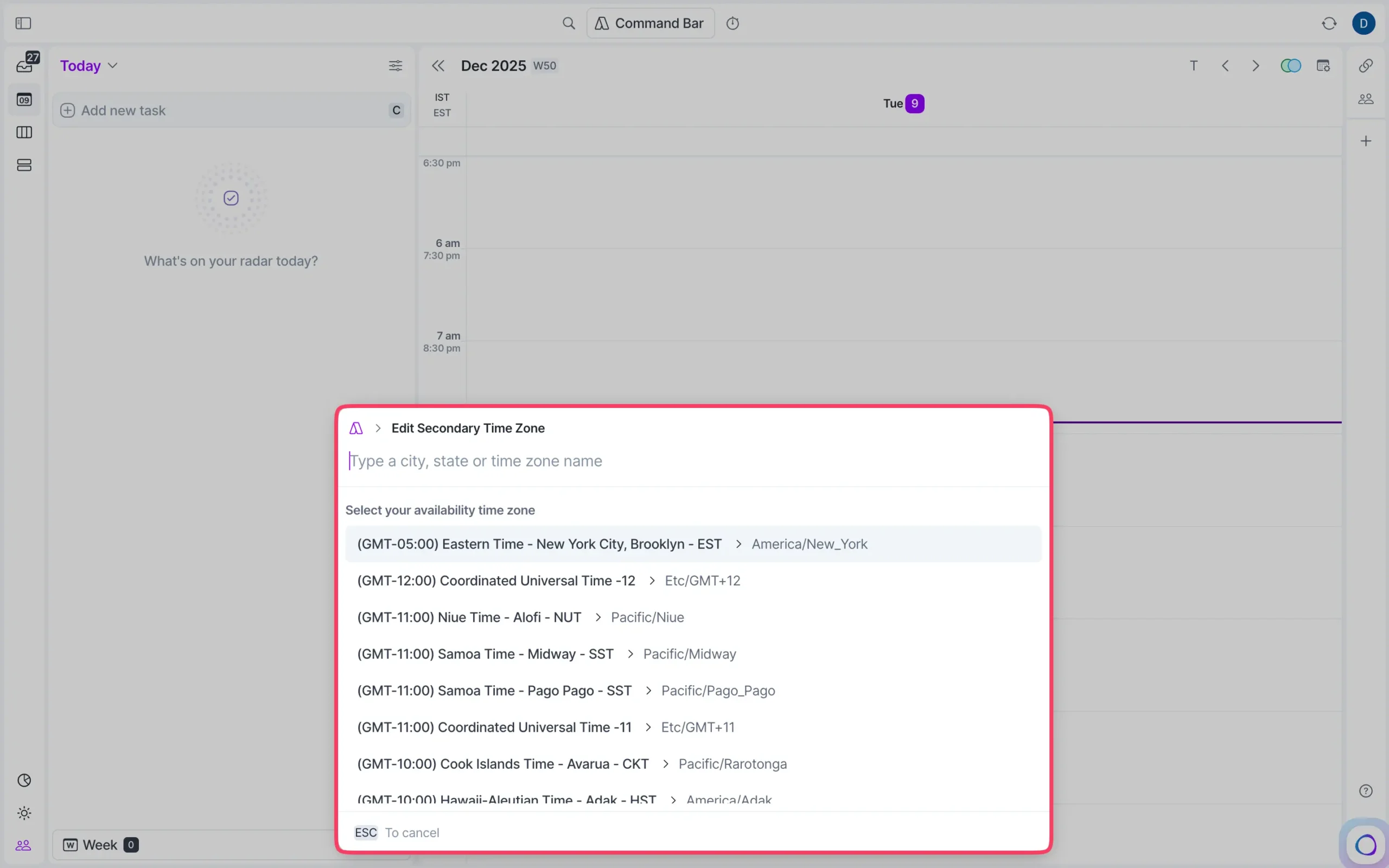
Akiflow supports basically every timezone. You can add or remove secondary time zones from the calendar settings at the top whenever you need them.
If you’re working on a team, you can also see each other’s calendars with one click. Useful if you’re trying to find time when everyone’s free.
Now here’s where Aki gets interesting.
You can tell Aki to change your calendar. Want to move your 6 AM workout to 9 AM? Just ask.
But I should be honest: Aki is new and still learning. When I tried moving my workout session, it took several prompts before Aki understood what I wanted. Sometimes you need to be very specific about what you’re asking for.
A few things that help: give your tasks and events simple names. In my experience, Aki works better with “Morning workout” than “30-min HIIT session at gym.” Also, Aki won’t move tasks to times that have already passed, which is good.
This is just one example of what Aki can do. I’ll show you more in the Aki section later.
Akiflow also has a focus timer. It’s based on the Pomodoro technique—work for a set time, then take a break.
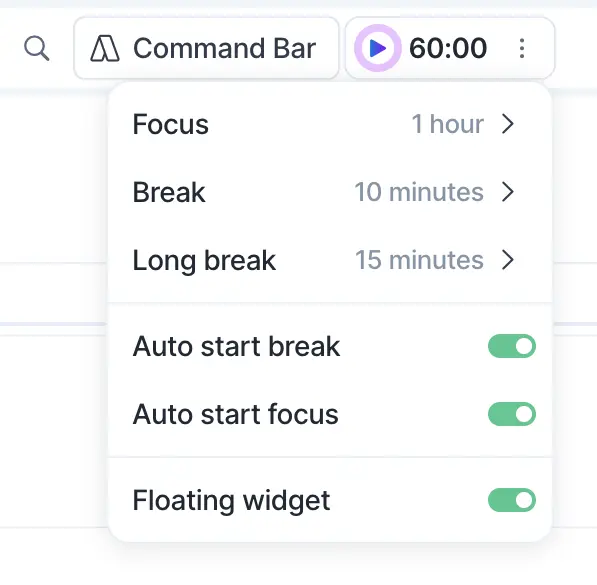
Pick a task, set how long you want to work on it, set your break duration, and start.
The best part?
If you’re using the desktop app, the timer follows you everywhere. This actually helps you stay on task instead of getting pulled into email or Slack.
But time blocking is only half the equation. The other half is daily planning—actually deciding what goes on your calendar in the first place.
That’s what I want to talk about next.
Rituals force structured daily planning in under 5 minutes
Akiflow has a feature called Rituals. It’s basically a structured way to start your day, end your day, plan your week, and review your week.
It works like Sunsama’s planning feature. Same idea, slightly different execution.
Look at the bottom left of your screen. You’ll see a sun icon with “Daily Planning” next to it.
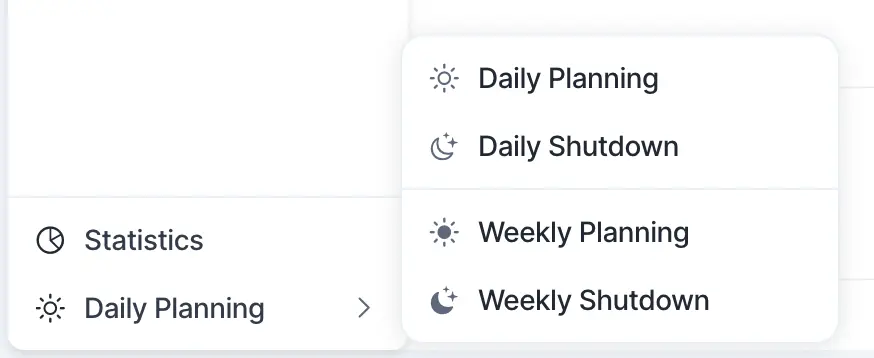
Click it, and you land on the planning screen.
Everything happens on one page. That’s what I like about it. Sunsama makes you click through multiple screens to plan your day. Akiflow just shows you everything at once.
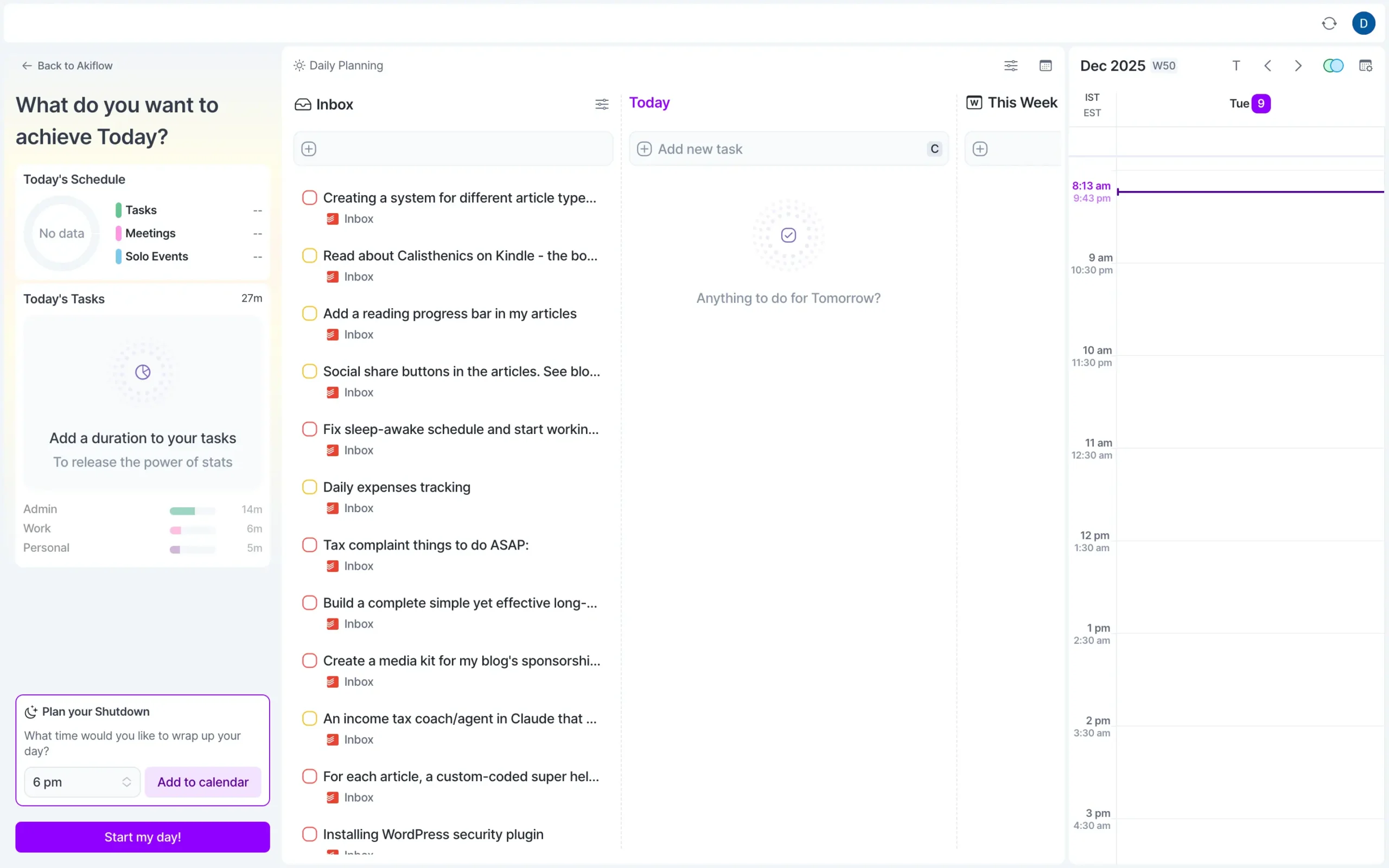
Start by setting when you want to stop working. Bottom left corner, there’s a “Plan your Shutdown” section. Pick a time, click “Add to calendar,” and it blocks that time on your schedule.
The middle panel is where the work happens. You see your Inbox on the left, then three columns: Today, This Week, and This Month.
Drag tasks from your Inbox into whichever column makes sense. As you add time estimates, tags, and projects to each task, the left sidebar updates with a pie chart showing your schedule.
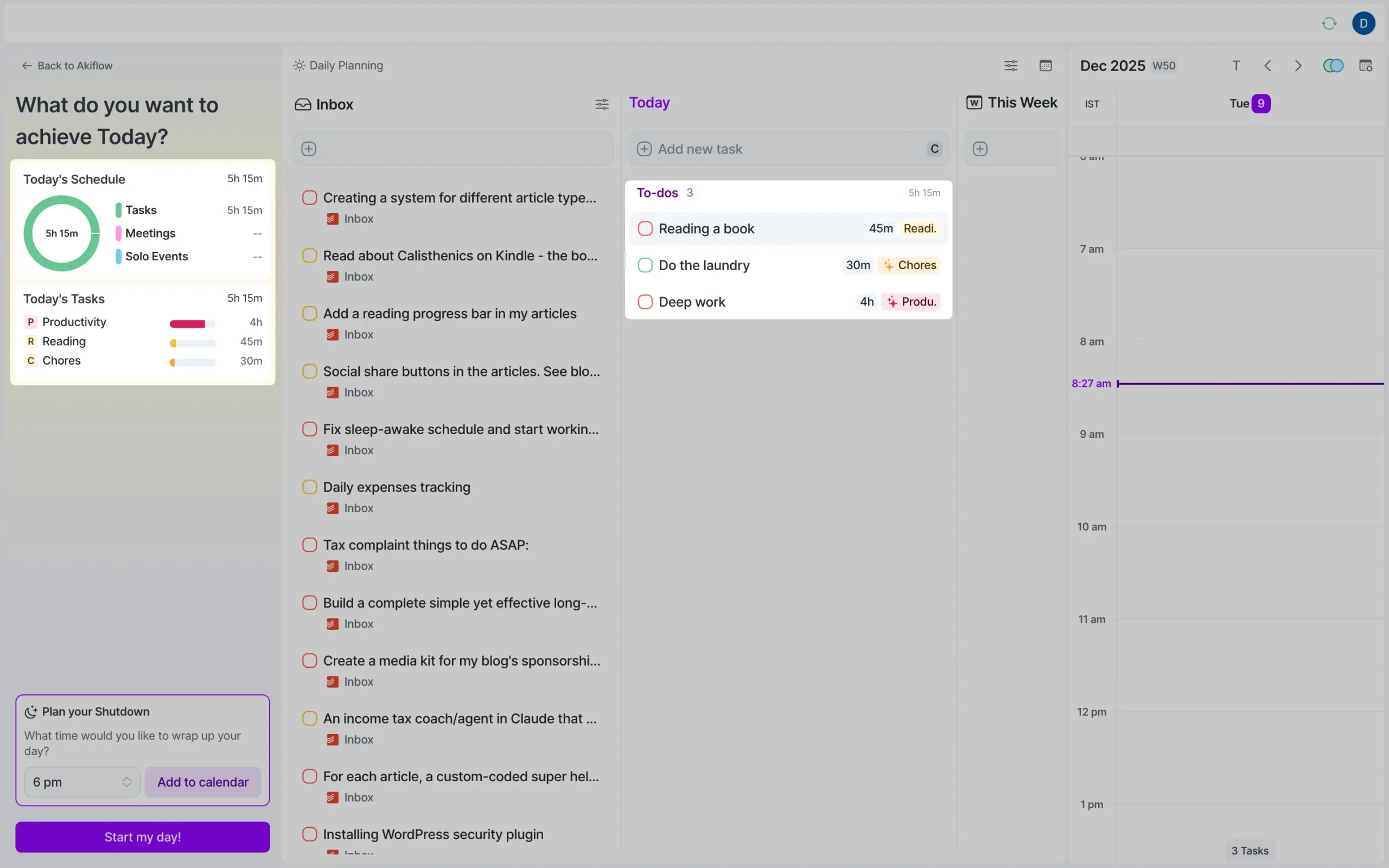
You also see total time on tasks by project, total time on meetings, and other basic stats. It’s simple data, but presented well.
Now drag your tasks onto the calendar timeline on the right. That’s your time blocking.
When you’re done—and this should take less than five minutes—click “Start my day” at the bottom.
That’s it. You’re ready to work.
Daily Shutdown is the same idea in reverse. At the end of your day, Akiflow shows you what you completed, asks how you’re feeling, and lets you reflect on the day.
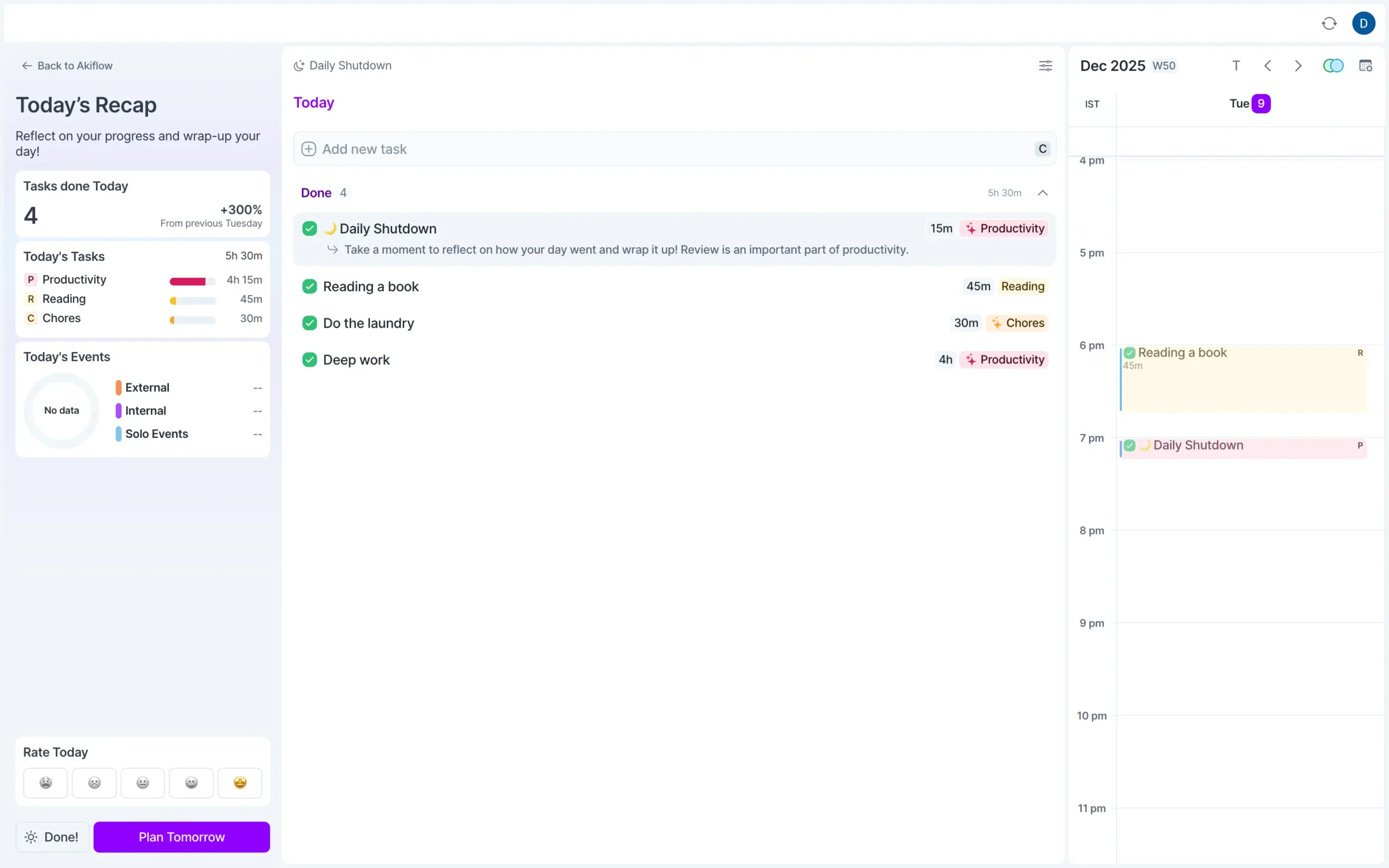
After you finish, you can start planning tomorrow. The button is right there.
Weekly Planning works the same way, just bigger. Instead of planning one day, you plan the entire week. Drag tasks into each day, time-block them, and set your goals.
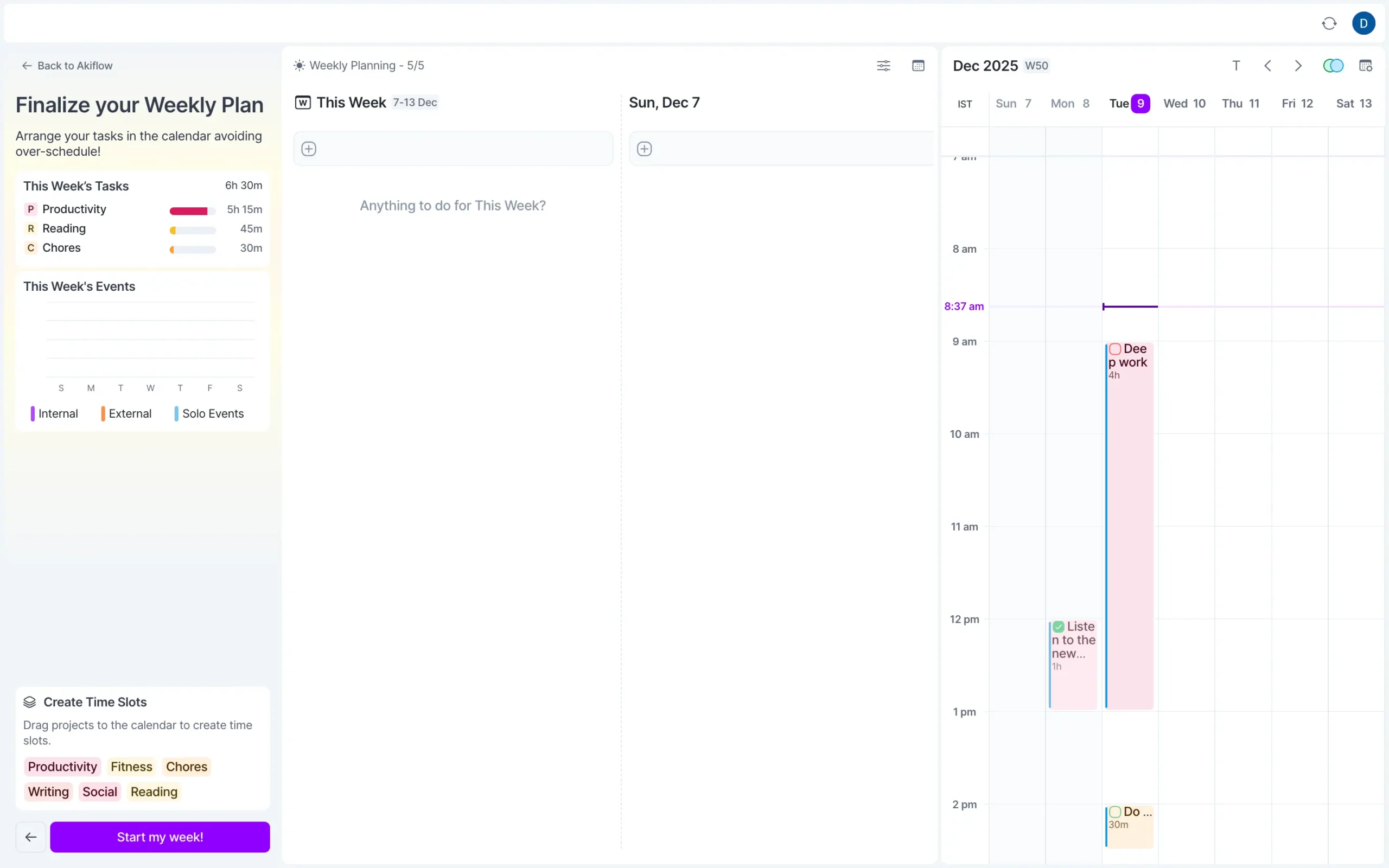
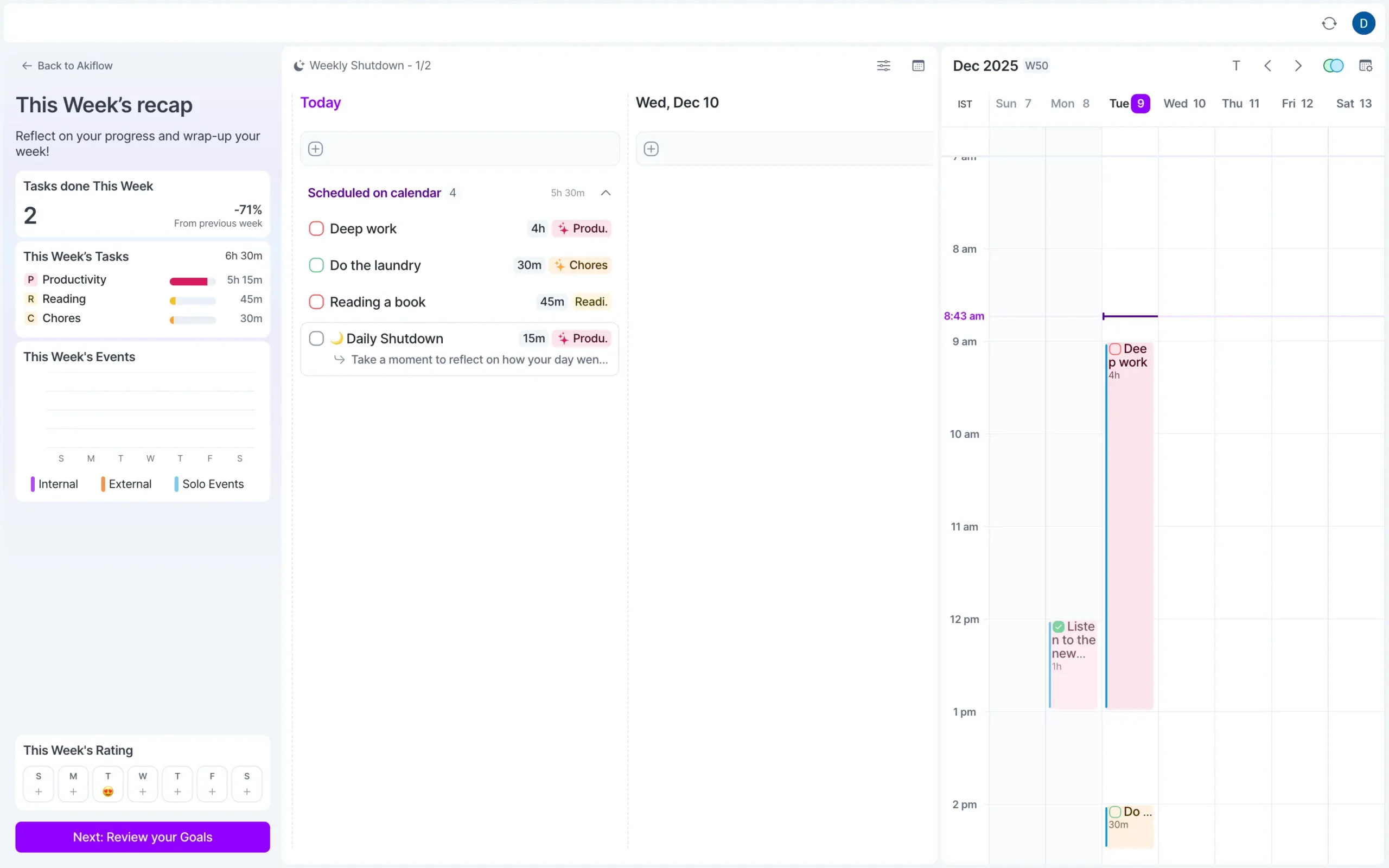
Weekly Shutdown is your end-of-week review. You see everything you worked on, how much time you spent on each project, and how you’re feeling about the week.
Now here’s where Sunsama does this better.
They give you a dedicated space to journal. When you’re reflecting on your day or week, you can write out your thoughts. It’s clean, focused, and doesn’t feel like an afterthought.
Akiflow doesn’t have that yet. The reflection part feels more like checking boxes than actual reflection. You can rate your day, but there’s no space to think through why.
It still gets the job done.
You’ll plan your days, you’ll review them, you’ll build the habit. But if journaling matters to you, Sunsama handles that piece better.
If you want to tweak how these rituals work, go to Settings > Rituals.
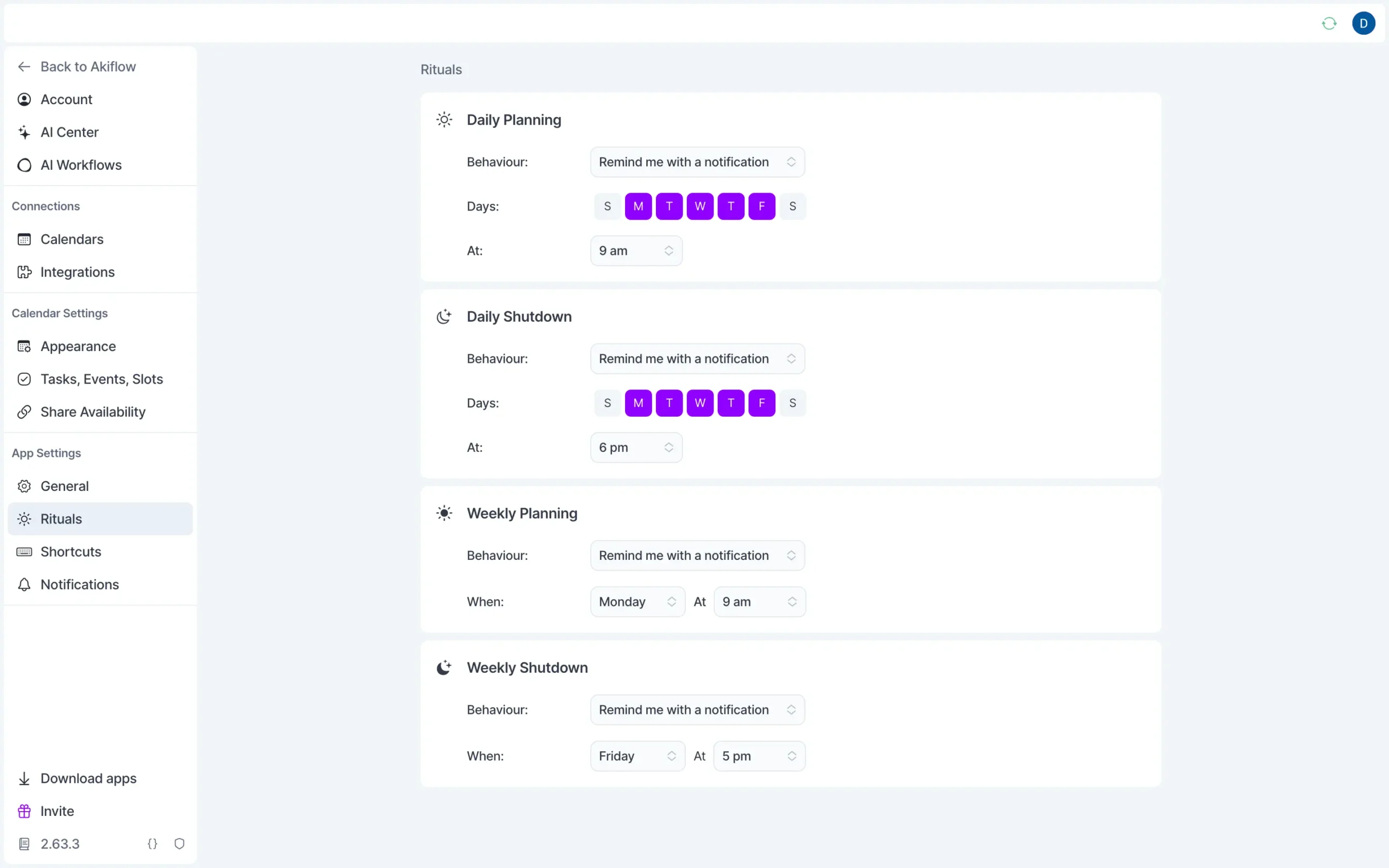
You can set when you want to be reminded to plan, which days you want rituals on, and what time they should trigger. Basic settings, but useful.
The real question is whether these rituals actually help.
I think they do, but mainly because they force structure. You can’t just dive into work or end your day randomly. The ritual creates a checkpoint.
But the value depends on whether you’ll actually use it. If you skip it a few times, it becomes annoying. If you do it consistently, it compounds.
Aki AI assistant makes Akiflow feel like it has a brain
Most AI assistants just answer questions. You ask, they respond. That’s it.
Aki can take action. You can say, “move my workout to tomorrow at 6 am,” and it just does it, as we saw before.
You talk to Aki like you’d talk to an assistant.
Type in the chat, send a voice message, or just hit Command+E from anywhere on your computer and speak directly to it. It supports over 50 languages for text and 30+ for voice.
Here’s what surprised me: I can email Aki. There’s a unique email address (aki@akiflow.com) in Settings > AI Center. Forward something there, and it turns into a task or event.
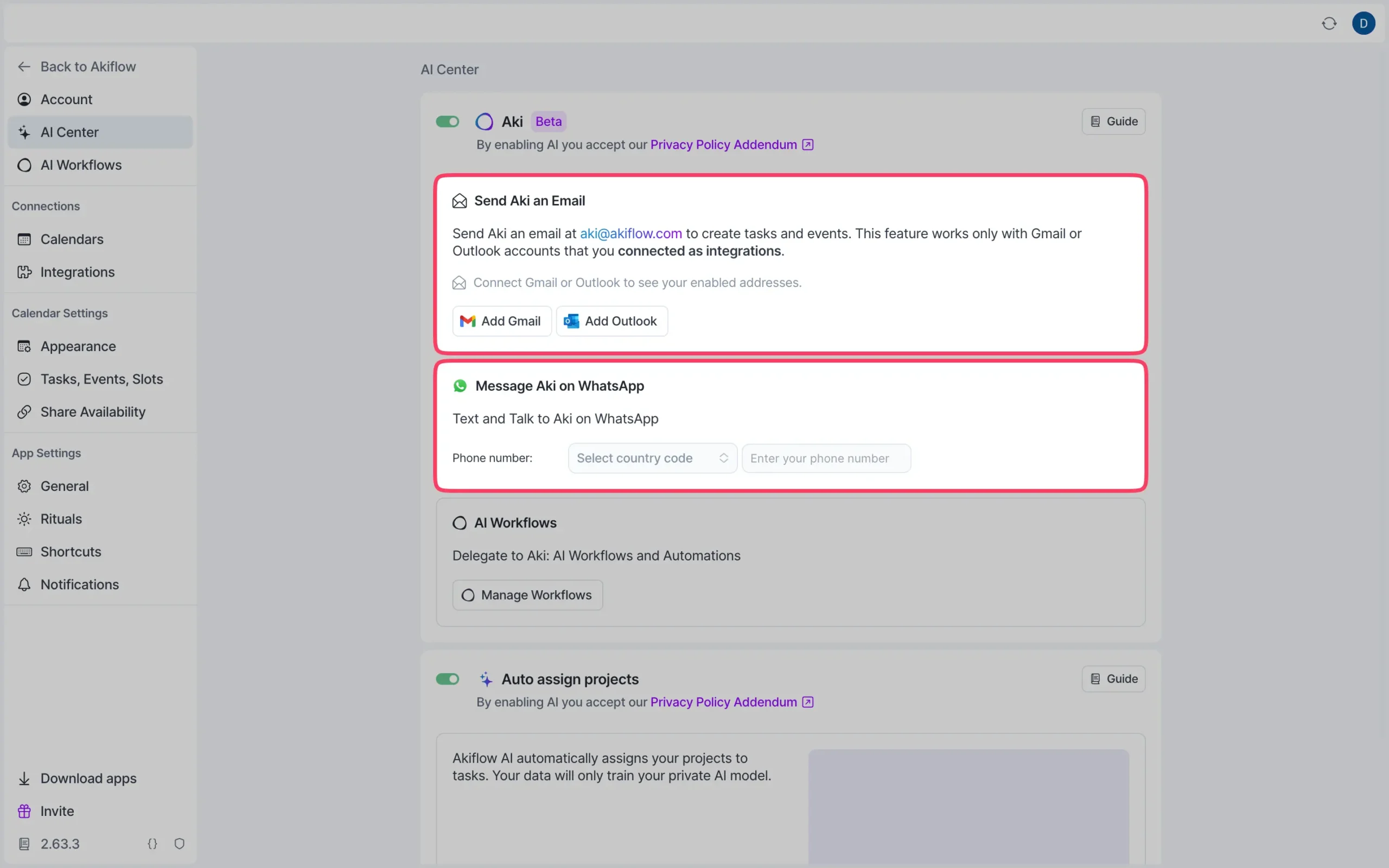
This matters if you’re someone who lives in email. Instead of copying and pasting things into Akiflow, you just forward them to Aki. It figures out what you want and creates it.
You can also message Aki on WhatsApp, which feels ridiculous until you realize how useful it is when you’re away from your desk.
Aki’s real power shows up in three areas:
- managing your schedule
- running workflows
- and smart planning.
For schedule management, Aki sees everything. Tasks, time slots, events.
Ask “what’s my next free slot?” or “when am I meeting with Mitalee?” and it tells you. Ask it to reschedule something, and it moves it.
The AI understands context. If you say “move this to when I’m free on Friday,” it finds an open spot and puts the task there.
Creating tasks and events works the way you’d expect. Say “remind me to call the accountant next Monday at 2pm” and it creates the task.
Say “create a meeting with Ishita Friday at 9am to review designs,” and it adds the event, finds Ishita in your contacts, and includes a call link if you have that set up.
The fields Aki understands: title, date and time, duration, recurrence (for tasks only), description, deadline, priority, projects, and tags. It can’t create new projects or tags, but it can assign existing ones.
Then there are Workflows. This is where Aki becomes proactive instead of reactive.
A workflow is basically a recurring automation.
You set a schedule and tell Aki what to do. Every morning at 7:30, check the weather. If it’s good, add a run to my calendar. Every weekday at 6 pm, review my overdue tasks and suggest when to reschedule them.
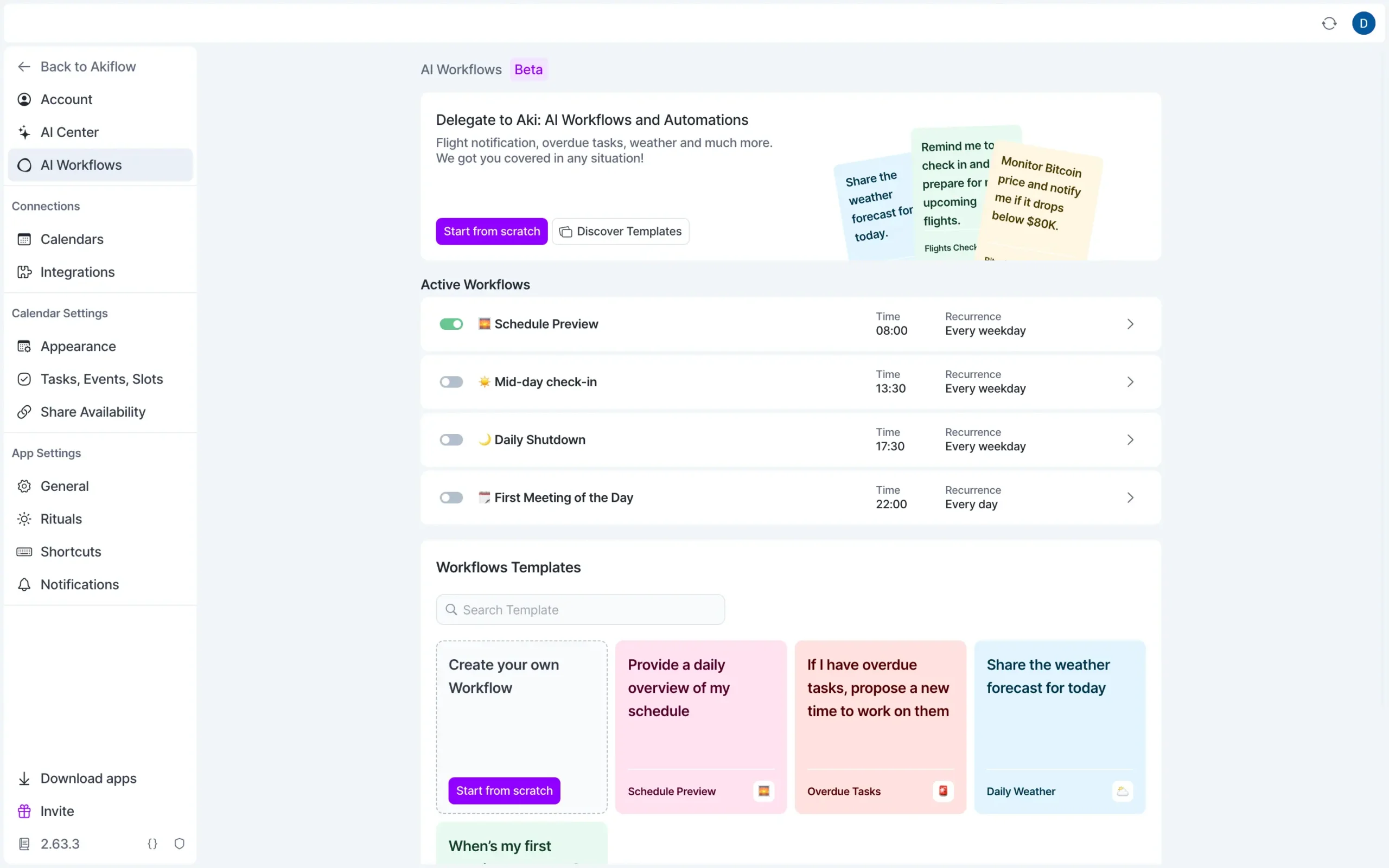
Setting up a workflow is straightforward. Go to Settings > AI Workflows. Either start from scratch or pick a template.
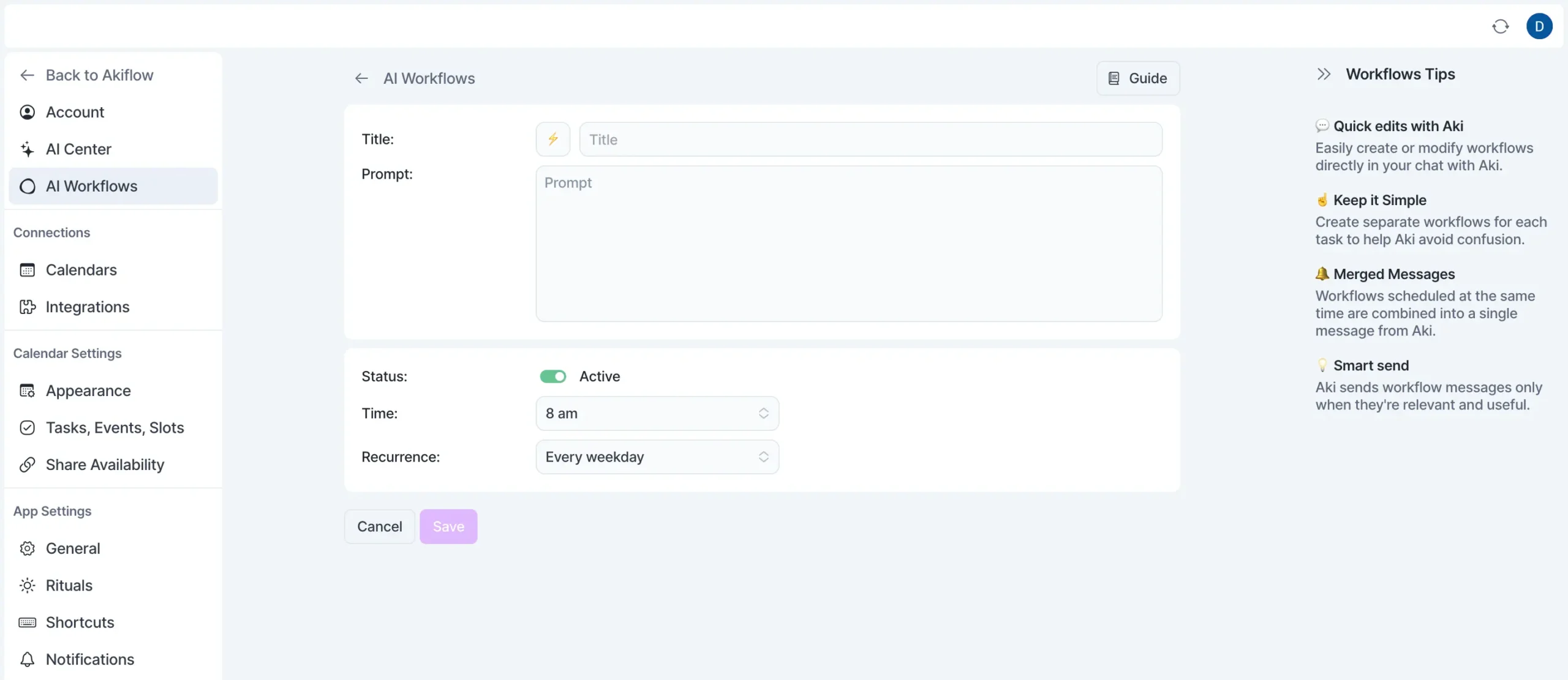
When you create a workflow, you give it a title, write a prompt (what you want Aki to do), set when it should run, and choose the recurrence. That’s it. Aki handles the rest.
One nice detail: if you have multiple workflows scheduled within 15 minutes of each other, Aki combines them into a single message. So instead of getting pinged three times between 8 am and 8:15 am, you get one message with all three updates.
Now, here’s the thing about workflows that most people miss.
Aki also has a personalized memory. It remembers things you tell it about yourself. Your preferences, your patterns, your goals.
This memory stays with you across conversations, which means Aki gets better at helping you the more you use it.
There are limitations worth knowing about.
Aki can’t create recurring events yet—only recurring tasks. It can modify single instances of recurring events, but not the entire series.
It can’t create projects or tags, only assign existing ones. It doesn’t support Someday tasks. And workflows can’t create other workflows (which makes sense, but you might wonder).
Sunsama doesn’t have anything like Aki. No AI assistant, no workflows. Their AI voice assistant, Sunny, is impressive, but it is still in beta. If you want automation, you’re on your own.
Aki is different because it’s interactive. You can have a conversation with it.
You can say, “I’m feeling overwhelmed, show me only high-priority tasks for today,” and it filters everything else out. Or “what are my goals on Friday?” and it shows you tasks with goal status.
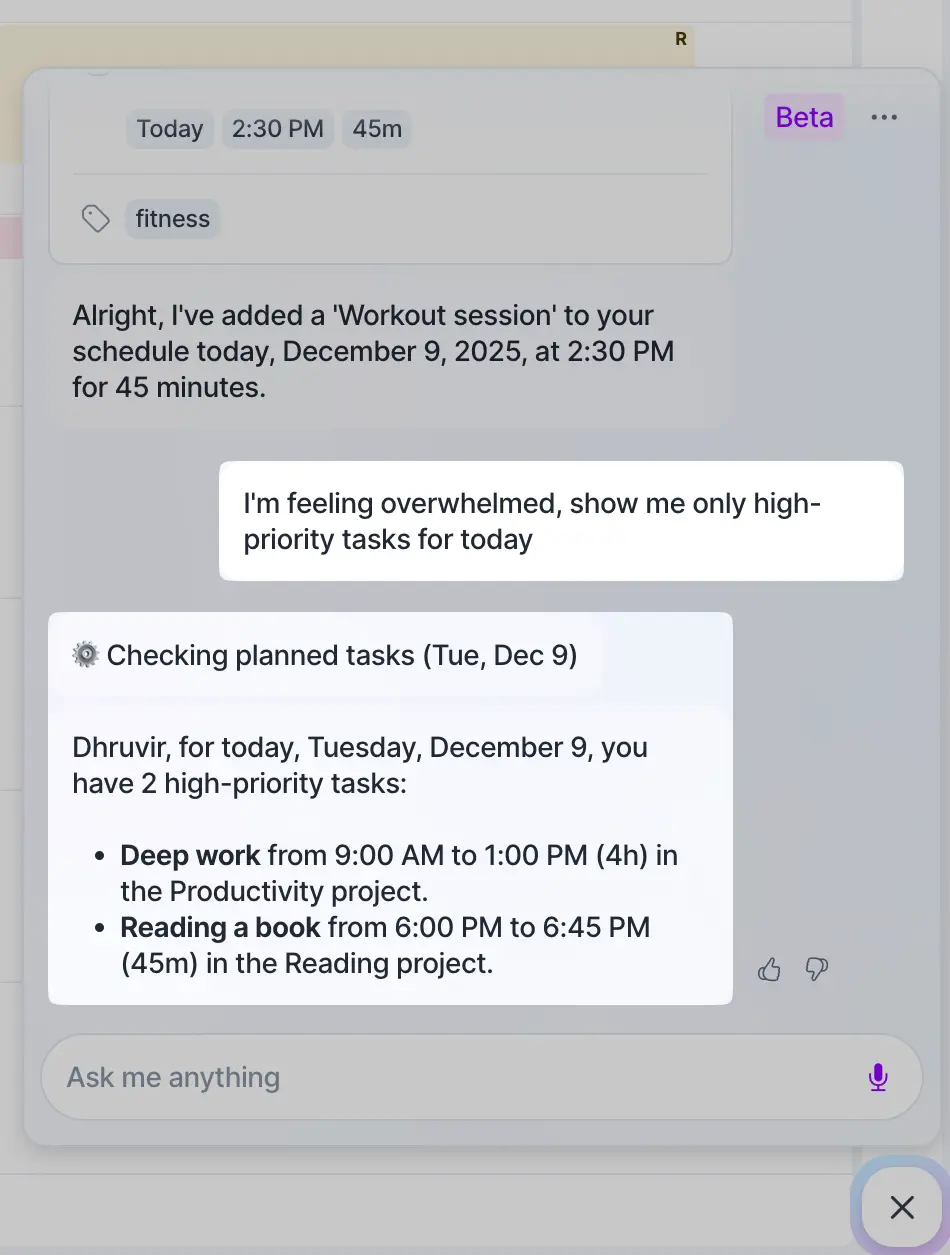
The beta label is still there for a reason.
Aki sometimes misunderstands requests. Sometimes you have to rephrase things a few times before it gets what you mean. But when it works—which is most of the time—it feels like the future.
Aki is valuable because it removes friction. Every time you have to open a menu, click a button, fill in a form, that’s friction. Aki lets you skip all of that and just say what you want.
That’s what AI should do in productivity tools. Not just answer questions. Actually make things happen.
The command bar eliminates mouse clicks entirely
The command bar is what makes Akiflow fast. Press Command+K (Control+K on Windows), type what you want, and you’re done.
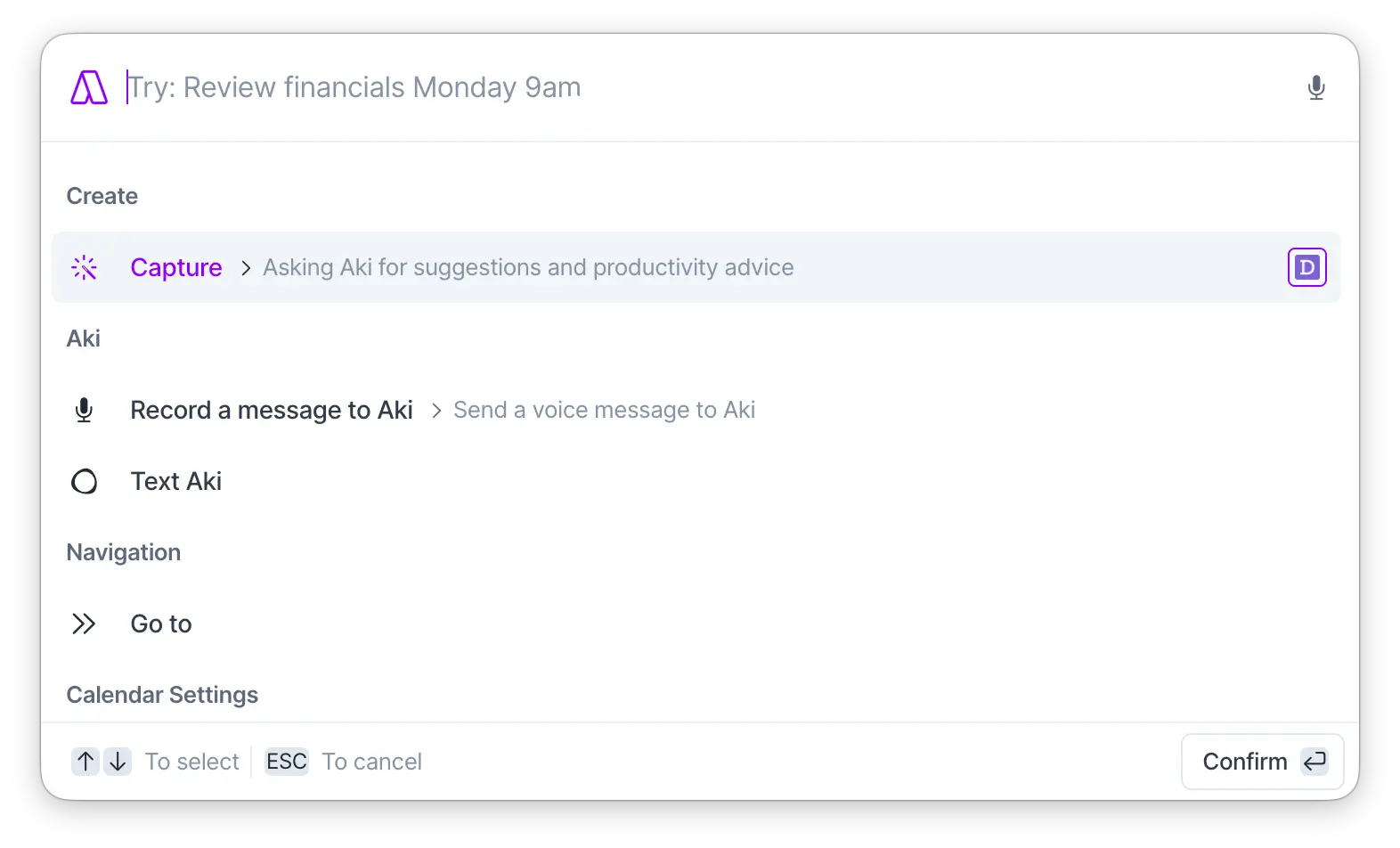
The command bar works in two places. Inside Akiflow, you open it with Command+K. Outside Akiflow—anywhere on your computer—you open it with Command+E.
Inside the command bar, you can do basically everything without touching your mouse.
There is natural language processing, and it works pretty well. You can say “next Monday”, “in 3 days”, “Friday at 9am”, “next week”, and Akiflow figures it out.
But the real power comes from special characters.
These are symbols you add while typing to set task properties instantly. No clicking. No separate fields. Just type everything in one line.
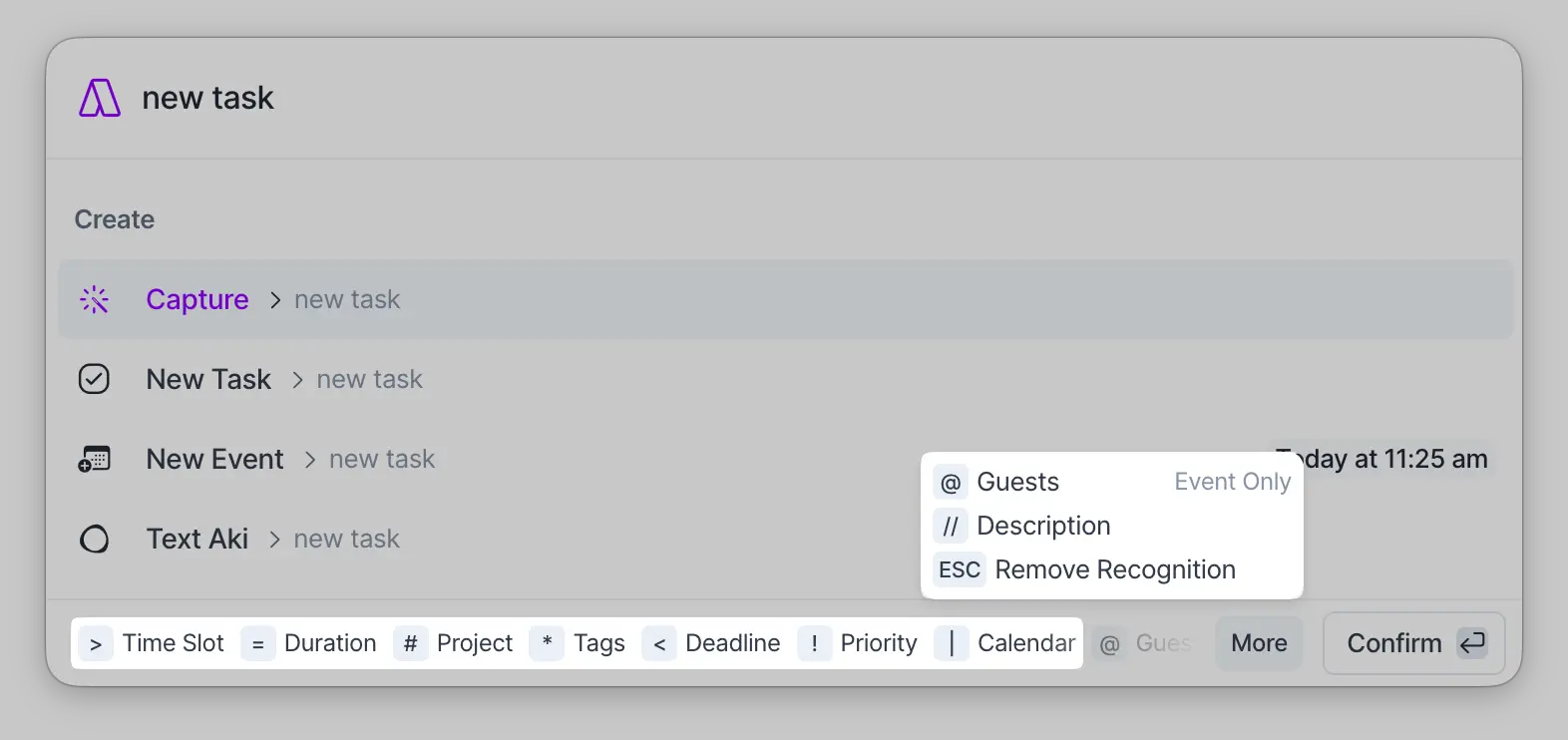
Important detail: Don’t put spaces between the special character and what follows. Type #work not # work. Akiflow won’t recognize it with the space.
Now, here’s where the command bar gets interesting. It’s not just for creating things.
When you have a task selected, press Command + K, and you see actions you can take on that task. Plan it. Move it to the inbox. Mark it done. Assign a project. Set it as a goal. Lock it to your calendar. Duplicate it. Delete it. Everything.
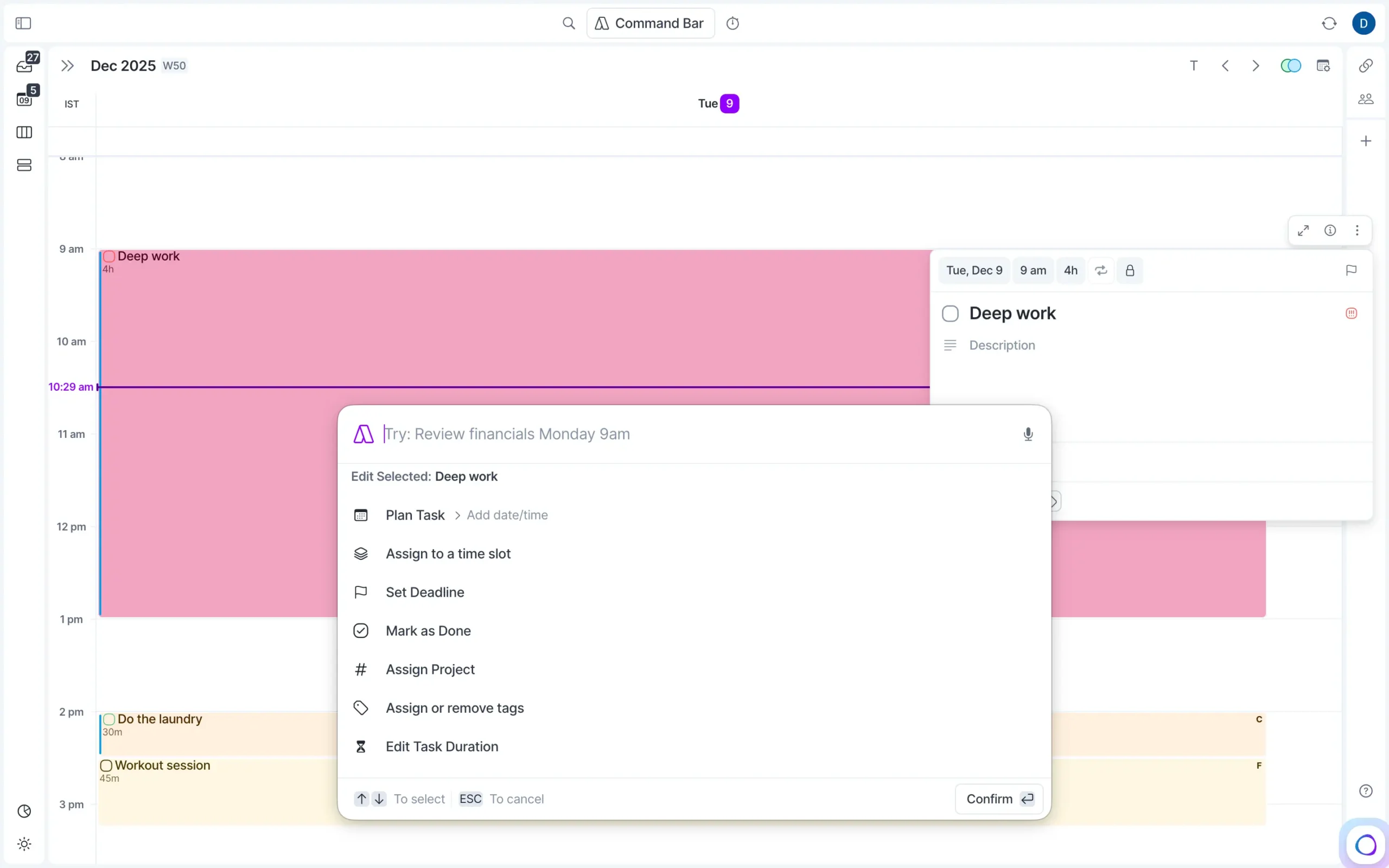
The “Go to” command is worth knowing about. Press G inside Akiflow (or type “Go to” in the global command bar) and you can jump anywhere instantly.
Go to your inbox. Go to a specific project. Go to a date—type “next week” or “December 15,” and you’re there. Go to the Upcoming view. Go to a specific project section.
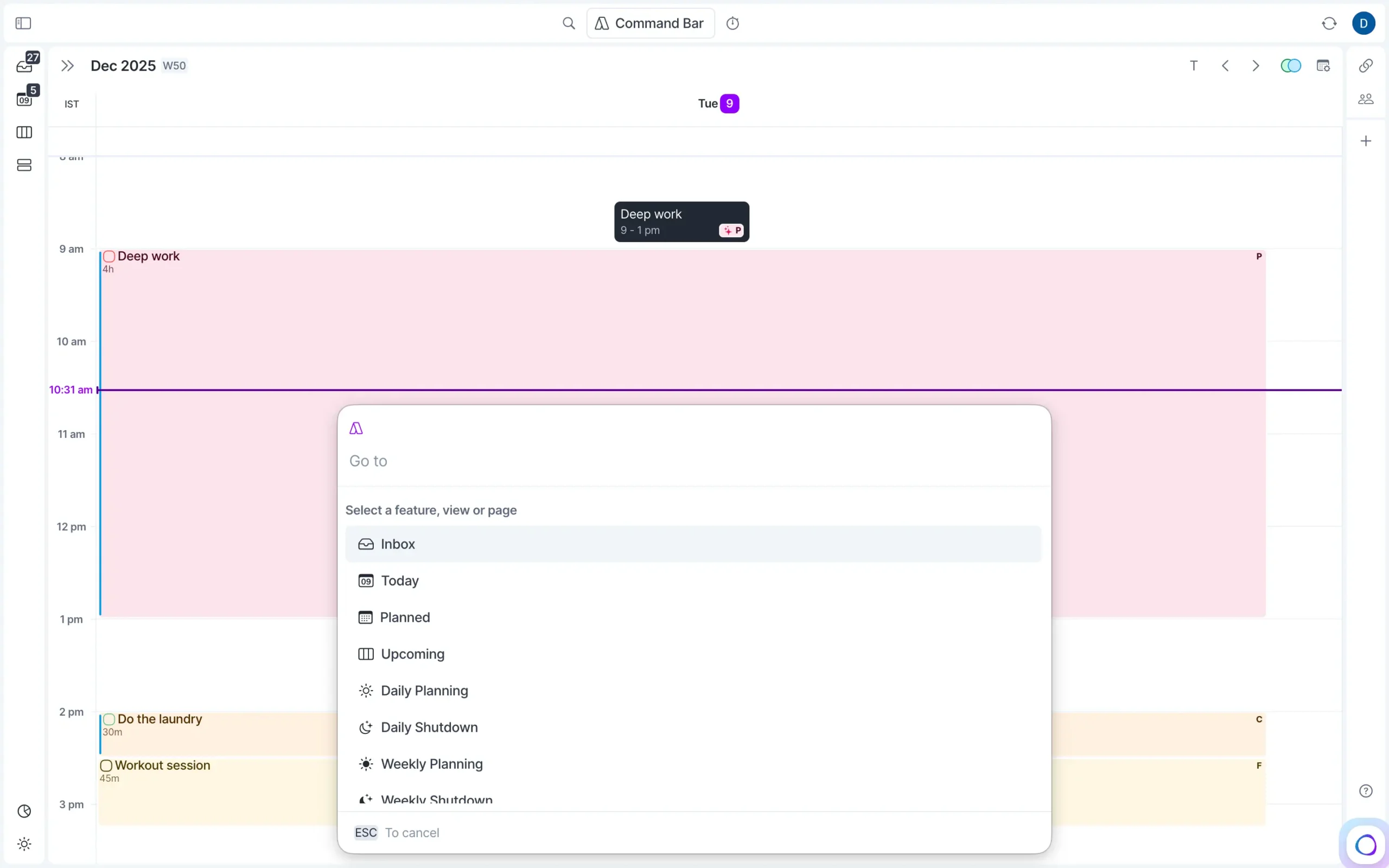
This is faster than clicking through your sidebar or scrolling through your calendar.
Every single keyboard shortcut in Akiflow can be customized. Go to Settings > Shortcuts, and you’ll see the complete list.
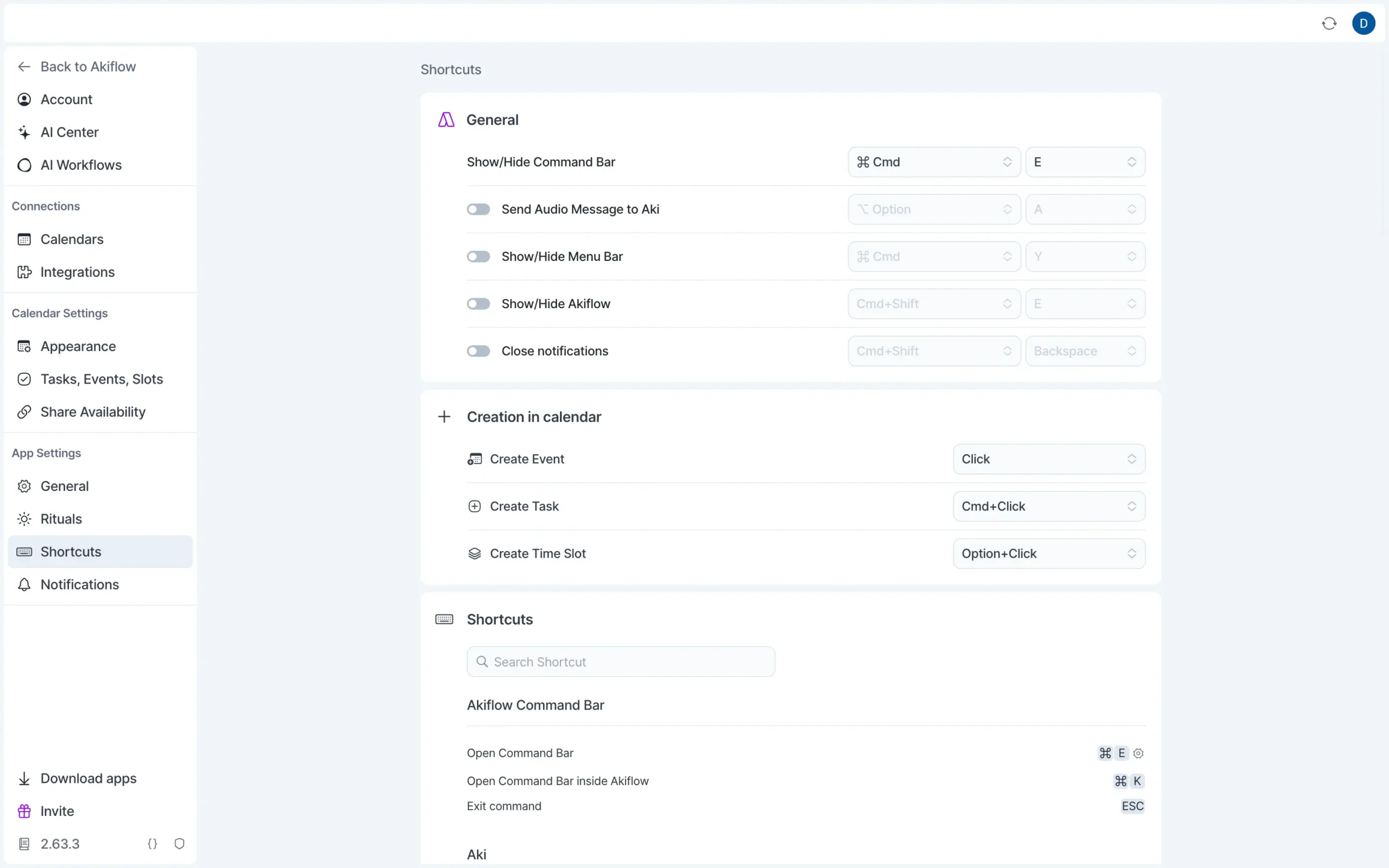
Akiflow built the entire interface around keyboard-first navigation. The command bar isn’t a feature bolted on—it’s how you’re supposed to use the tool.
If you’re someone who lives in keyboard shortcuts—if you’ve memorized Gmail’s shortcuts or VS Code’s commands—you’ll feel at home in Akiflow.
Availability sharing means one less subscription
You know how this works with scheduling tools. Someone asks when you’re free. You send them a link. They pick a time. Done.
Akiflow does the same thing. But it’s built in, so you’re not paying for another subscription.
Press S or click the “Share availabilities” button in the top right corner.
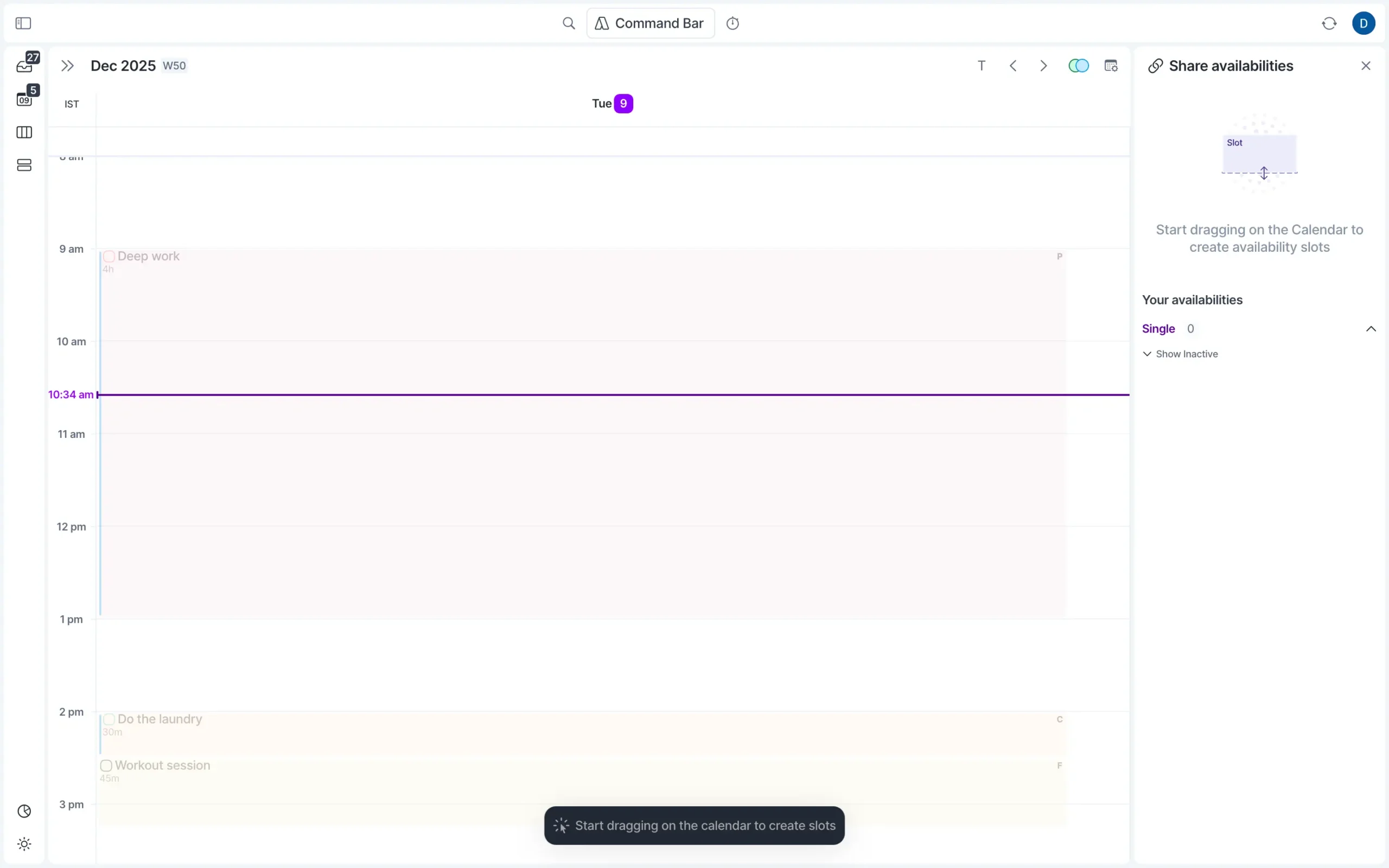
A panel opens on the right side. This is where you manage all your booking links.
You’ll see any active availability links you’ve already created. These stay active until there are no more available slots in the future, or until someone books them (if they’re single-use slots).
To create new availability, just click and drag on your calendar. Drag a single slot for a one-time meeting. Drag weekly slots if you want recurring availability.
When you drag, Akiflow creates time blocks on your calendar. These are the times people can book.
After you create your slots, Akiflow shows two options: copy just the booking link, or copy the link plus text listing all your available times.
Most of the time you’ll copy just the link. The person clicks it, sees your available times on a booking page, and picks one.
For recurring availability, you can select all your work hours at once instead of dragging individual slots. There’s a “Select all work hours” button that fills in your entire week based on your calendar settings.
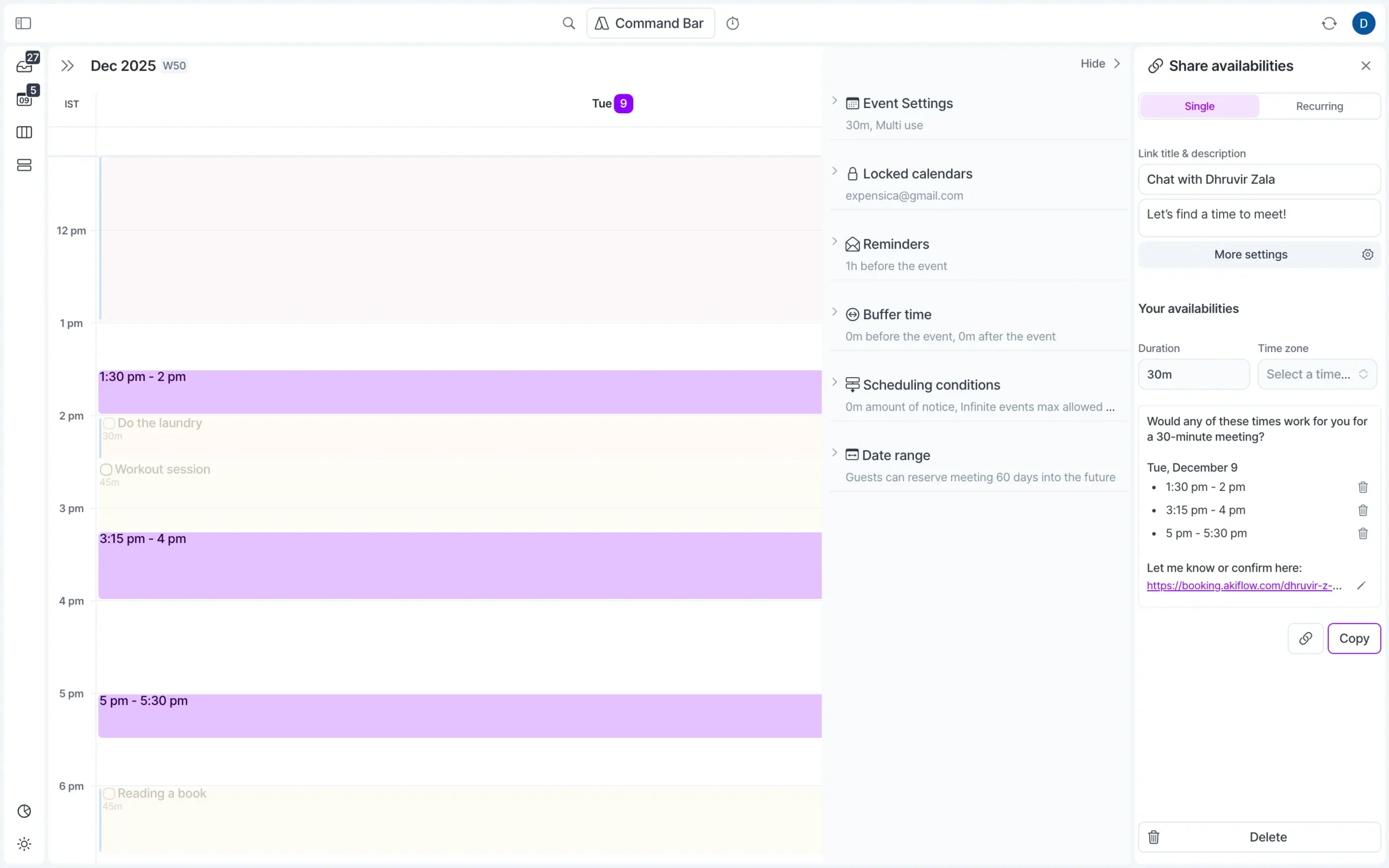
The booking page looks clean. It shows your name, the meeting duration, and all available times. People pick a slot, and it automatically adds the meeting to both calendars.
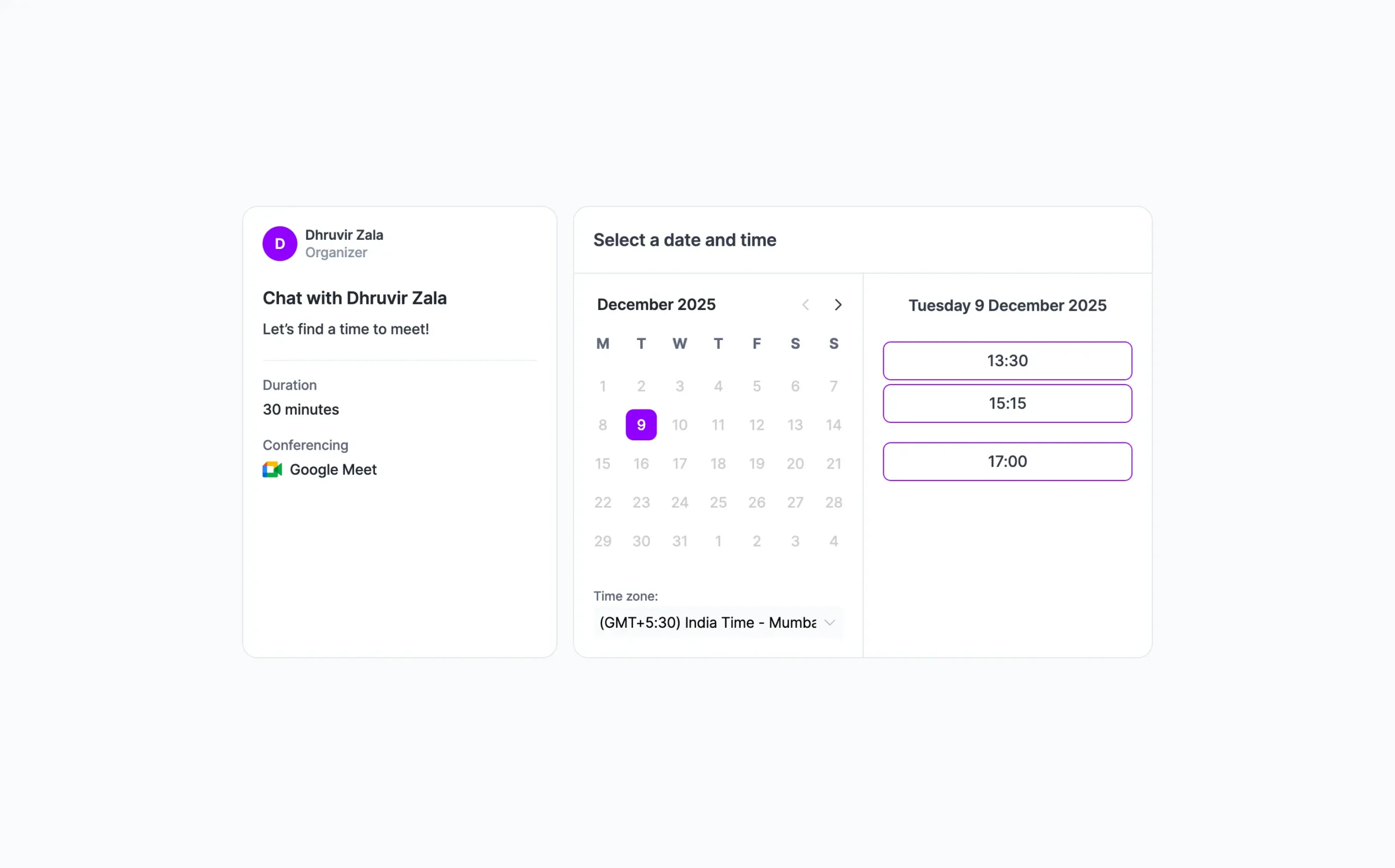
Here’s where it gets useful. Click “More settings” in the availability panel, and you get control over everything.
Sunsama doesn’t have this feature at all. If you’re using Sunsama and need booking links, you’re paying for Calendly on top of it. With Akiflow, it’s just one tool.
Now, there are some limitations.
The booking page isn’t customizable. You get Akiflow’s branding, and you can’t change the layout or colors. If you’re trying to look polished for clients, this might bother you. Calendly lets you white-label everything.
You also can’t collect payment or require guests to fill out forms before booking. Again, if you need that, you’re using Calendly anyway.
But for most people—especially anyone already paying for Calendly just to share their availability—Akiflow replaces it completely.
One more thing: if you’re using the keyboard-first workflow, hit Z while creating slots to quickly change the timezone. Useful if you’re scheduling calls with people in different regions.
The feature works. It’s fast. It saves you money. That’s really all there is to it.
Mobile app captures tasks well, desktop handles serious planning
The mobile app works, but it’s not what you’ll use most.
Akiflow built it as a companion to the desktop version. Not a replacement.
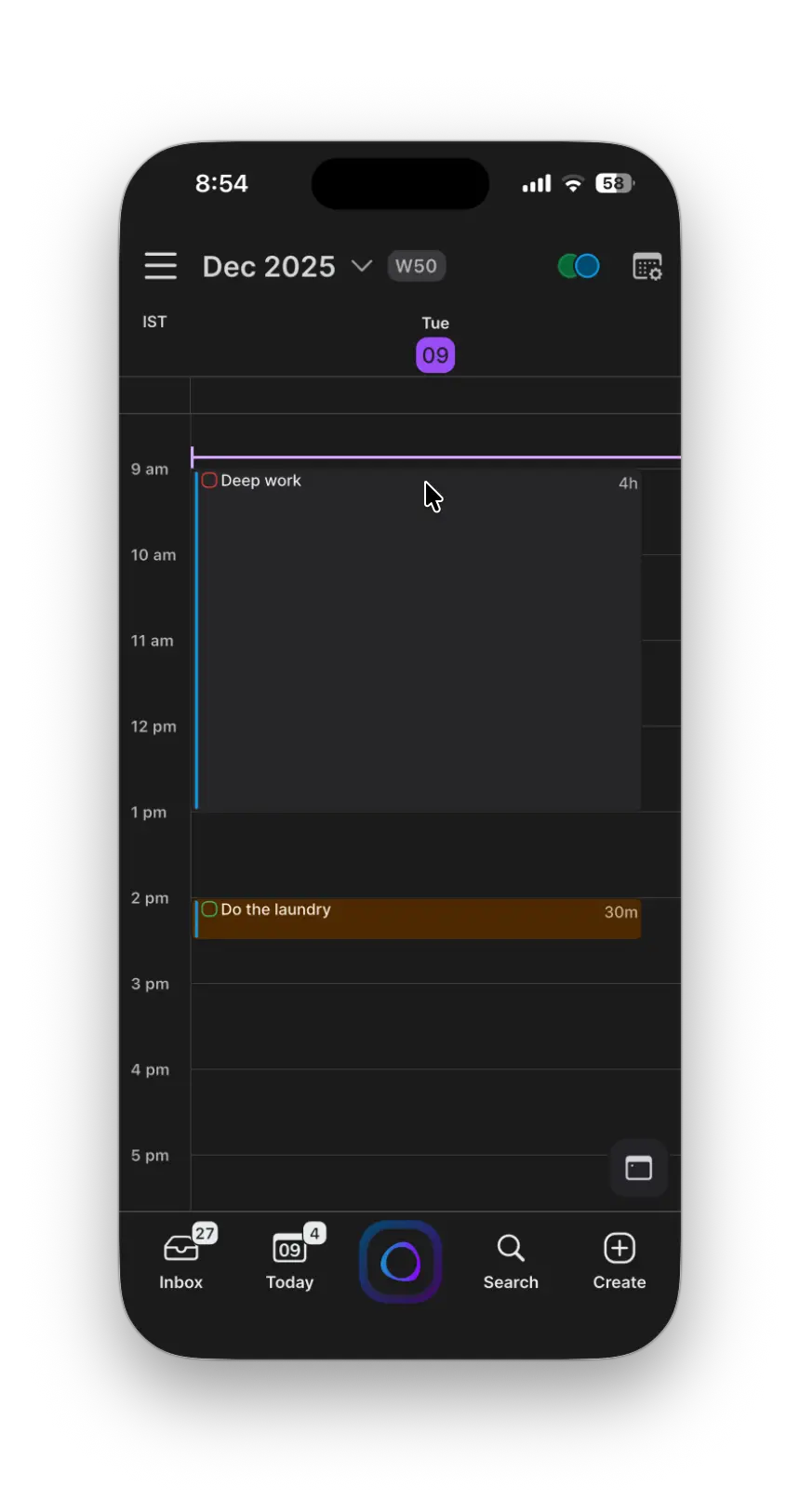
The app opens to your calendar. Bottom navigation gives you quick access to inbox, today’s tasks, search, and create.
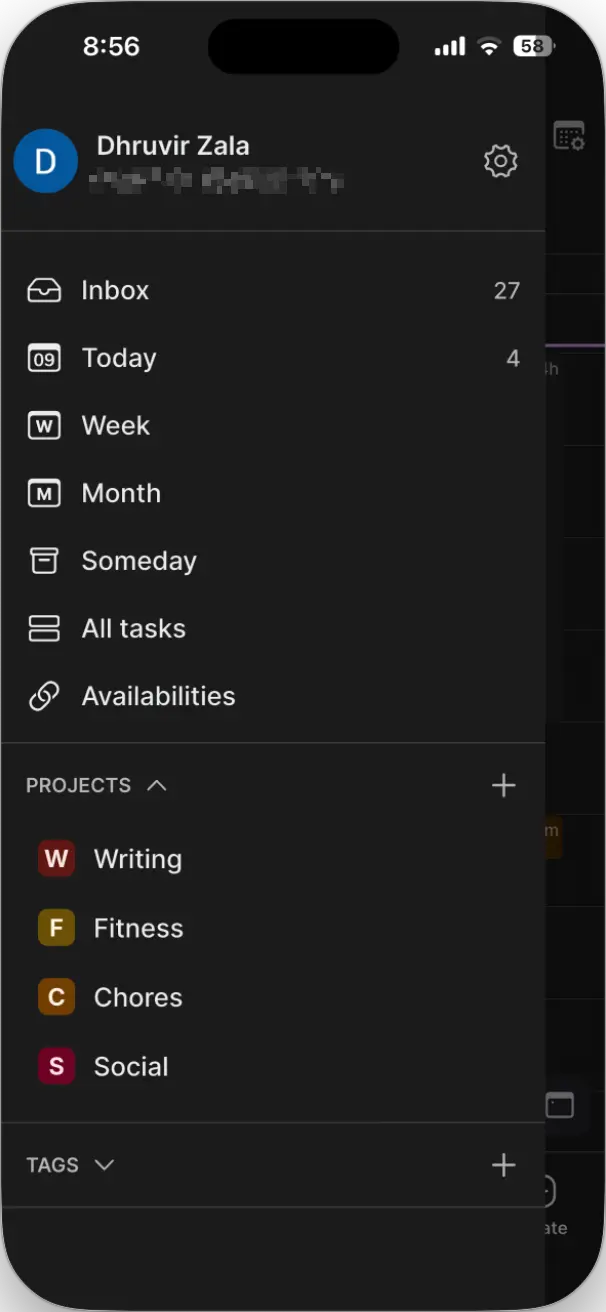
Siri works.
“Hey Siri, remind me to go to the pharmacy today in Akiflow” creates the task. You can also long-press the Akiflow icon on your home screen for quick capture.
Widgets help.
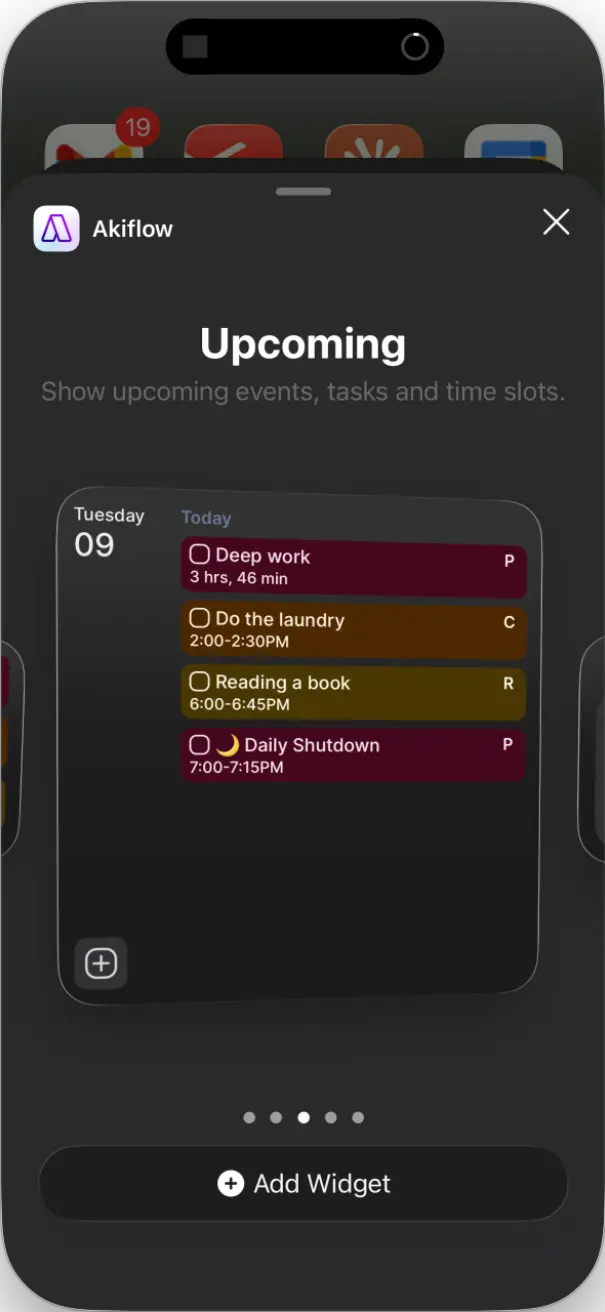
The Upcoming widget shows the next tasks. The Create widget lets you add things without opening the app. Lock screen widgets work too.
Aki works on mobile. Text it or record voice messages. Hold the Aki icon and start talking.
Live Activities on iOS keep your current task visible on your lock screen. Android has a sticky notification instead.
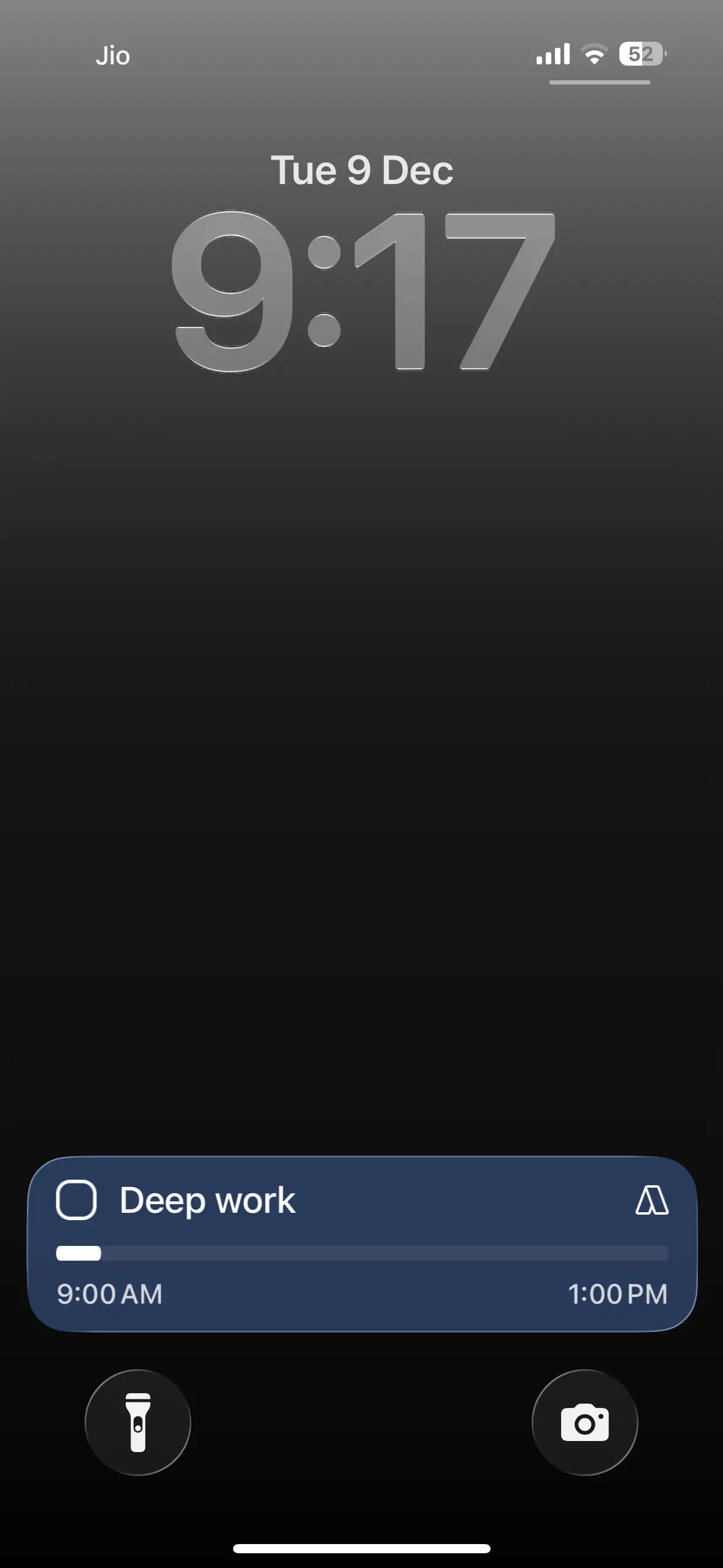
The app works offline. Changes sync when you’re back online.
The mobile app is good for capture and quick checks. Add tasks while waiting. Review what’s next. Record ideas while walking.
But serious planning? Time blocking your whole day? That’s desktop work.
If your desktop is your main workspace and your mobile is your capture tool, Akiflow does that job well.
The widgets alone save enough time that you’ll use them. Just don’t expect it to match the desktop experience.
That’s not what it’s built for.
Akiflow pricing plans
Akiflow has two plans: monthly and yearly. Both give you the same features.
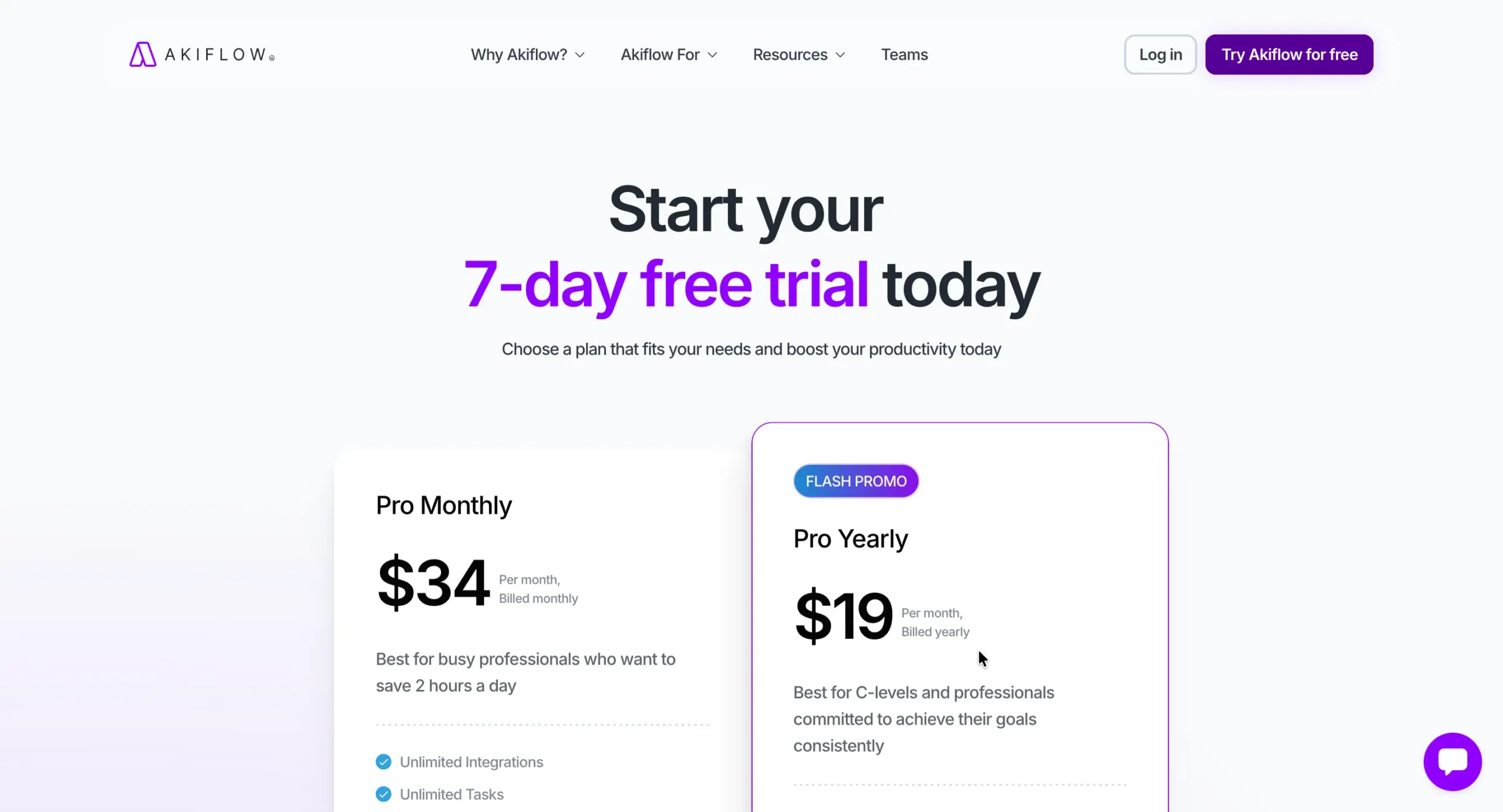
Pro Monthly costs $34 per month. You pay month-to-month, cancel whenever you want.
Pro Yearly costs $19 per month if you pay for the year upfront. That’s $228 annually. You save 44% compared to monthly billing.
Both plans include unlimited tasks, unlimited integrations, unlimited meetings, and full access to Aki. You also get a 1:1 coaching call to help you set things up.
You get a 7-day free trial with full access. No credit card required.
Conclusion
Here’s the question: are you spending thirty minutes every morning opening five different apps to figure out what you’re doing today?
If yes, start the 7-day trial.
Connect all your tools during onboarding. Use the daily planning ritual every morning for a week.
If you’re still manually consolidating tasks by day five, Akiflow isn’t working for you. Cancel.
If those thirty minutes vanished, the $228 per year pays for itself in the first month.
If you’re not losing that much time—maybe you’re only using two or three apps, or your current setup works fine—skip Akiflow.
The price doesn’t make sense.
Stick with what you have, or try Sunsama if you want structured planning without any complexity.
The decision is simple. You either have the consolidation problem, or you don’t.
Share this article:

Want to find the right tool before you pay for the wrong one?
Every week or two, I test a productivity tool and tell you exactly what I found. I spend weeks with each tool so you don’t spend $30 finding out it isn’t for you.
Unsubscribe anytime. No hard feelings.