Sunsama review: The best daily planner ever?

Some links on this page are affiliate links. If you buy something, I get a small cut, at no extra cost to you. I only recommend tools I’d genuinely tell a friend to use. Learn more.
I have been using Sunsama as my daily planner. Not just testing features but actually running my workday through it. I connected my Gmail, Todoist, and calendar.
I did the morning planning ritual every day. I tracked time on 200+ tasks. I wanted to see if it actually solves the scattered workflow problem, or if it’s just another $25/month subscription I would forget about.
This review covers everything that matters:
- how the planning ritual actually works
- which integrations are worth using
- why the shutdown feature changes how you think about ending your workday
- and whether you’ll still be using it after the free trial ends.
My Sunsama review at a glance

Sunsama forces you to plan realistically. If you’re using 5+ tools and working past 6 PM because you overcommit, it’ll save you hours. Pulls tasks from 16 integrations, warns when your plan won’t fit, and makes you stop with a shutdown ritual. The catch: $25/month and minimal AI; you make every decision manually. If that sounds exhausting, skip it. If you’re tired of lying to yourself about what’s possible in a day, try it.
Sunsama pros:
- Overcommitment warnings during planning
- Pulls from 16+ tools into one focused view
- Daily shutdown ritual creates actual boundaries
- Task projections flow around meetings automatically
- Private calendar keeps the external calendar clean
- Focus Mode eliminates all distractions
Sunsama cons:
- $25/month is expensive compared to free alternatives
- Analytics are too basic for serious time tracking
- No AI auto-scheduling means more manual work
- Learning curve for the full workflow
The paid plan starts at $25/month (30-day free trial available)
Typically, Sunsama offers a 14-day free trial. However, if you sign up through my exclusive link, you can get a 30-day free trial.
Feature | Verdict |
|---|---|
Ease of use | Clean, calm interface with a structured onboarding. Takes about a week to understand how channels, objectives, and the backlog all fit together. Not plug-and-play. |
Daily planning ritual | The best part of Sunsama. Walks you through building a realistic plan every morning, warns when you’re overcommitted, and forces you to cut tasks before the day starts. |
Time blocking | Two modes: timeboxing for meeting-heavy days and playlist projections for open days. Auto-rescheduling handles conflicts automatically. |
Integrations | Pulls from 16+ tools including Asana, Jira, Todoist, Gmail, Slack, and Notion. Jira and Asana get 2-way sync. Everything else is 1-way import with completion sync. |
Focus mode | Press F and see one task with a timer. Nothing else. Sounds simple because it is. Removes more mental overhead than you’d expect. |
Weekly review system | Shows time spent by channel, lets you mark objectives complete, and can post directly to Slack or Teams. Useful for checking if your week matched your priorities. |
Shutdown ritual | Triggers at your set time and asks what you accomplished. Two minutes. Makes it genuinely harder to keep working past 6 PM. |
Analytics | Only shows weekly data. No monthly or quarterly views. Useful for gut checks, not serious time tracking. Use something like Rize if you need real numbers. |
Pricing | $25/month or $20/month billed yearly. Worth it if you’re jumping between five tools and working past 6 PM daily. Expensive if you just want a prettier to-do list. |
Platform availability | Web, Android, iOS, macOS, Windows, and Linux. |
What is Sunsama?
Sunsama is a daily planner that pulls your tasks from different tools into one focused view so you can actually plan your day instead of reacting to it.
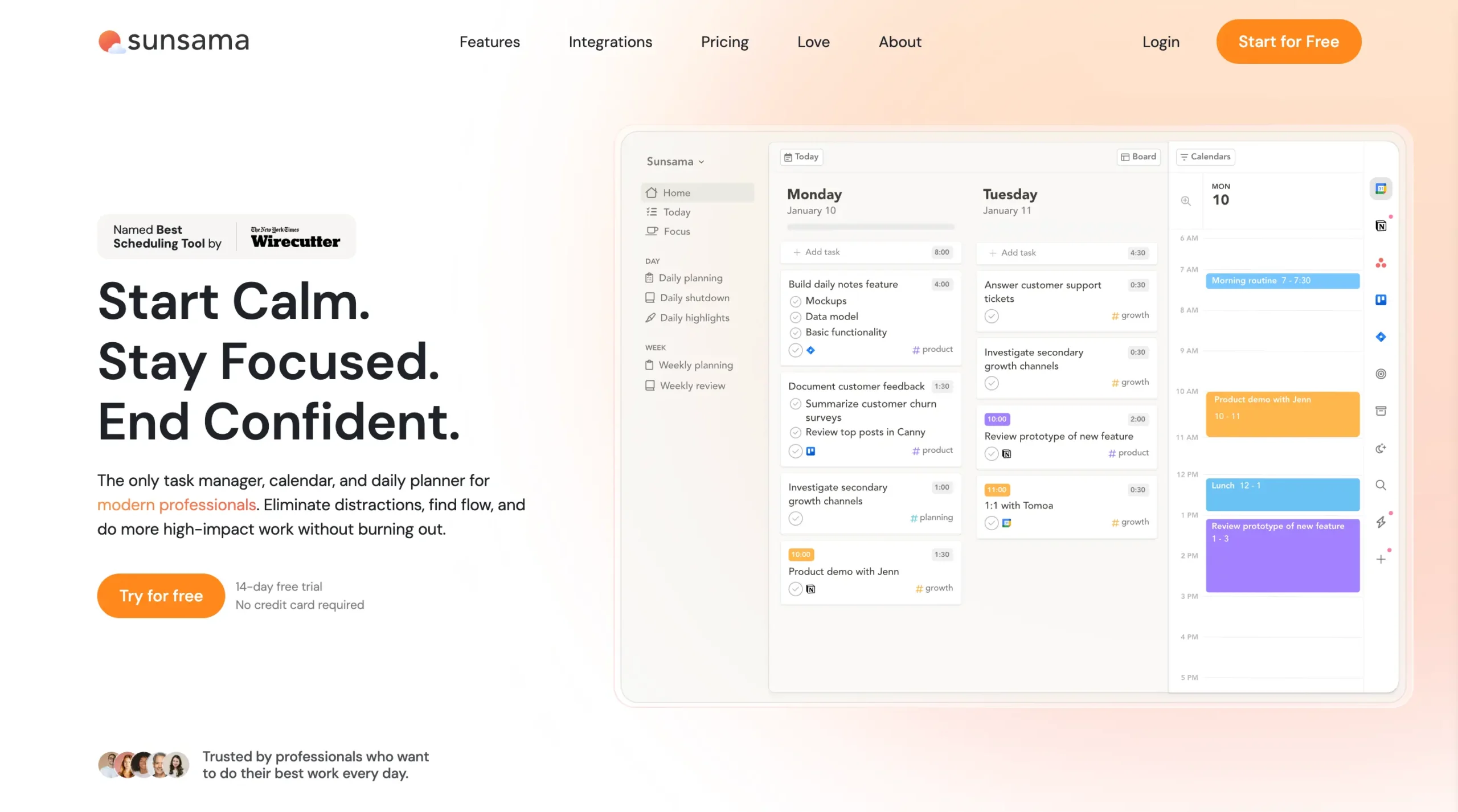
Each morning, Sunsama walks you through a planning ritual.
You pull in tasks from Asana, Trello, Notion, or wherever you keep your to-dos. You drag emails that need work into your task list. You estimate how long things will take.
Then you timebox everything onto your calendar. The interface stays clean—no overwhelming lists of 100+ tasks staring at you.
But Sunsama won’t run your life for you.
There’s no AI deciding what you should work on next or auto-rescheduling your day. You do the planning manually.
What makes Sunsama different is how calm it feels.
Most task managers make you feel behind. Sunsama warns you when you’re overcommitted. It pushes you to shut down at the end of the day.
The whole design says: work less frantically, finish what matters, then stop.
It costs $25/month, which is steep. But if you’re paying that much for your sanity, you’ll probably use it every day.
What features does Sunsama offer?
Sunsama packs far more capabilities than a simple to-do list or calendar app.
It blends task management, daily planning, time-blocking, calendar workflows, focus tools, weekly reviews, and deep integrations into one unified system.
In the sections ahead, I will unpack each of these capabilities and show how they all come together.
Daily planning
Every morning, Sunsama asks you one question: “What do you want to get done today?”
This is the daily planning ritual.
It’s a guided workflow that walks you through building a realistic plan. Most productivity apps dump you into an overwhelming list and wish you luck.
Sunsama forces you to make decisions up front.
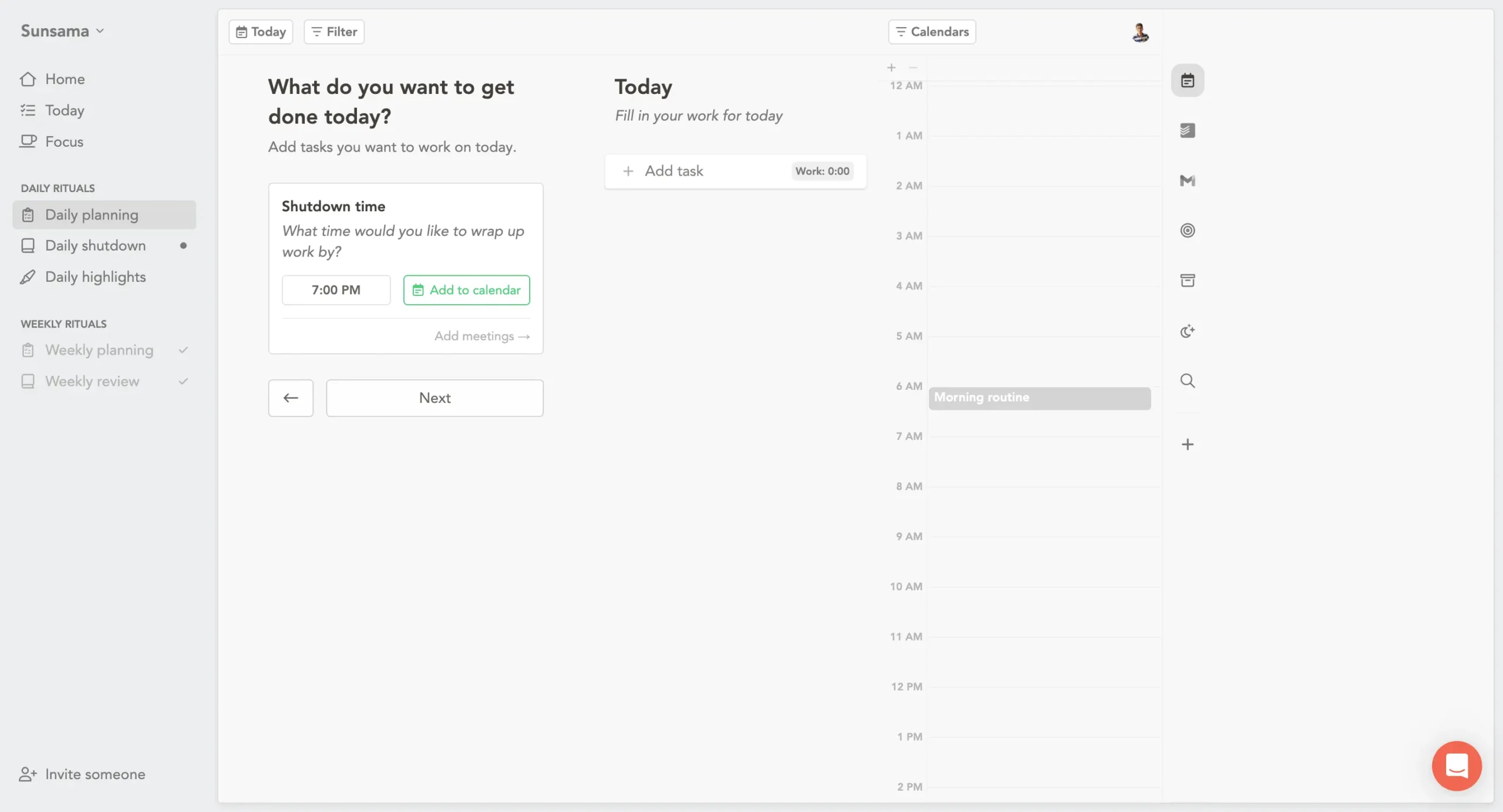
The ritual starts by asking when you want to stop working. You pick a shutdown time—5 PM, 6 PM, whatever makes sense. This matters because everything else hinges on it.
Then you add tasks.
Pull things from your backlog. Import from Asana, Notion, or Jira. Drag emails that need action. Add new tasks if something just came up. Each task gets a time estimate. Be honest about how long things actually take.
Sunsama shows you a running total of your planned work time. If you’re loading up 8 hours of tasks for a 6-hour window, it warns you. Gently, but clearly: you’re overcommitted.
This is where most people realize they’ve been lying to themselves every day about what’s possible.
The next screen asks: “What can wait?”
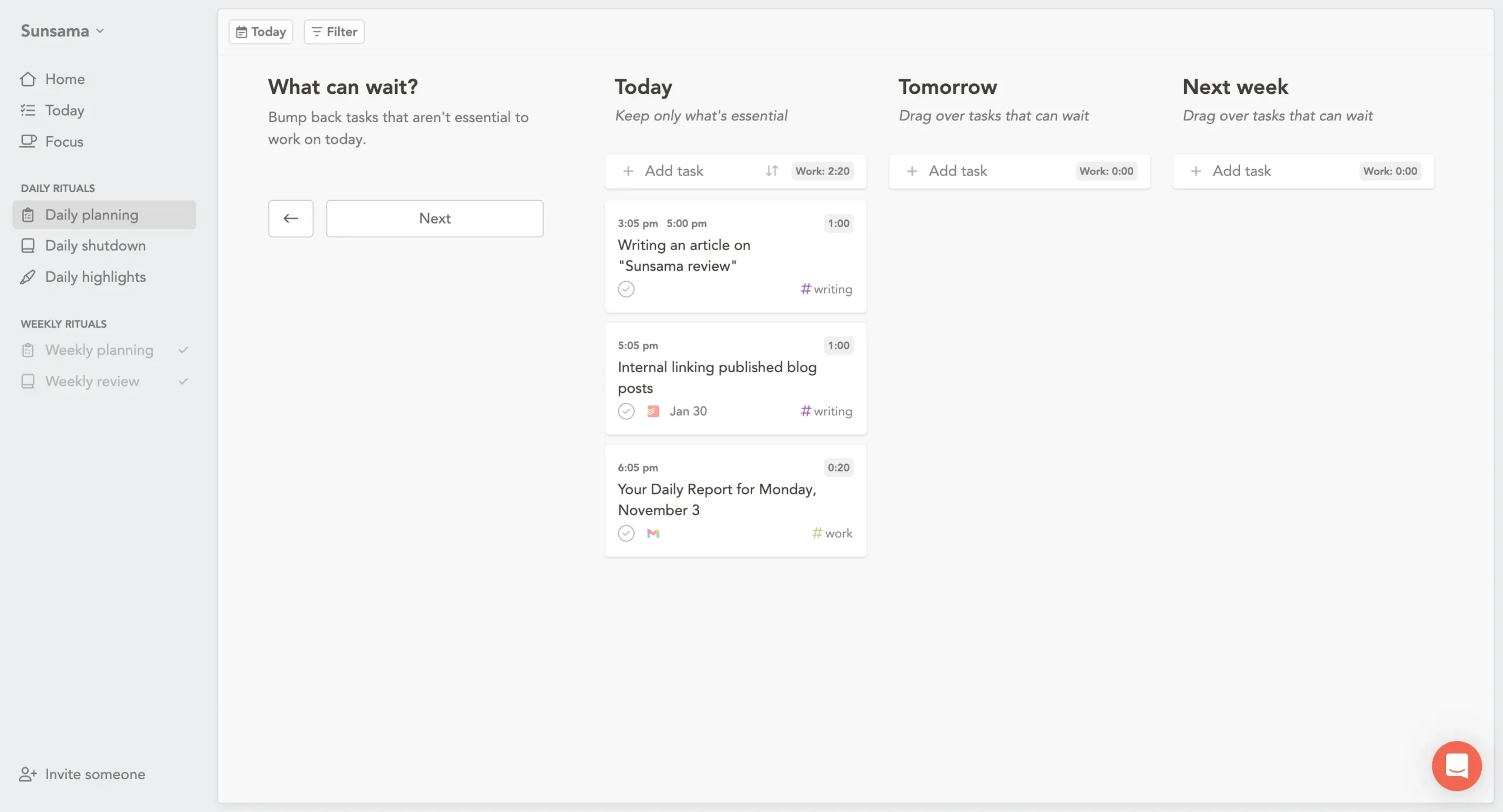
You see three columns—Today, Tomorrow, Next week.
Drag the non-urgent stuff into Tomorrow or Next Week. The goal isn’t to do everything. The goal is to do what matters today and push the rest out without guilt.
It’s surprisingly freeing. Most task managers make you feel bad about an ever-growing list. Sunsama makes deferring things part of the ritual.
Once you’ve trimmed your list, you finalize your plan.
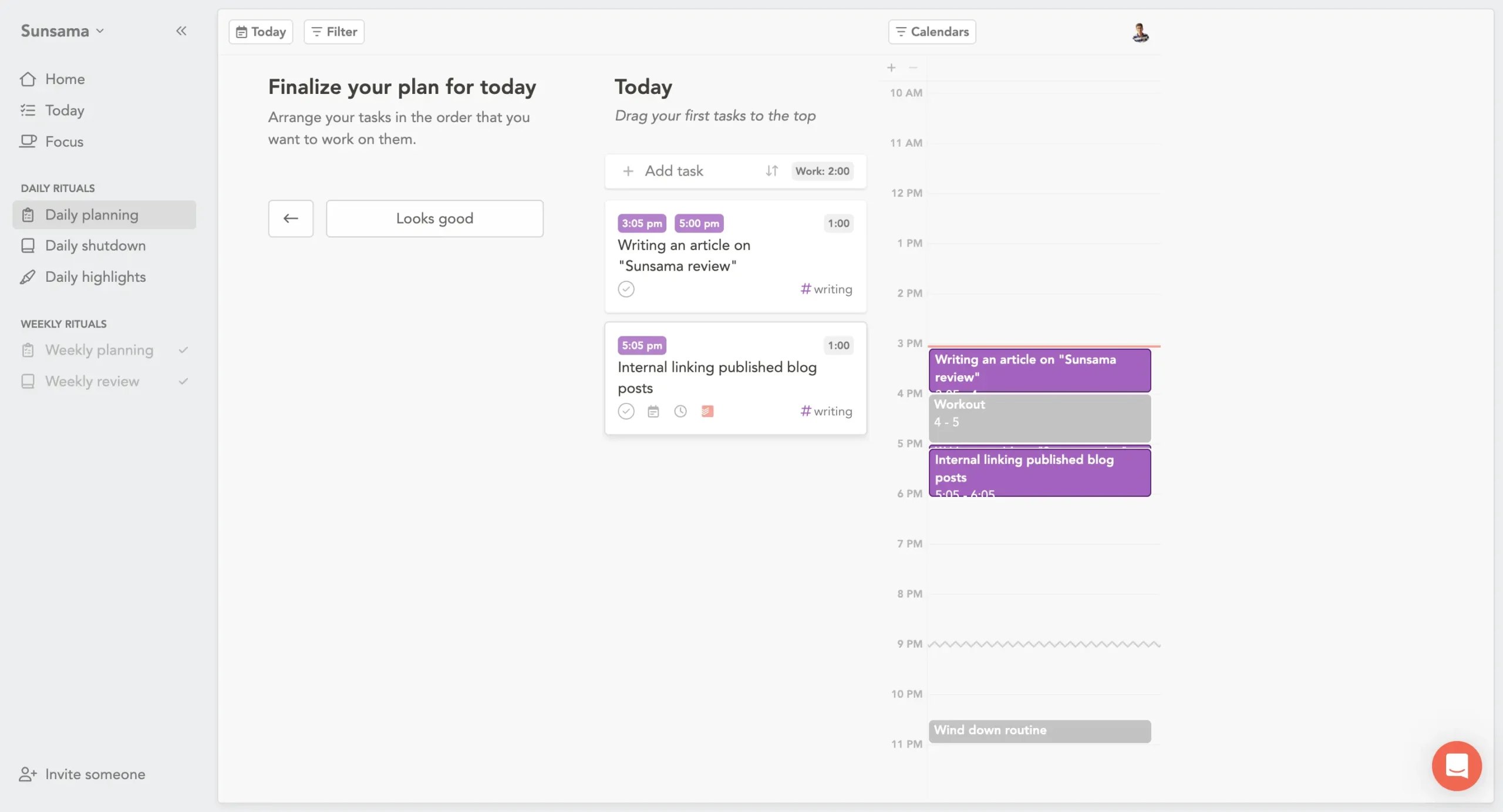
Arrange tasks in the order you’ll work on them. You can drag them onto your calendar to timeblock specific hours. Or just leave them in a list if you prefer flexibility.
The calendar on the right updates in real time. You see exactly when you’ll finish if you stick to your plan. If it says you’ll be done by 6:15 PM and you wanted to finish at 6:00 PM, you know immediately.
This is what makes the ritual work. You’re not guessing. You’re looking at your day laid out in front of you, and it either fits or it doesn’t.
The last step is journaling.
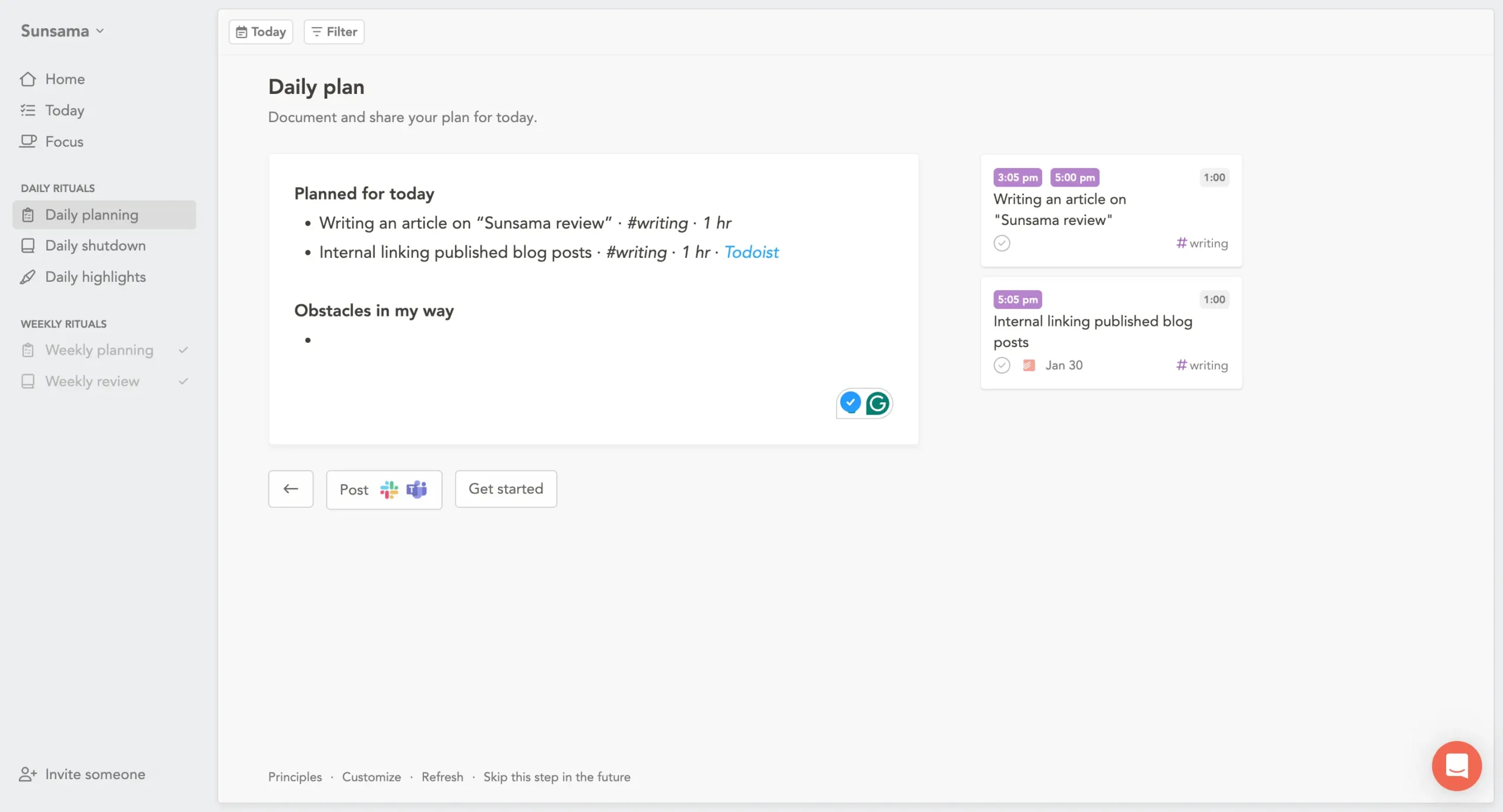
Sunsama shows you everything you planned and asks if there are any obstacles in your way. You can write whatever you want—or nothing at all. The point is reflection.
You can customize what shows up here. Include subtasks, private tasks, your channel tags, and even tasks you completed yesterday. There’s a “Customize” button that opens a simple toggle menu.
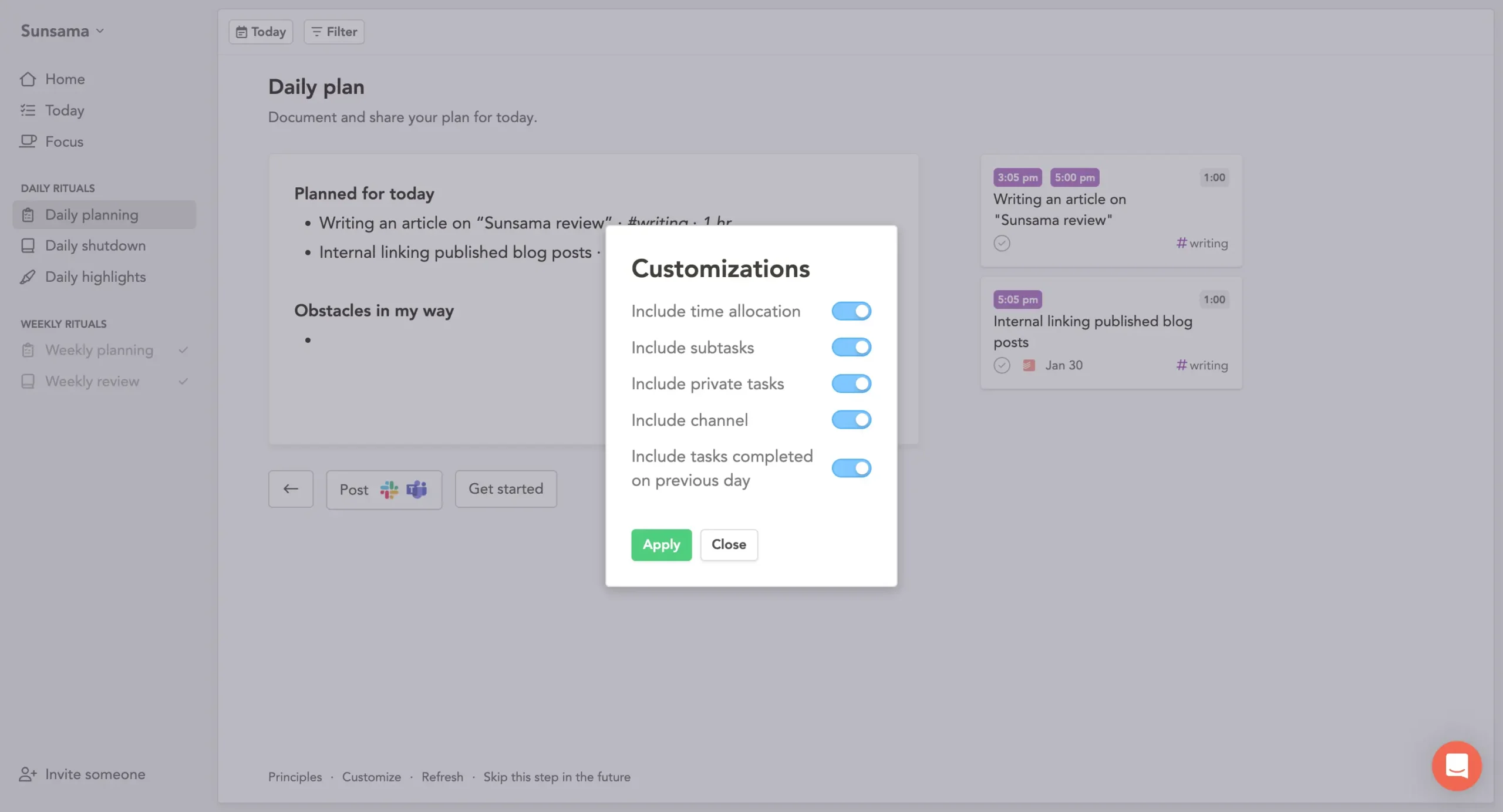
When you’re done, you click “Get started,” and the ritual ends. The whole thing takes 5-10 minutes.
What surprised me was how much I started looking forward to it.
Not because planning is inherently fun, but because Sunsama made it so simple that it became satisfying. There’s no cognitive overhead. Just a few clear decisions, and you’re done.
The design is intentionally calm. No flashy animations, no gamification, no AI suggesting what you should work on. Just you, your tasks, and your calendar. It gets out of your way so you can think clearly.
The ritual only works if you’re honest with yourself.
If you consistently lie about time estimates or ignore the overcommitment warnings, you’ll just recreate the same chaos you had before.
But if you actually use it—really use it—you’ll end most days knowing you did what mattered.
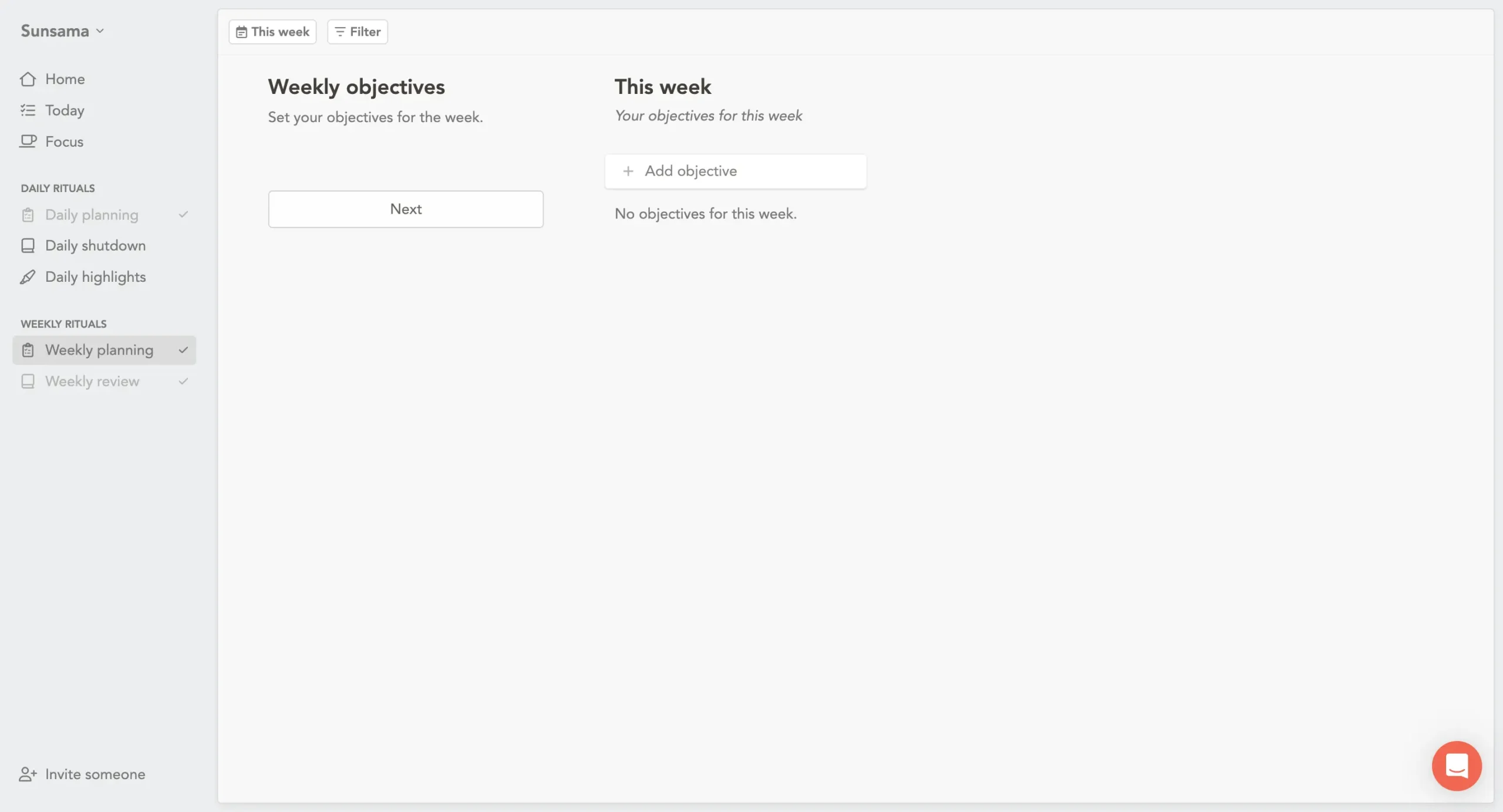
Weekly objectives and review features
Most people plan their week by Sunday night panic or Monday morning chaos.
Sunsama gives you something calmer. Once a week, it asks you to set objectives for the coming week. The big things you want to move forward.
This matters because objectives aren’t the same as tasks. Tasks are what you do. Objectives are what you’re trying to accomplish.
The difference is huge when you’re trying to figure out if your week actually mattered.
When you add an objective and click on it, it expands.
You can assign it to a channel (more on channels later), set when it starts, and even break down how much time you’ll spend on it each day.
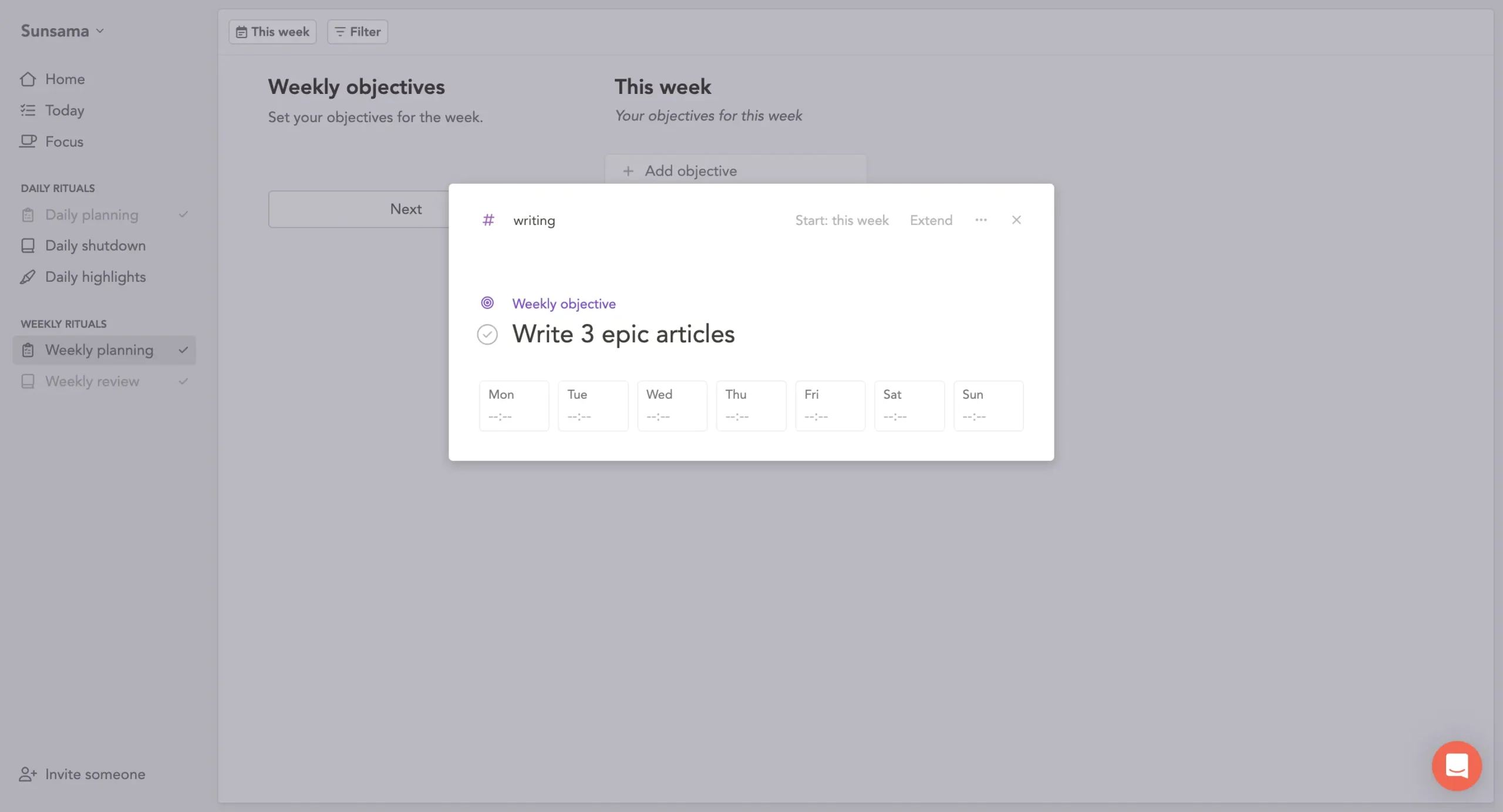
The interface here is flexible.
You can be specific about time allocation if you want—Monday 2 hours, Tuesday 1 hour. Or just add the objective and figure out the details during daily planning. Both work.
Next comes the journal step.
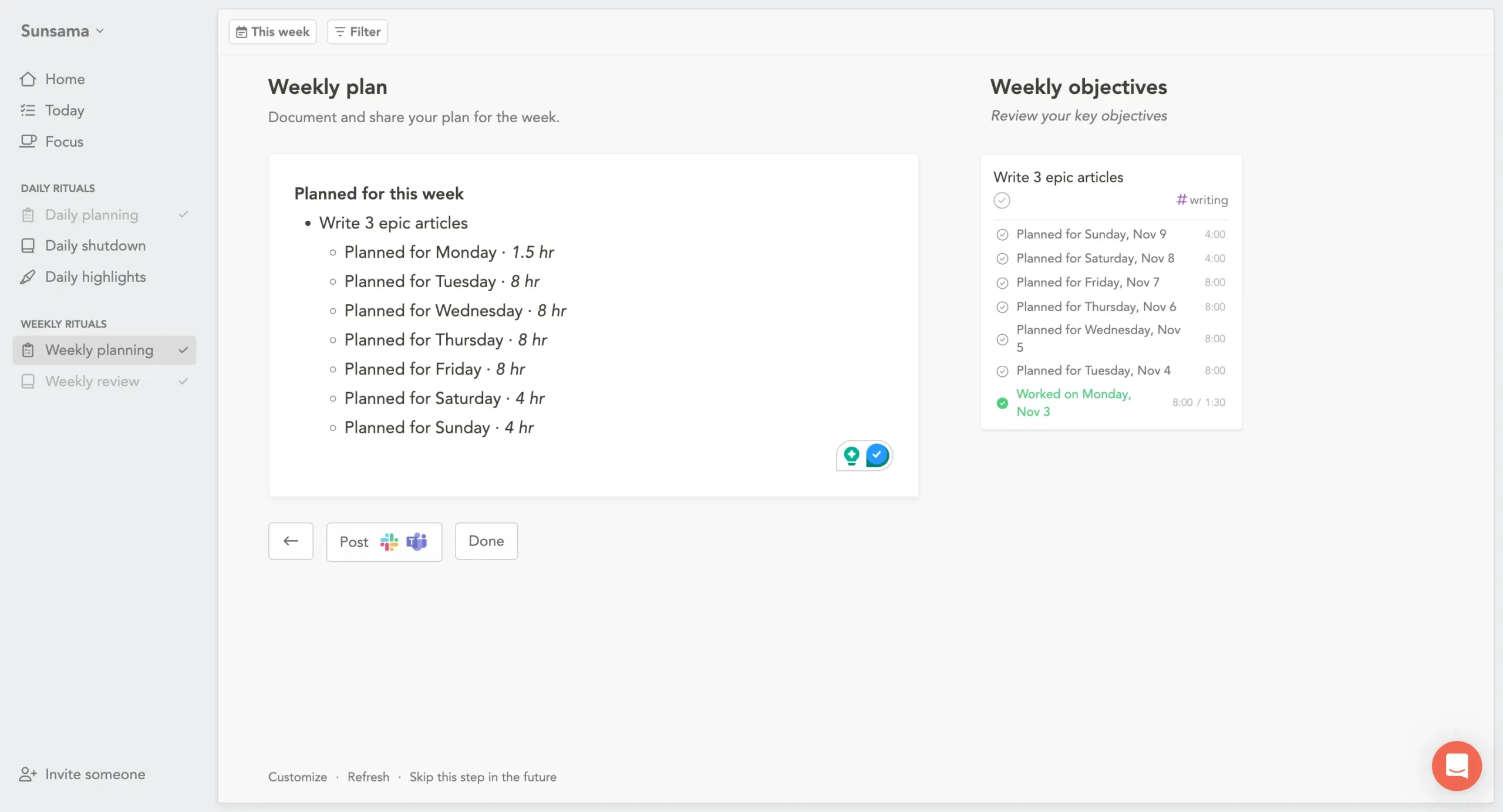
Sunsama shows you all your objectives for the week in a clean document format. You can write whatever you want here—your thoughts about the week, potential obstacles, whatever feels useful.
The “Customize” button at the bottom lets you include aligned tasks or private objectives in this view.
But honestly, I keep this part simple. Just the objectives and maybe a sentence or two about what I’m thinking.
When you click “Done,” the ritual ends. The whole thing takes maybe five minutes if you’ve been thinking about your week. Ten if you haven’t.
What I like about this is that it doesn’t ask you to plan every single task for the week. That’s what daily planning is for.
Weekly planning is just about direction.
Where are you trying to go? What matters this week?
At the end of the week, the ritual reverses.
Weekly review shows you what actually happened.
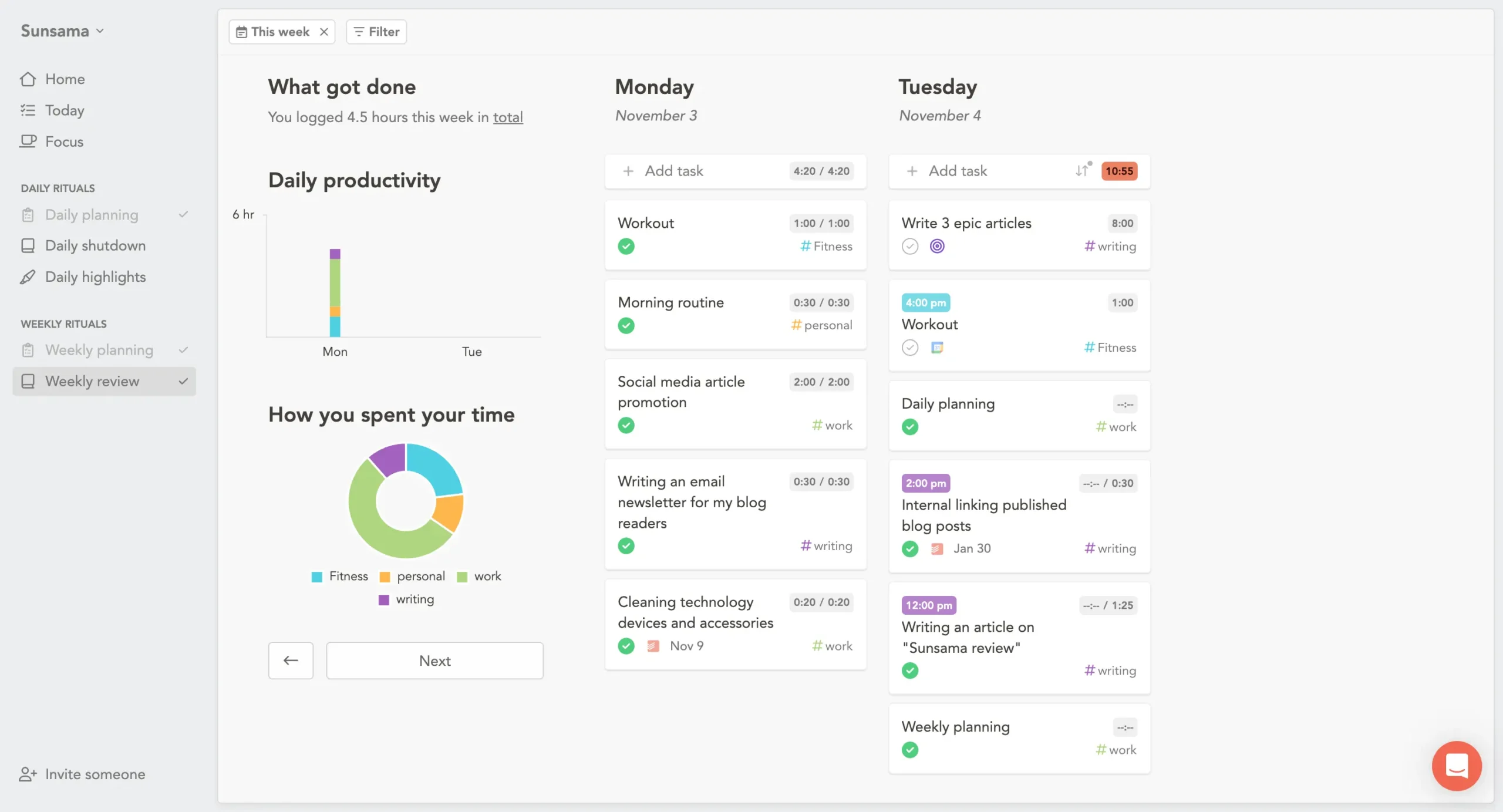
There’s a simple chart showing time spent on different channels.
This is useful because it answers a question most people can’t answer: did I actually work on what I said mattered?
Mark any completed objectives here. Or don’t—you can always come back to this.
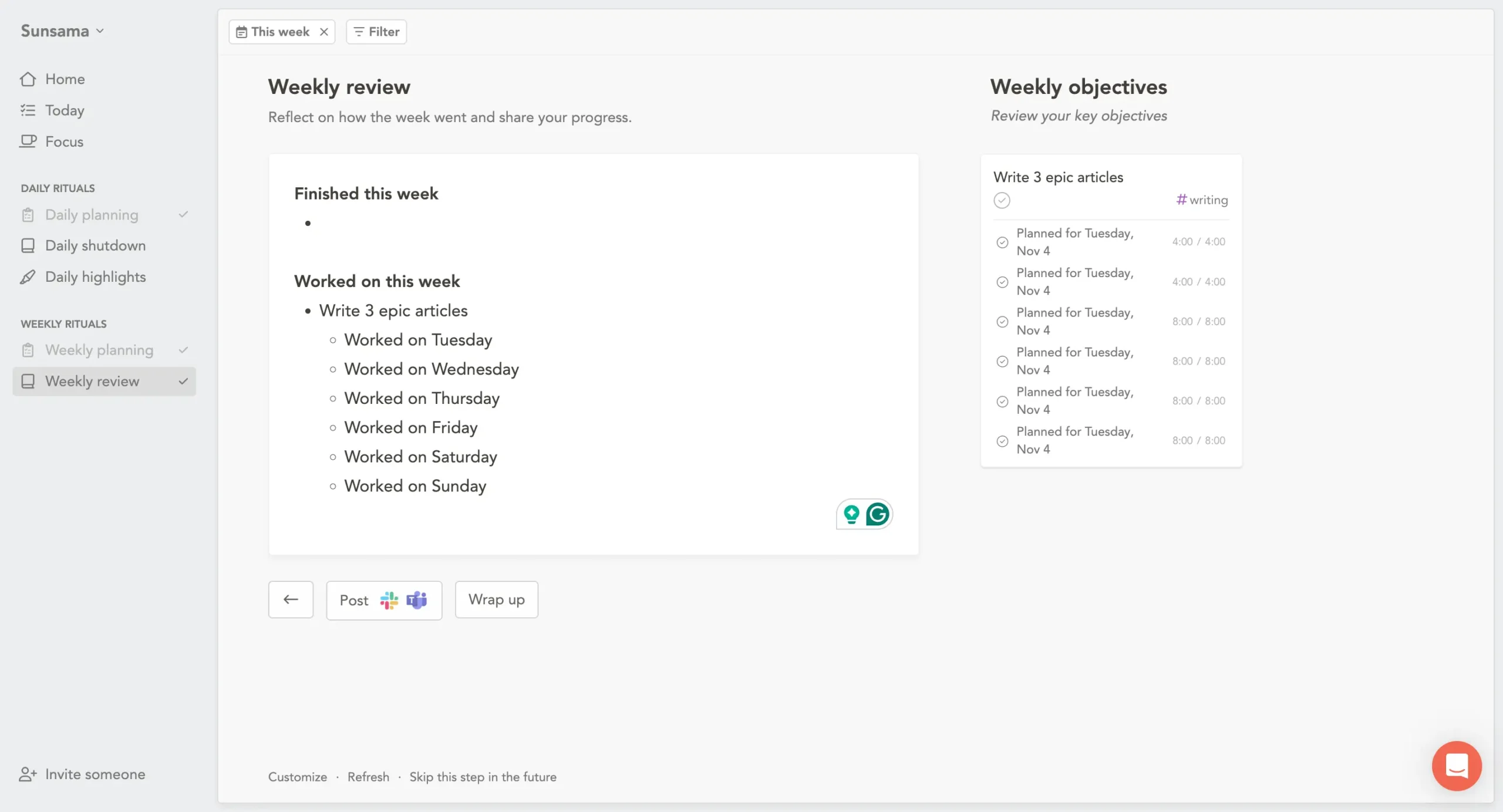
Next comes reflection. Sunsama gives you a space to write about the week. What went well? What ate up your time? What did you learn?
You can click “Customize” here too. Same options as weekly planning—include aligned tasks, include private objectives. Or keep it minimal.
The “Post” button at the bottom lets you share this to Slack or Teams. If your team does weekly updates, this is faster than writing them manually. Just review your week and click post.
One thing worth mentioning: you can combine weekly review and weekly planning into a single ritual. There’s a setting for this.
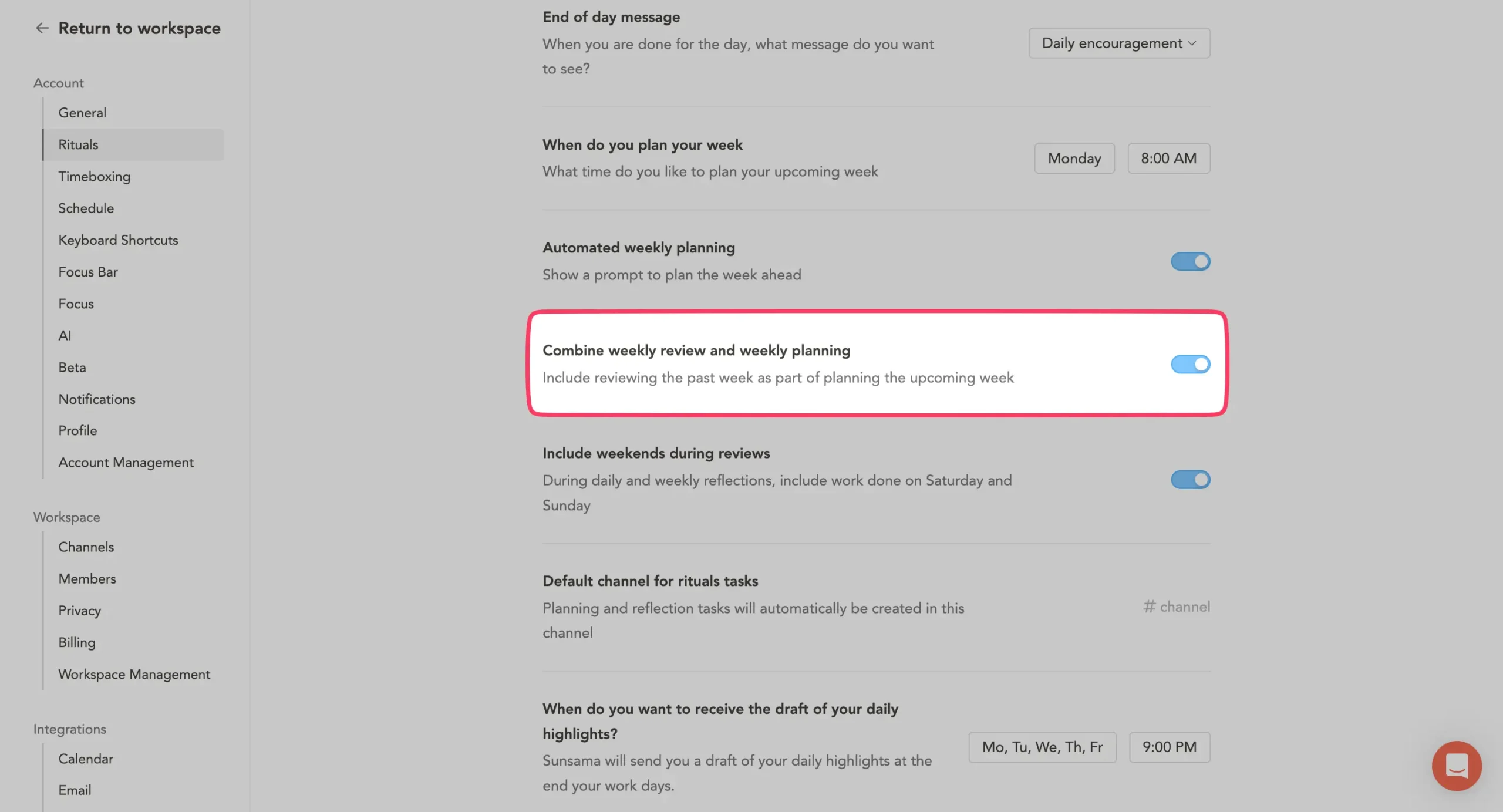
When you turn this on, the weekly planning flow starts with reviewing last week. You see what you accomplished, reflect on it, then immediately plan next week. It’s seamless.
I use this. Reviewing and planning feel like parts of the same process anyway. Why separate them?
The settings page also lets you choose when these rituals trigger. Monday morning at 8 AM for planning? Friday afternoon at 3 PM for review? Pick whatever fits your schedule.
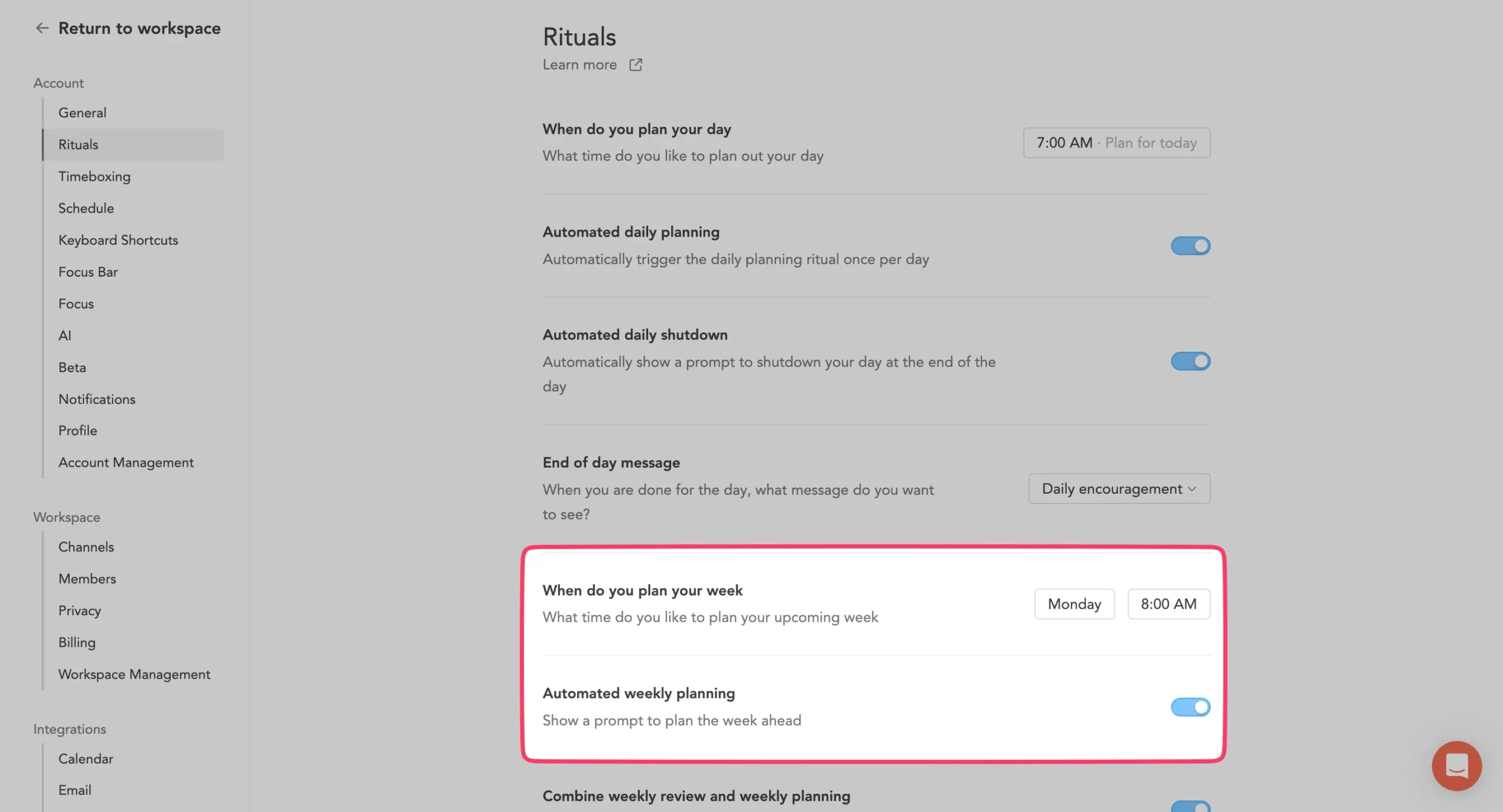
Turn on “Automated weekly planning,” and Sunsama will prompt you at your chosen time. Same for weekly review. Or you can always trigger them manually from the sidebar.
Most planning systems are write-only. You plan, you forget, you move on. Sunsama keeps everything, so you can actually learn from past weeks.
The whole system is optional, by the way. If you hate journaling or team updates, you can skip those steps. There’s literally a button that says “Skip this step in the future.”
But here’s what I’ve noticed: the ritual works better when you actually do it. Not because Sunsama forces you, but because the questions are good.
What do you want to accomplish? Did you accomplish it? How did you spend your time?
Most people can’t answer those questions about their workweek. Sunsama makes you answer them every week. That’s the real value.
Sunsama’s time-boxing vs flexible playlist mode
Sunsama gives you two ways to put tasks on your calendar.
Timeboxing locks them to specific times. You schedule a task from 2 to 3 PM, and that’s when you’ll work on it. The task becomes an actual calendar event.
The playlist method is looser.
Your tasks show up on the calendar as projections—estimates of when you’ll probably work on them based on their order.
These projections aren’t locked. They shift around as your day changes.
Sunsama lets you use both.
When to use which
Use timeboxing when your day is packed with meetings. You need to see exactly where tasks fit in the gaps.
You also want your external calendar to show coworkers you’re busy—not just in meetings, but actually working.
Use the playlist method when your day is mostly open. Your work is flexible. It doesn’t matter if you do something at 10 AM or noon. You just need to get through the list.
I switch based on the day. Meeting-heavy days get timeboxed. Deep work days stay loose.
How projections work
With the playlist method, Sunsama shows you when you’ll finish based on four things: task order, remaining time on each task, meetings in your way, and your work hours.
No AI. No algorithm. Just math.
If a task needs 40 minutes and you’ve already spent 20, the projection shows 20 minutes. If there’s a meeting blocking the way, it shifts to after.
Reorder your tasks, and the projections update instantly.
Note: The projections don’t appear on your external calendar. They only exist inside Sunsama. They’re planning aids, not commitments.
When you start a task, you run its timer. The projection locks in place. The other projections shift until you’re done.
Auto-rescheduling fixes conflicts
Here’s what most timeboxing tools don’t handle: what happens when your plan breaks?
Sunsama has auto-rescheduling.
When you create a conflict—schedule a task on top of another task—it automatically moves the overlapping task forward. When you finish a task early, it shifts remaining tasks earlier to fill the gap.
You can disable this in settings, temporarily disable it by holding Shift while scheduling, or undo it with Cmd + Z.
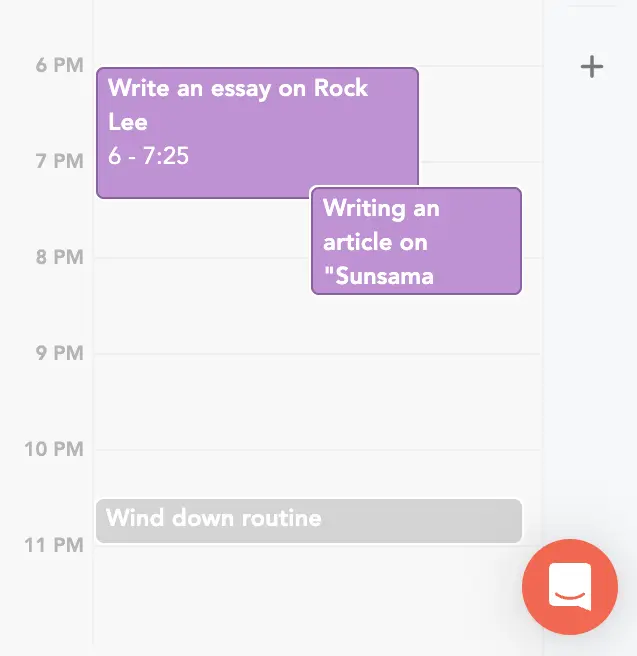
I keep it on for conflicts but off for early completions. When I finish early, I’d rather decide what to do with the time myself.
The private calendar trick
By default, working sessions sync to your Google or Outlook calendar. Your coworkers can see them.
Sunsama has a private calendar that only exists inside Sunsama. Route your tasks there, and your external calendar stays clean—just meetings and events. Your task blocks stay private.
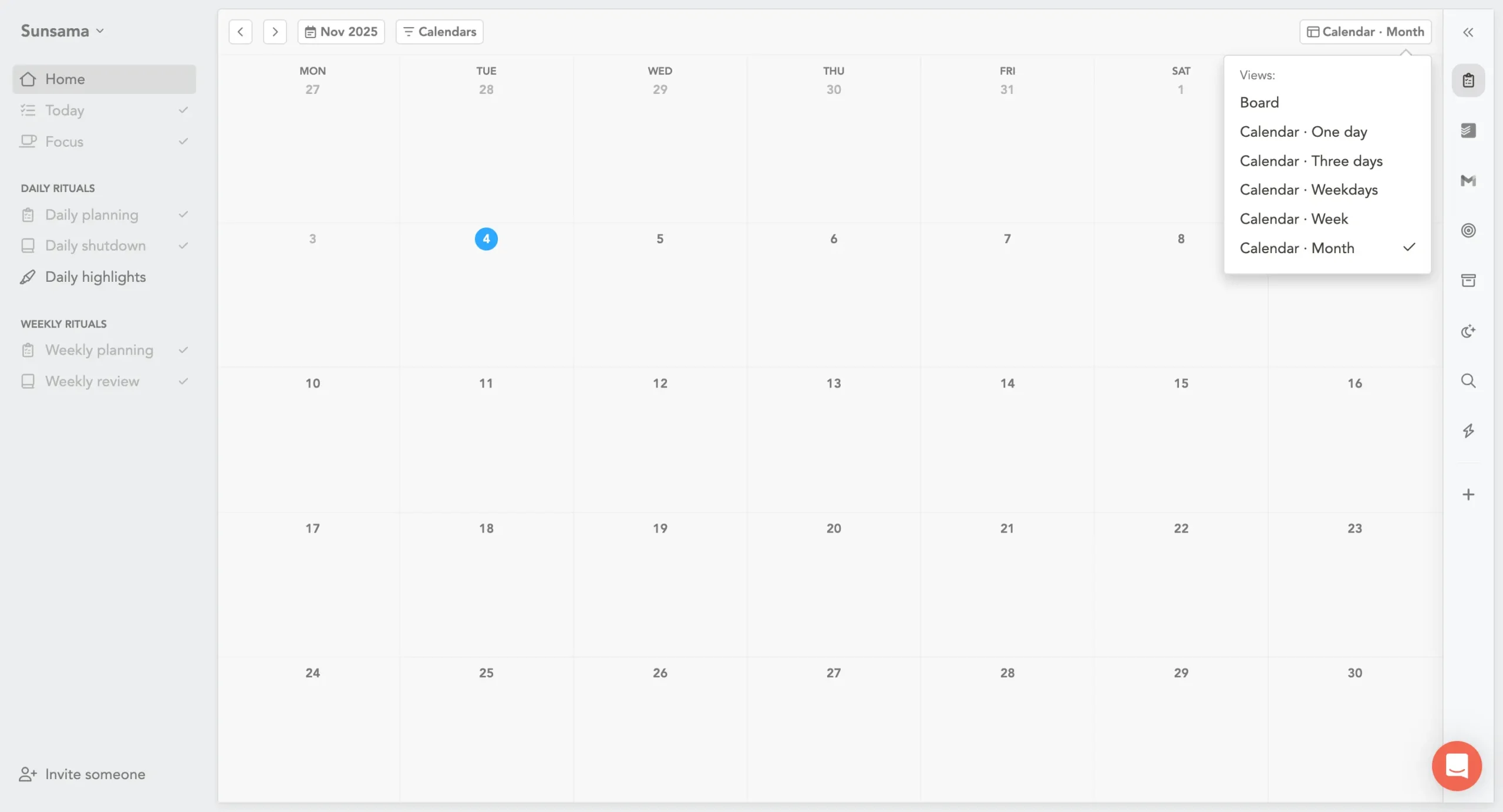
This is useful if you work with people who aggressively book meetings in any open calendar slot. Your real calendar looks open. Inside Sunsama, you’re fully scheduled.
You can also route specific channels to specific calendars. Personal tasks go to your personal calendar, work tasks go to your work calendar.
Sunsama’s 16+ integration options
Sunsama pulls tasks from wherever they already live.
Your team uses Asana. Your dev work lives in Jira. You’ve been capturing quick thoughts in Todoist for years.
Sunsama doesn’t ask you to abandon any of that. It gives you a single place to see everything and decide what actually gets done today.
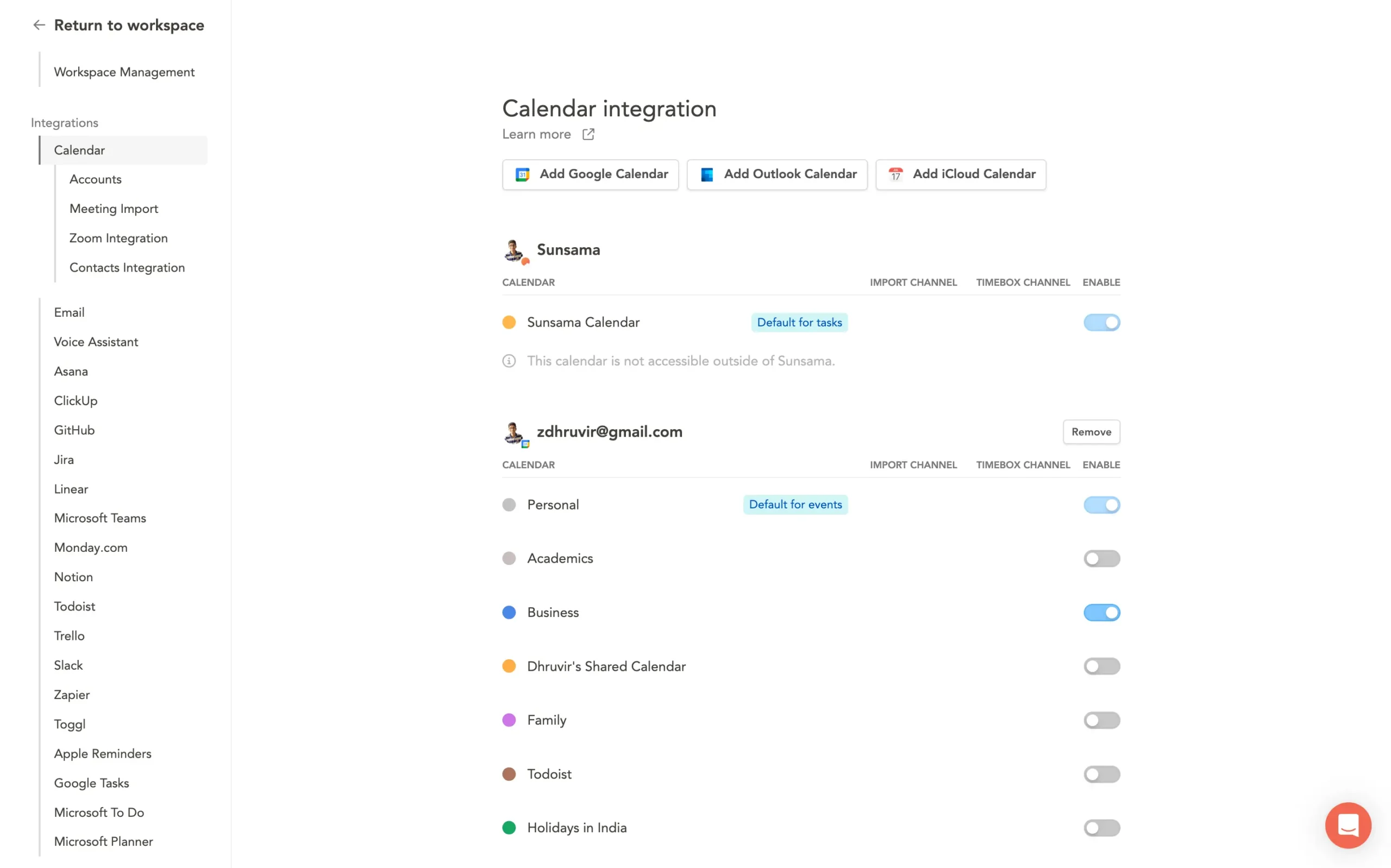
Sunsama connects with about 16 different tools: Asana, ClickUp, GitHub, Jira, Linear, Microsoft Teams, Monday.com, Notion, Todoist, Trello, Slack, Zapier, Toggl, Apple Reminders, Google Tasks, and Microsoft Planner.
I don’t use all of them. Most people don’t.
I use Todoist because it’s fast for capturing random thoughts. I use Gmail because email sometimes turns into work. That’s enough for me.
But if you’re bouncing between Notion docs, Trello boards, and ClickUp projects, Sunsama will pull from all of them.
Two types of integrations:
Not all integrations work the same way.
Some tools have 2-way sync. Some are 1-way imports. The difference matters.
2-way sync: Jira and Asana
When you import a Jira issue into Sunsama, changes flow both ways.
Complete the task in Sunsama? It completes in Jira. Change the start date in Sunsama? The due date updates in Jira.
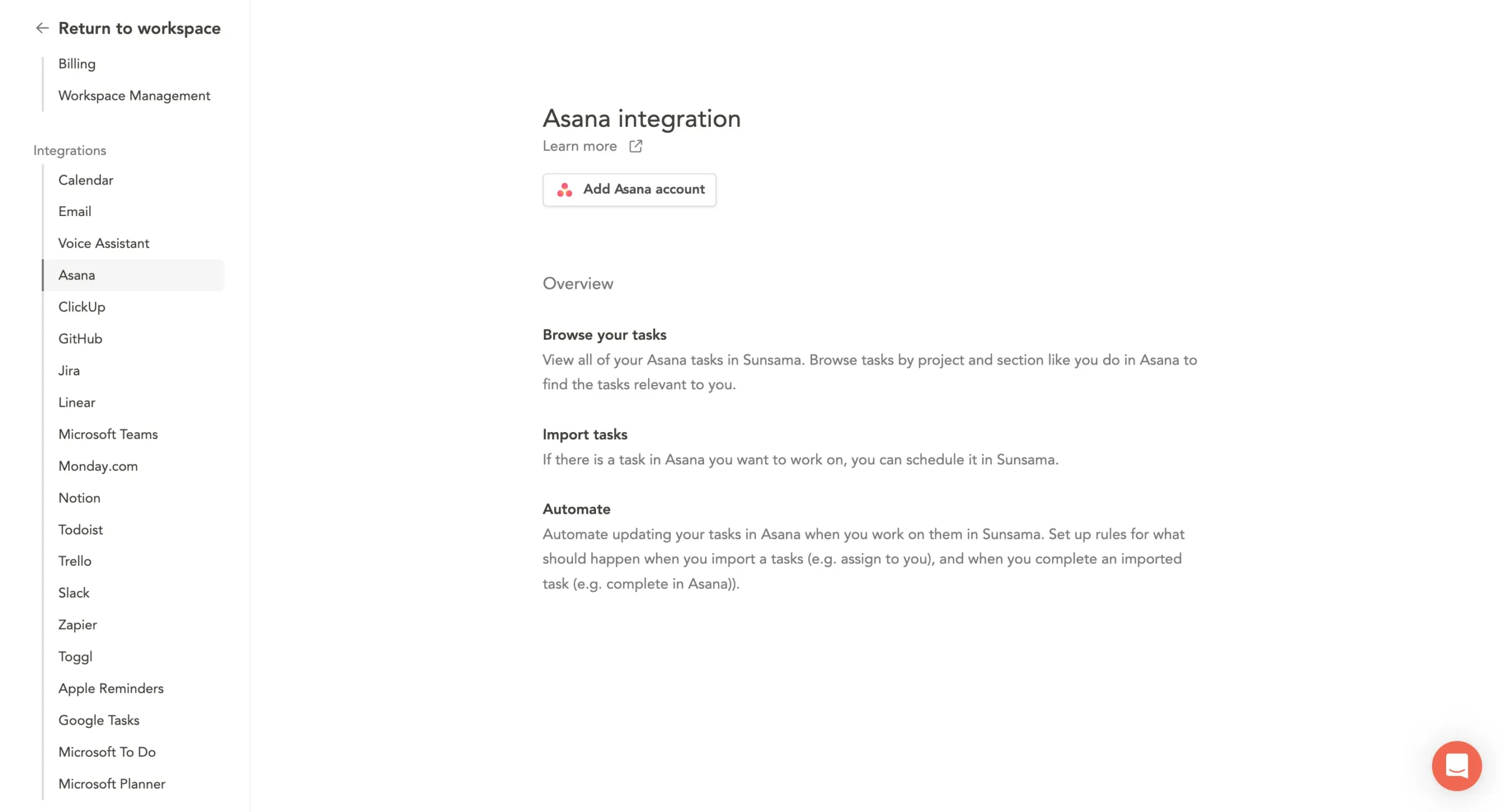
Sunsama also lets you set up automations.
When you import a Jira task, you can automatically update its status to “In Progress.” When you complete it, change the status to “Done” or whatever your workflow uses.
Same thing with Asana. The two tools stay in sync without you thinking about it.
1-way imports: Todoist, Notion, Trello, and others
Most integrations are simpler. You can pull tasks from Todoist, Notion, Trello, ClickUp, and the rest, but you can’t create tasks in those tools from Sunsama.
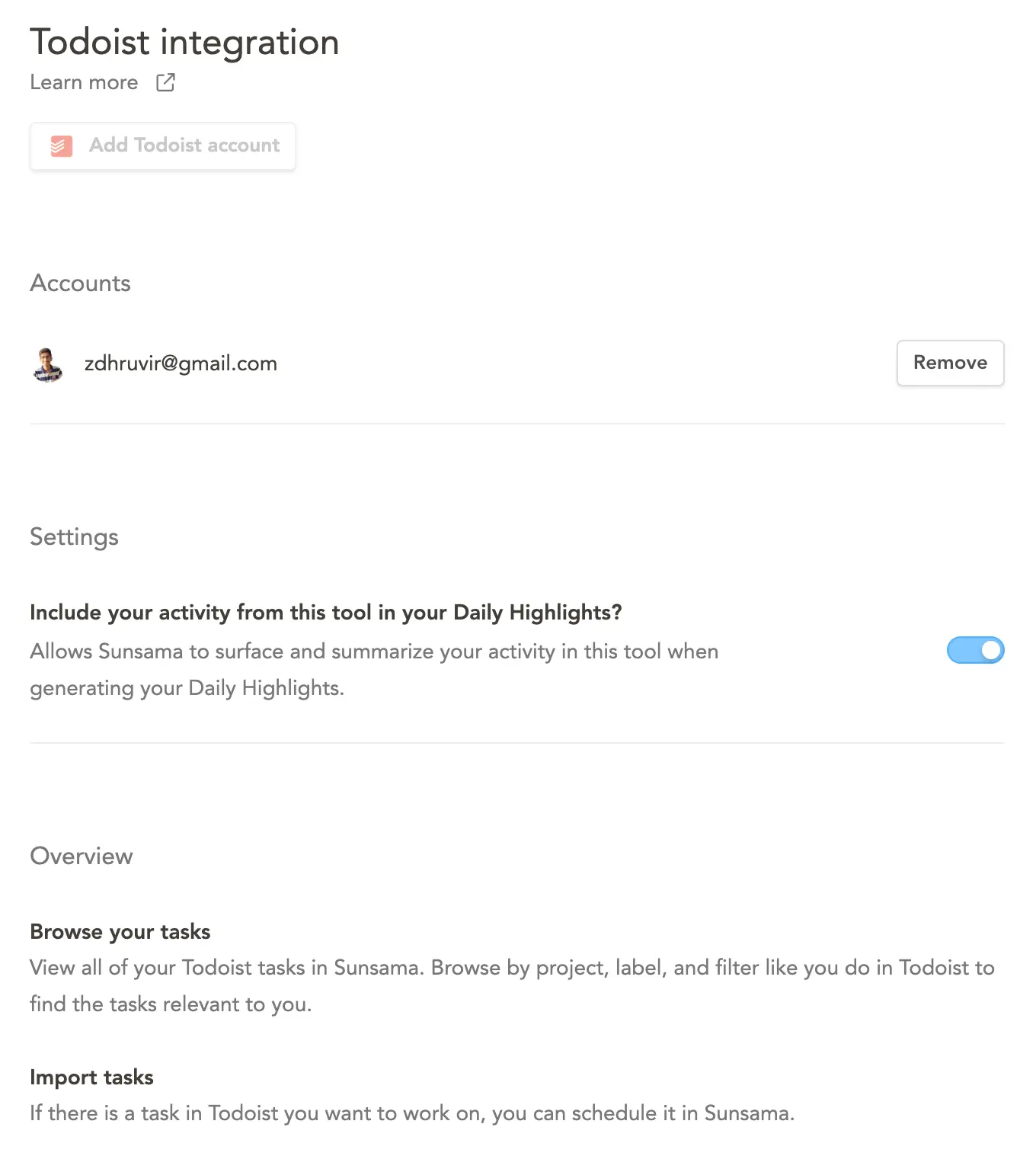
Completion still syncs. Mark a Todoist task done in Sunsama, and Todoist marks it done too. Same if you complete it in Todoist—Sunsama catches up.
For Todoist specifically, changing the start date in Sunsama will update the due date in Todoist, but only if that task already had a due date.
Recurring tasks don’t sync dates at all.
When you complete a recurring Todoist task in Sunsama, it completes that instance and creates the next one in Todoist. You import the next instance whenever you want to work on it.
You can also set up automations for 1-way integrations. When you complete a Todoist task in Sunsama, you can choose whether to automatically mark it done in Todoist or get prompted to decide.
Email as tasks: Gmail and Outlook
Email integration works two ways.
You can browse your inbox inside Sunsama. Filter by labels or folders, search for specific messages, then drag them into your task list.
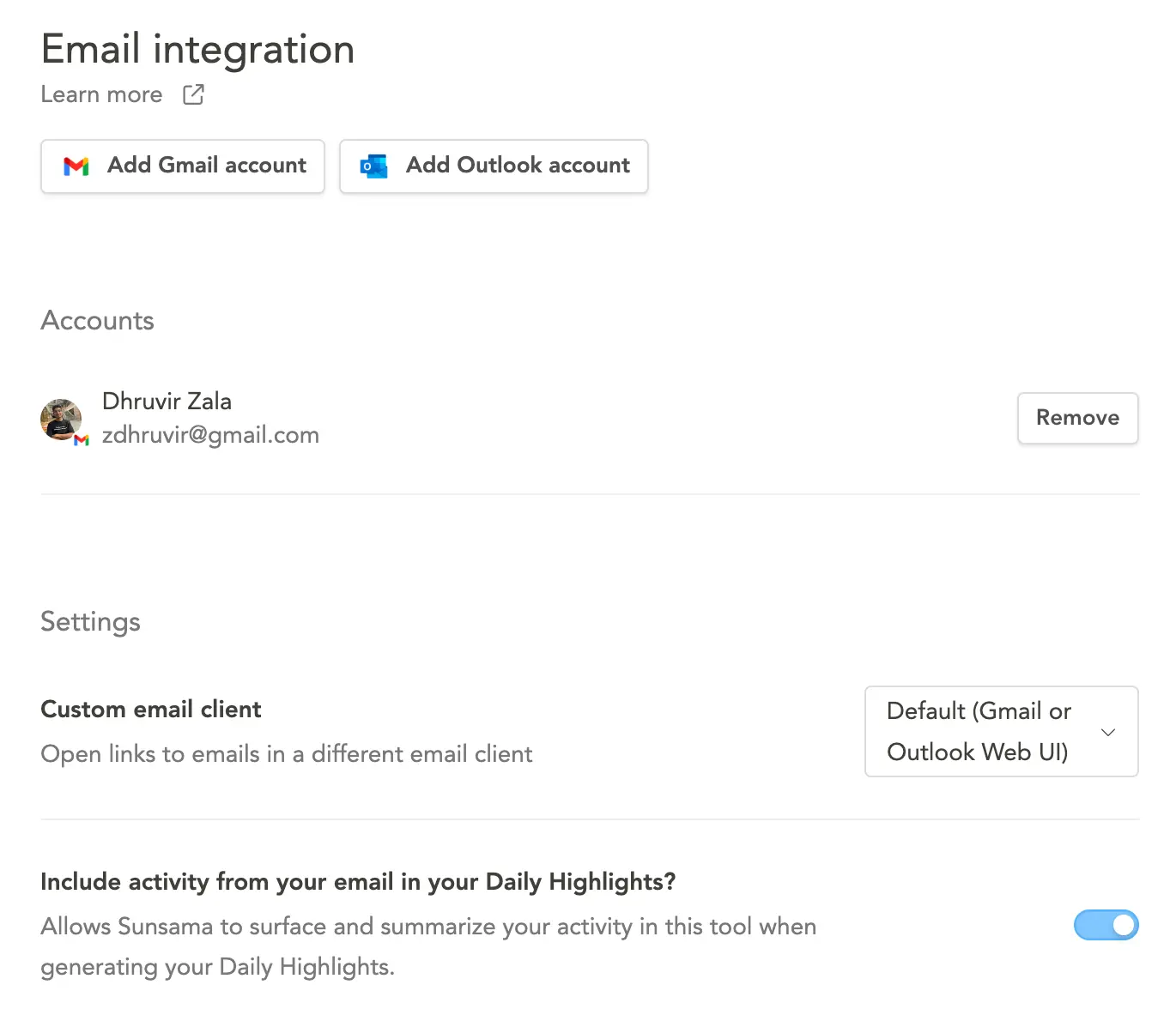
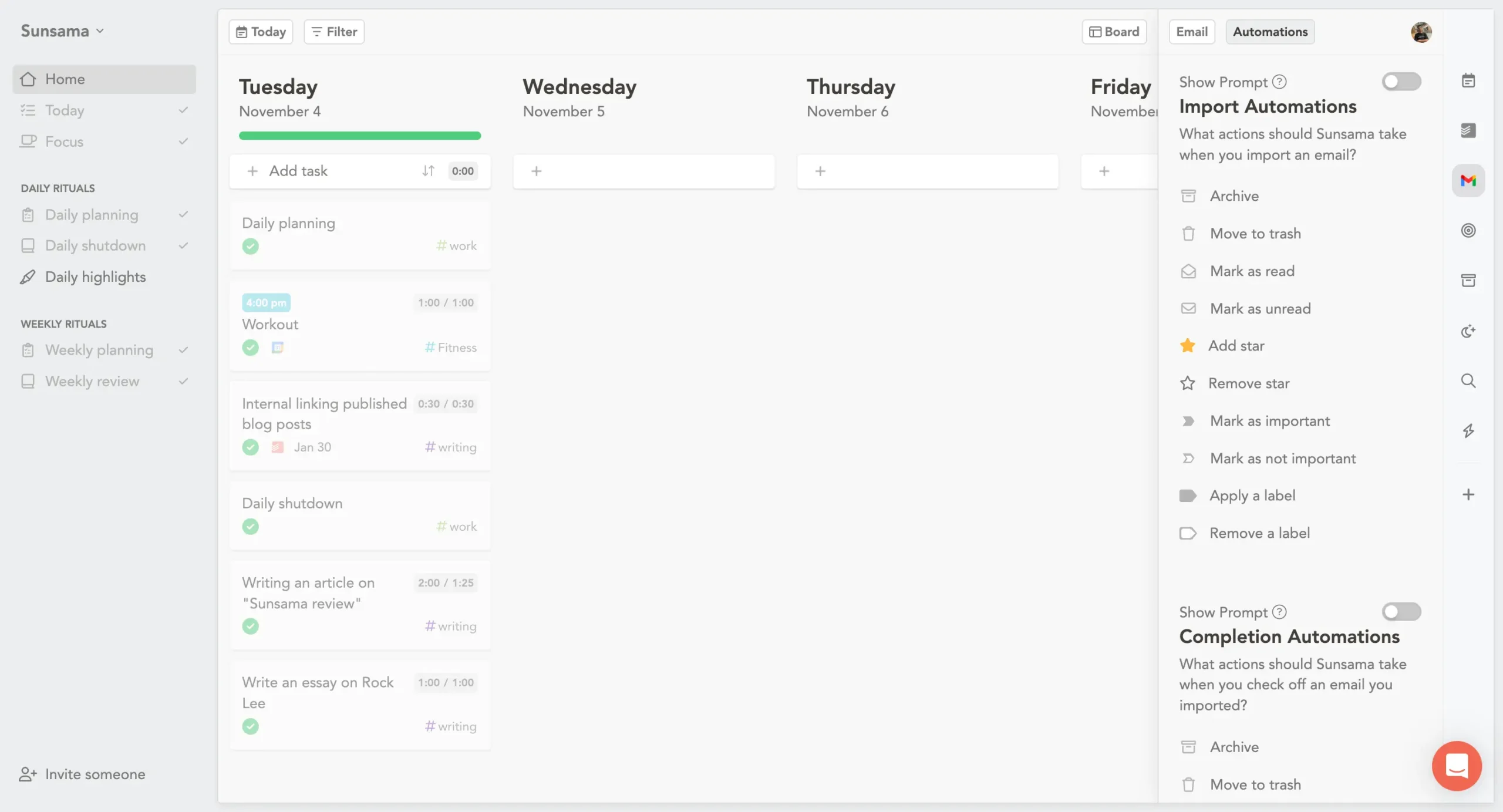
When you import an email, the subject becomes the task title. The full email thread embeds inside the task so you can reference it without leaving Sunsama.
When you complete an email task, you can set automations. Archive it? Trash it? Mark unread? Whatever helps you process inbox zero.
Email forwarding: the secret weapon
Sunsama gives you two unique email addresses. One adds tasks to today. One adds them to your backlog.
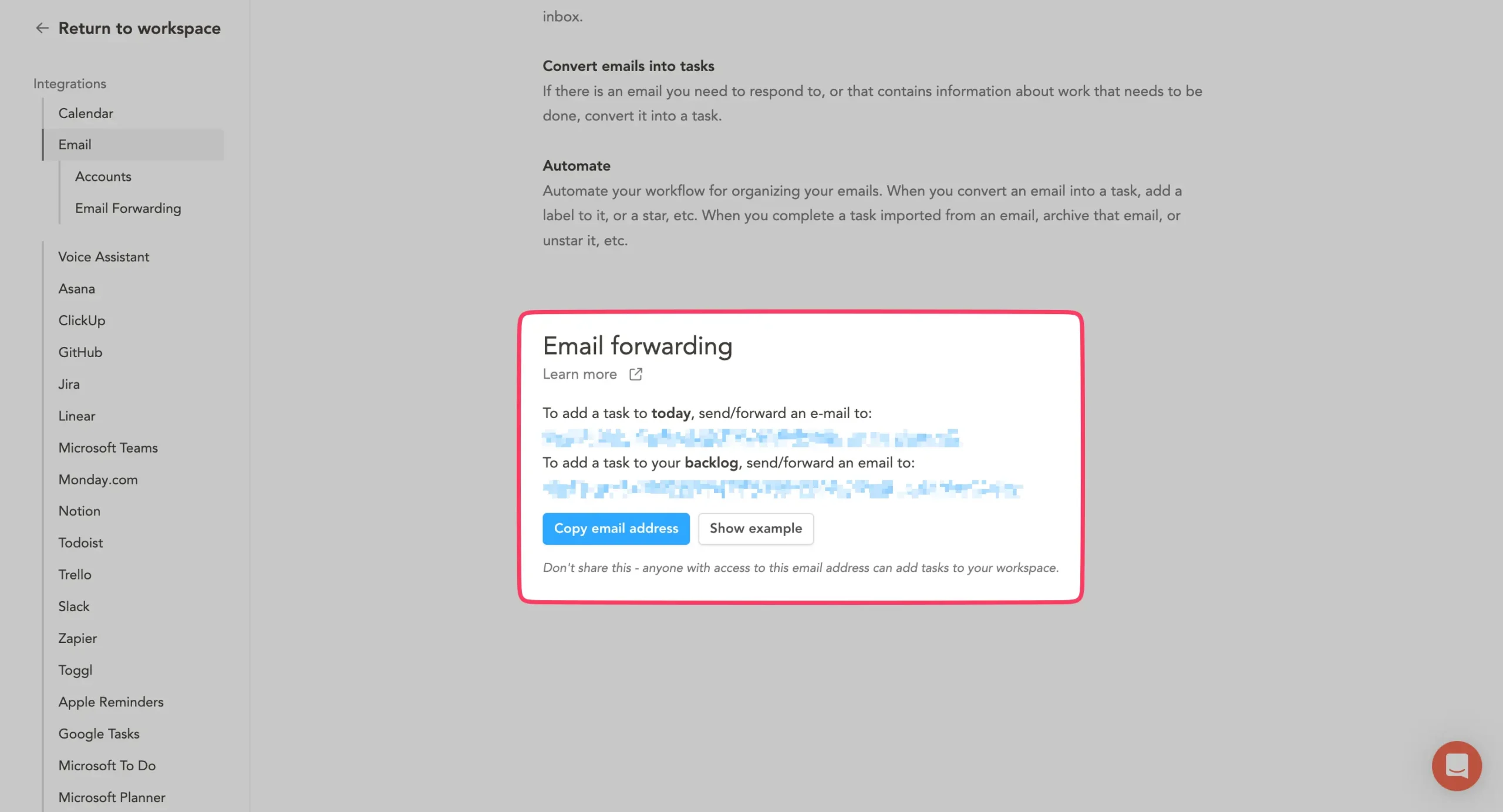
Forward any email to these addresses and it becomes a Sunsama task. CC, BCC, or reply-to—it all works.
This is useful when other tools email you notifications. No Sunsama integration for that random SaaS tool? Just forward its emails.
Save both addresses in your contacts so you can find them fast.
Slack and Teams: messages become tasks
Sometimes a Slack message needs real work. Don’t let it disappear in the thread.
Click the “…” menu next to any Slack message and select “Create a task.” Sunsama pulls in the message content and links back to the conversation.
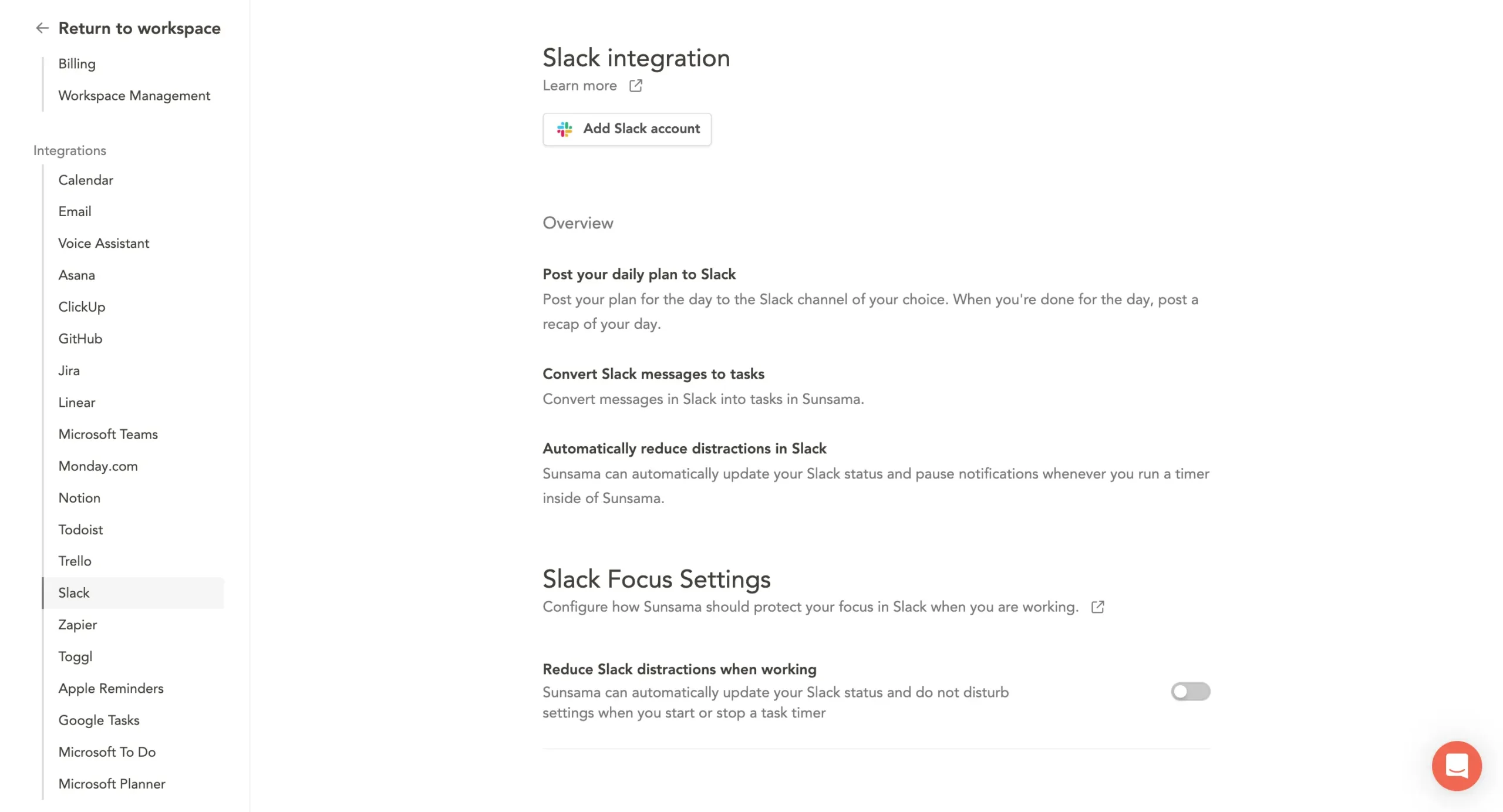
You can also mention the Sunsama bot in a channel (invite it first) to create tasks that way.
When you finish the task in Sunsama, it doesn’t mark anything in Slack. The message stays as-is. The integration is mostly about capture—getting work out of chat and into your planning system.
My actual setup
I keep it simple.
Todoist for quick capture. It’s fast, it’s everywhere, and I’ve been using it for years. When I’m out walking or driving and remember something, I tell Siri to add it to Todoist.
Later, during daily planning, I pull relevant tasks into Sunsama.
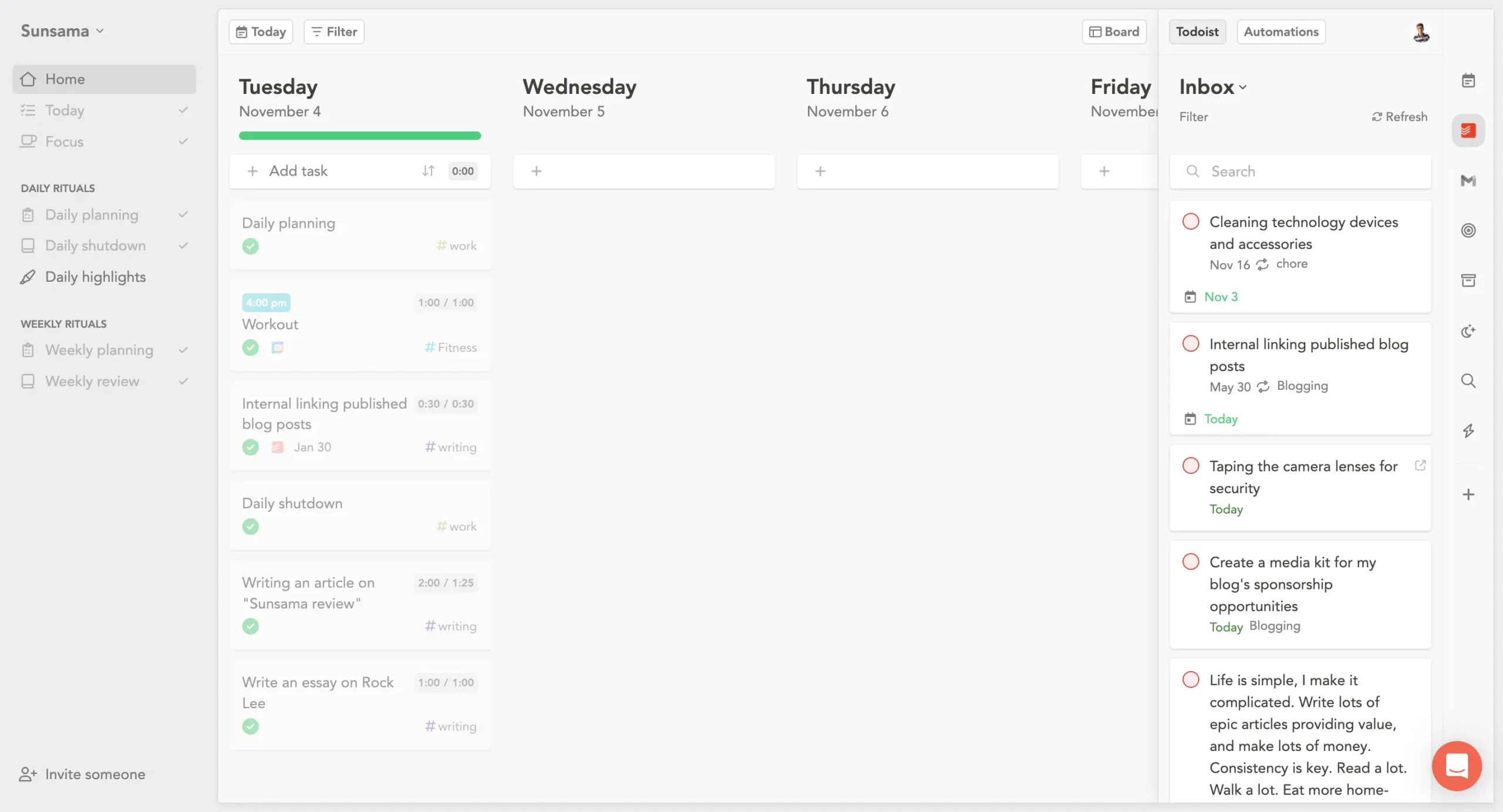
Gmail for emails that need action. Most emails don’t need to become tasks. The ones that do get dragged into Sunsama. I set an automation to archive them when I’m done.
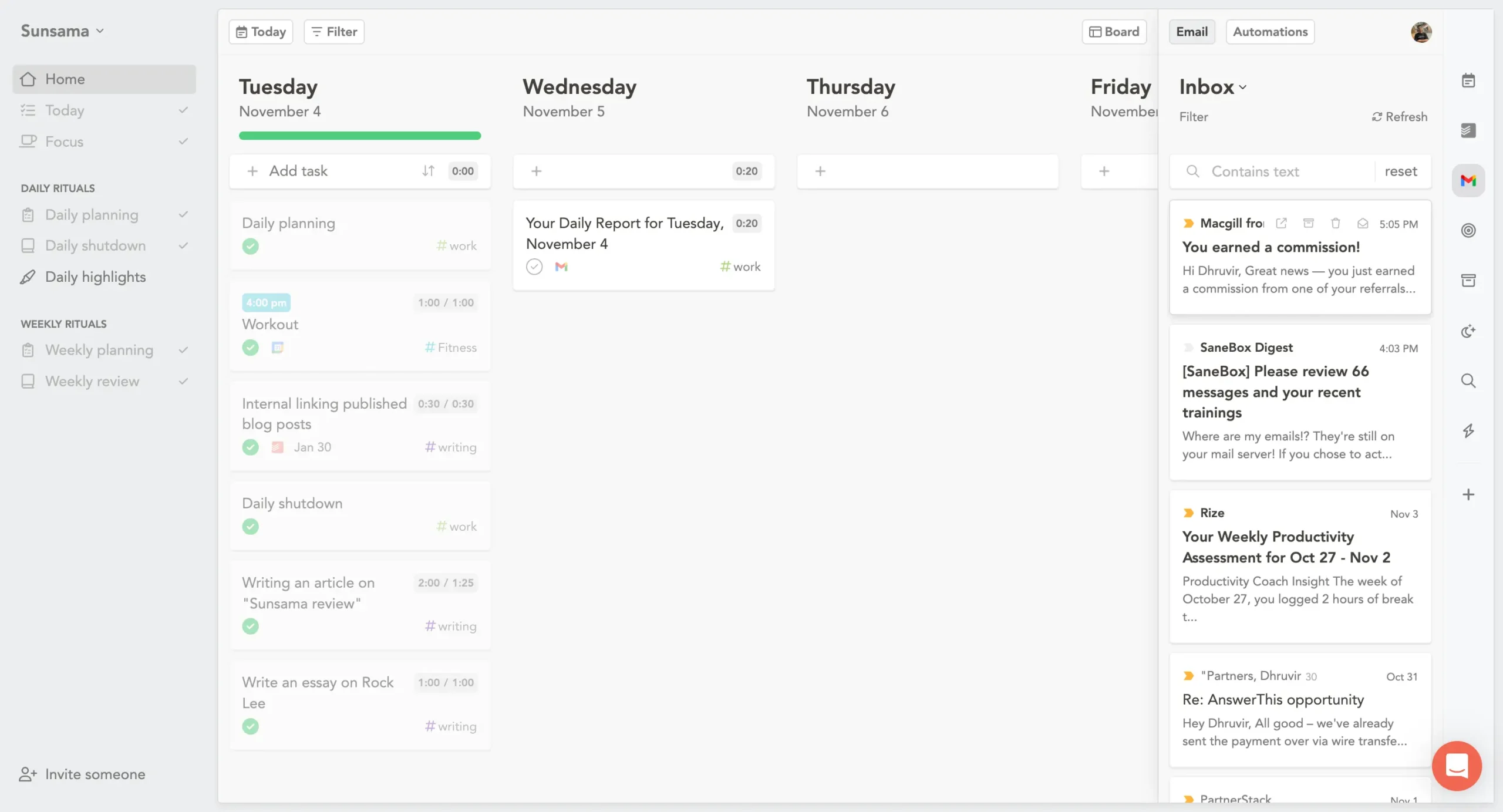
That’s it. Two integrations. Everything else is either recurring tasks I create directly in Sunsama or notes I capture during meetings.
If you’re running a team that lives in Jira and Notion, you’ll use more integrations. But you don’t have to use them all just because they exist.
Focus mode and time tracking
When you’re working, most apps show you everything. Your entire task list. All your projects. Every upcoming deadline.
Sunsama’s Focus Mode shows you one task. Just that task. Nothing else.
Press F on your keyboard (while hovering over the task that you want to work on), and everything disappears except what you’re working on right now.
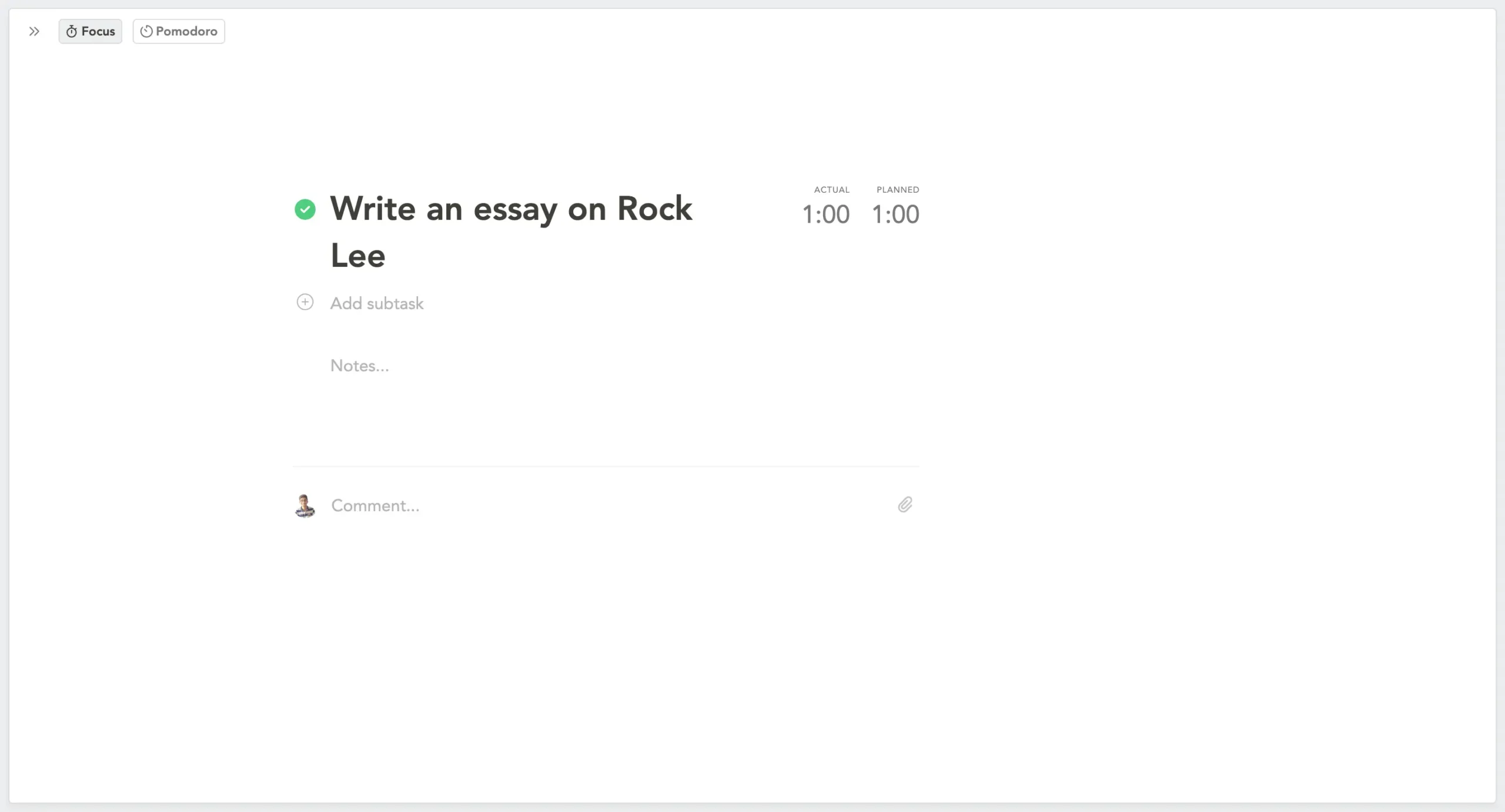
The interface is bare. Task name at the top. Timer besides it. Notes/subtasks if you added any. Your calendar hides at the edge—hover to see it, then it disappears again.
This sounds simple because it is. But seeing one task instead of 47 removes more mental overhead than you’d think.
Two timer options
The default timer counts up. Shows you how long you’ve been working. When you hit your planned time, a gentle chime plays. The timer doesn’t stop—it keeps counting.
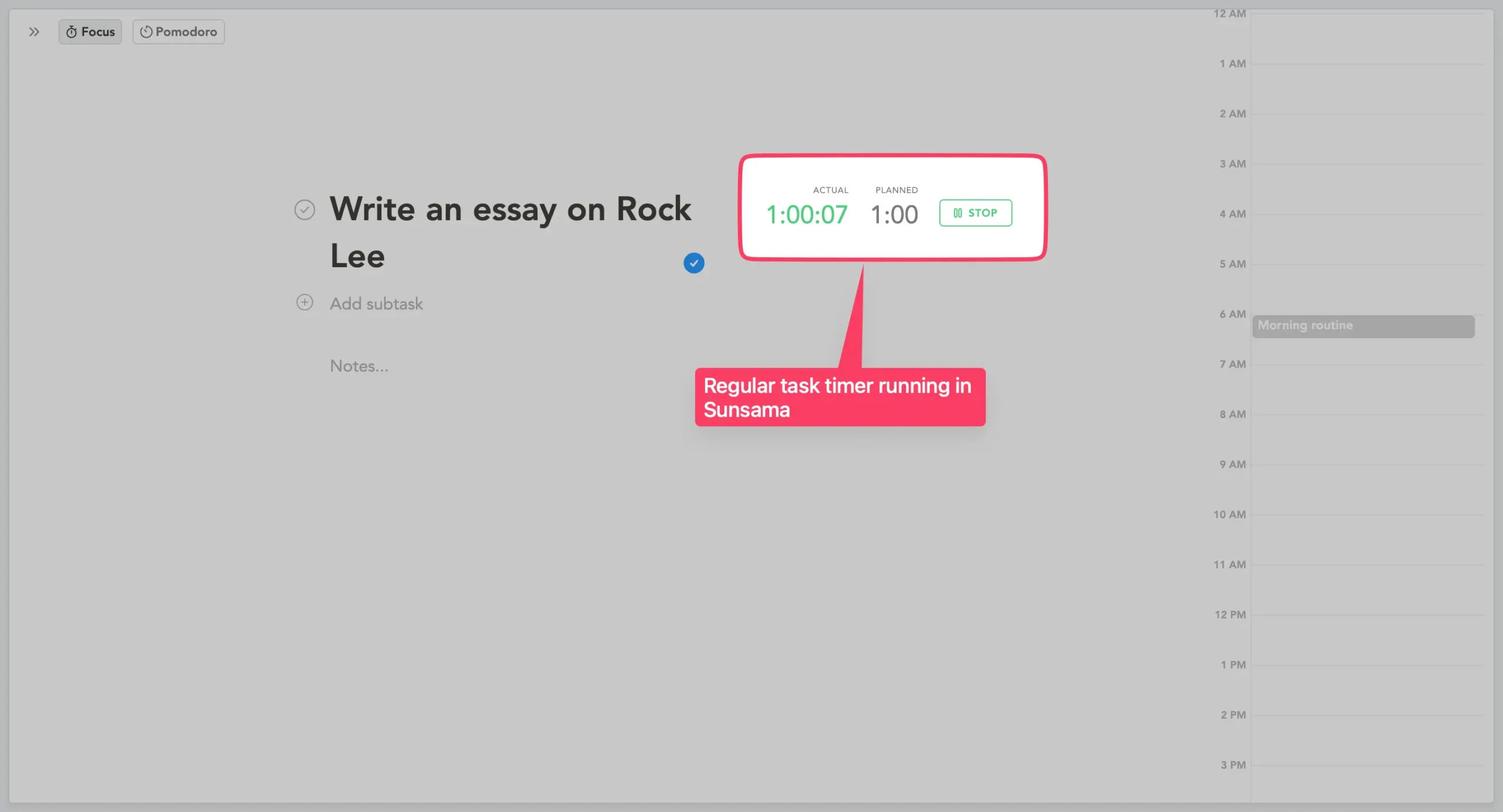
This is useful because tasks rarely fit their estimates perfectly. You might need 1 hour 15 minutes instead of 1 hour. The timer captures the real number.
The Pomodoro option gives you a countdown instead. Default is 30 minutes of work, then a 5-minute break. When the session ends, you choose: resume, break, or cancel.
I use the regular timer for writing. Pomodoro for tasks I’ve been avoiding.
Planned vs actual time teaches you something
Every task has two times: planned and actual.
Planned is your estimate. Actual is what really happened.
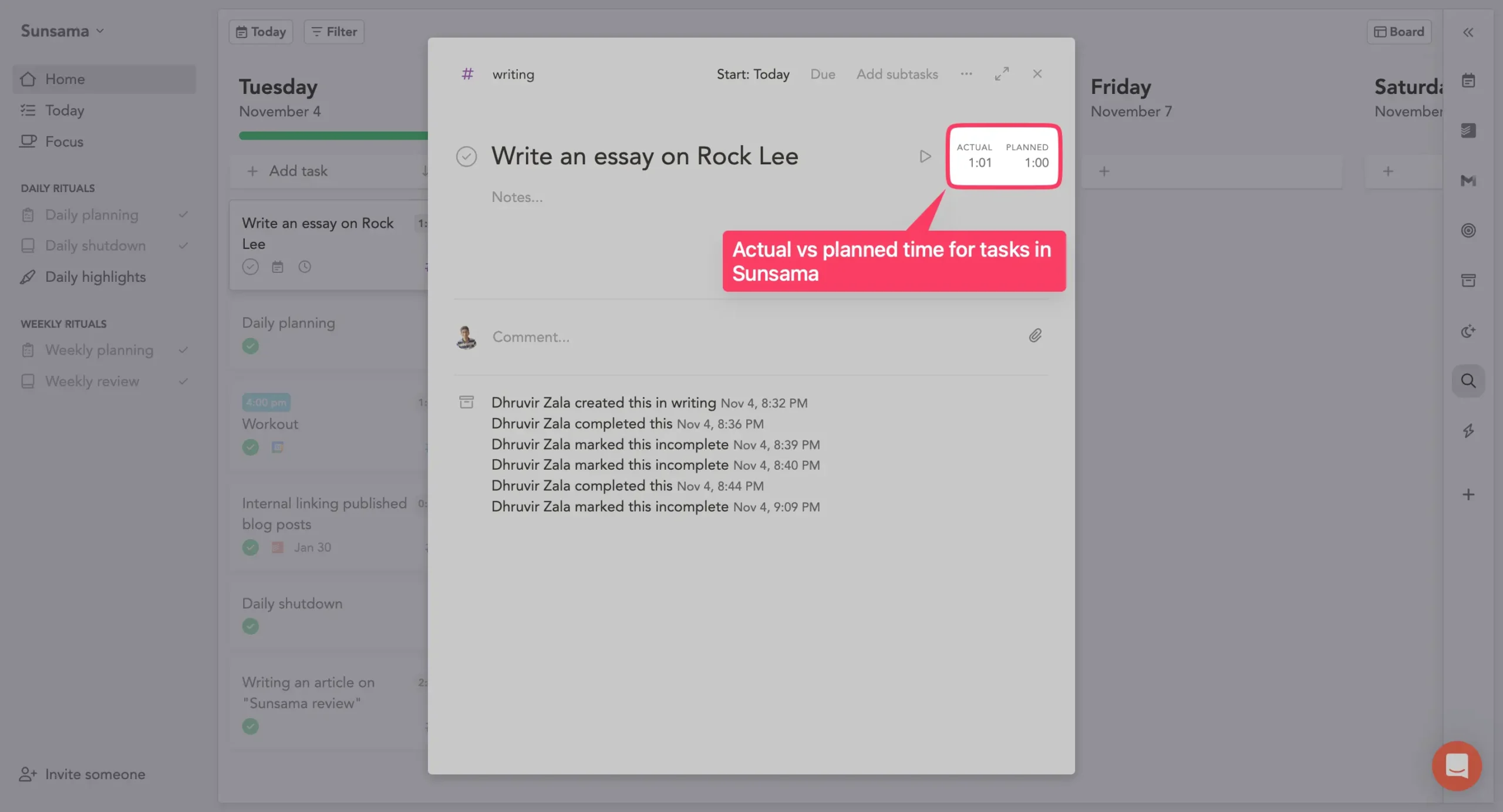
Run the timer while working, and Sunsama tracks actual time automatically. Or add it manually after you finish.
The comparison teaches you how bad you are at estimating.
Most people consistently underestimate. They think a task needs 30 minutes. It takes 45. They plan for an hour. It takes 90 minutes.
Sunsama shows you the real numbers. After a few weeks, you notice patterns. “Emails always take twice as long as I think.” “Meetings always run over.”
Then you adjust. You stop planning 30 minutes for emails. You plan 50. Your daily plans start fitting into the time you actually have.
This is the real value of time tracking. Not accountability. Learning.
At the top of your task list, there’s a counter showing actual vs planned time for the day. If the numbers match, you’re calibrating well. If they’re wildly different, something’s off.
Focus Mode isn’t revolutionary. It’s one task on a screen with a timer.
But that’s the point. The planning happens before you start. Focus Mode is for execution.
Organization features (channels, weekly objectives, etc.)
Sunsama gives you three ways to organize your tasks: channels, weekly objectives, and the backlog.
Channels & Contexts explained
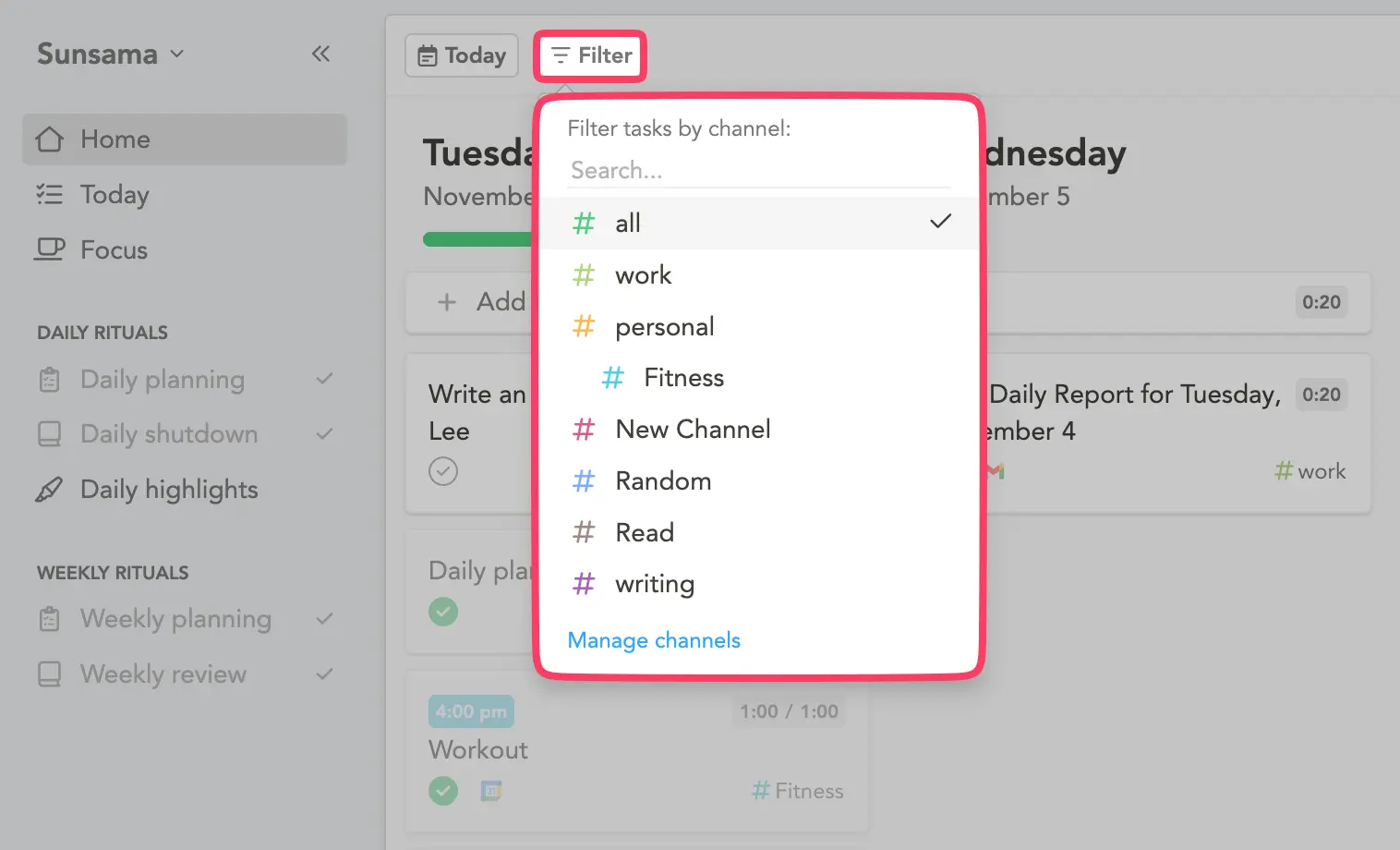
Channels are categories. #meetings, #writing, #admin, #product-work. Whatever matches how you split your time.
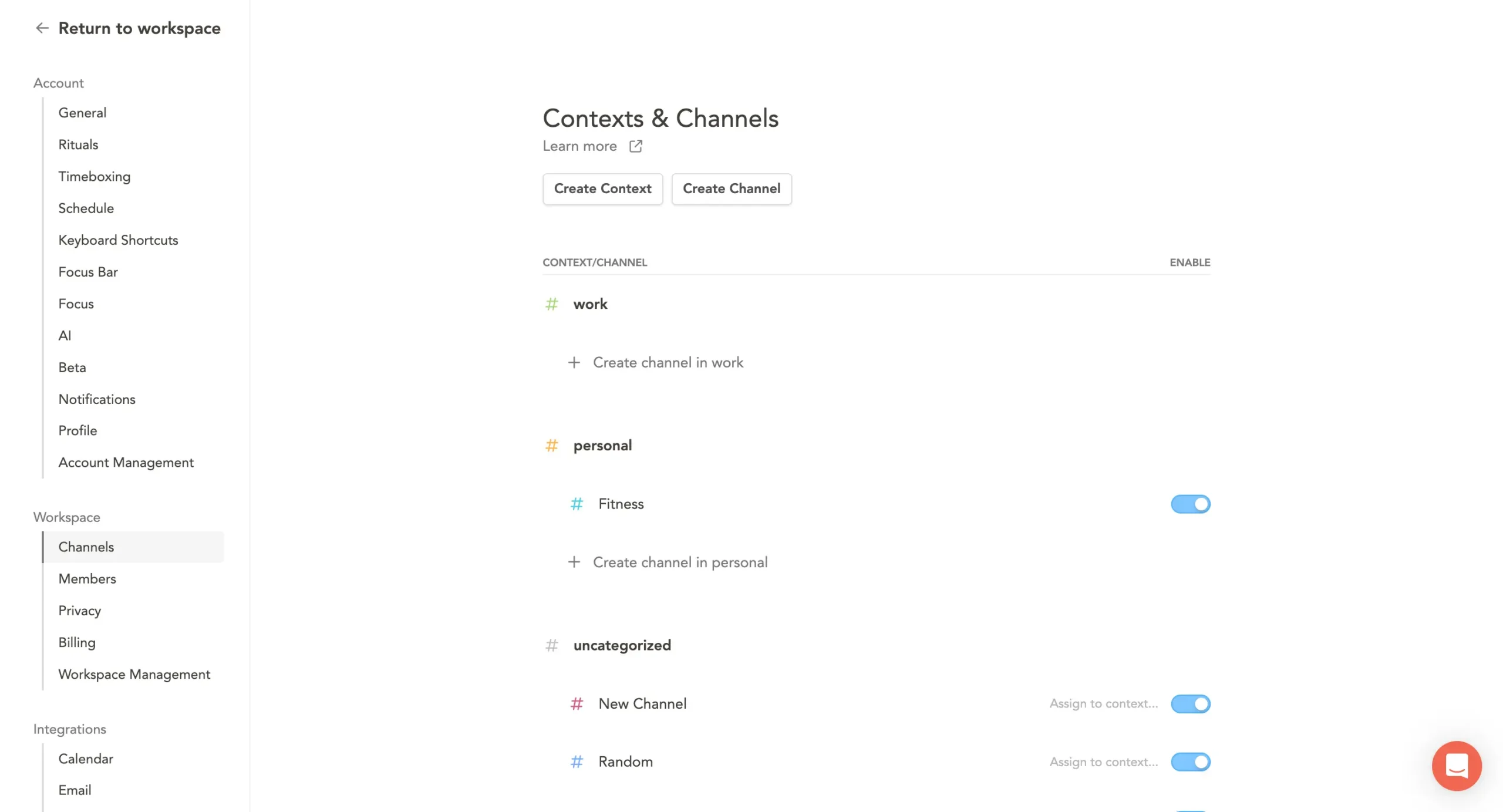
The point is seeing where your time actually goes. During weekly review, Sunsama shows you: 4 hours on #meetings, 6 hours on #product-work, 2 hours on #admin.
Don’t make too many. Five to seven channels is enough. More than that and you’re recreating the same decision fatigue other tools cause.
Contexts group channels together. You might have #work context (containing #meetings, #product, #engineering) and #personal context (containing #errands, #health, #side-project).
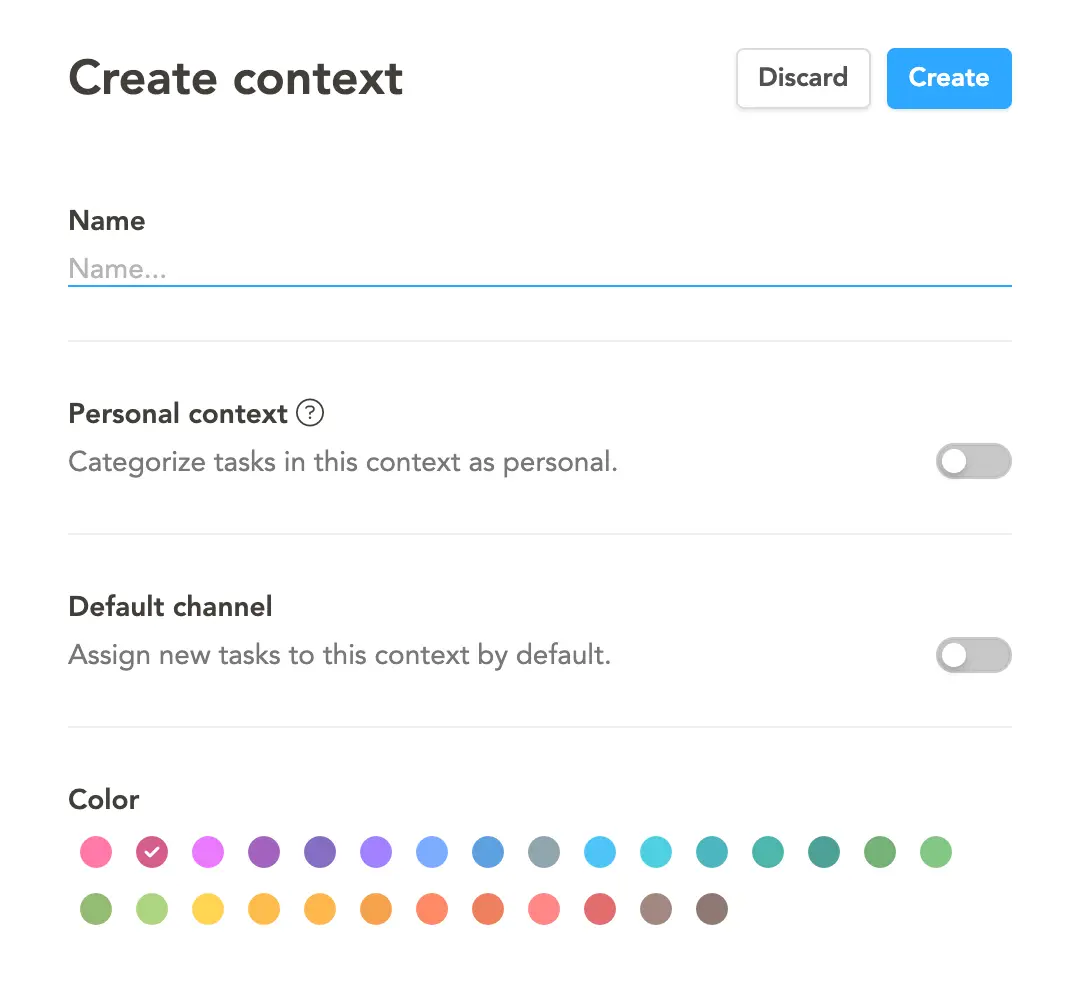
Press Shift + F to filter your workspace to one context. See only work tasks during work hours. Switch to personal after 6 PM.
You can link channels to specific calendars. Work tasks go to your work calendar. Personal tasks stay private.
Weekly Objectives system
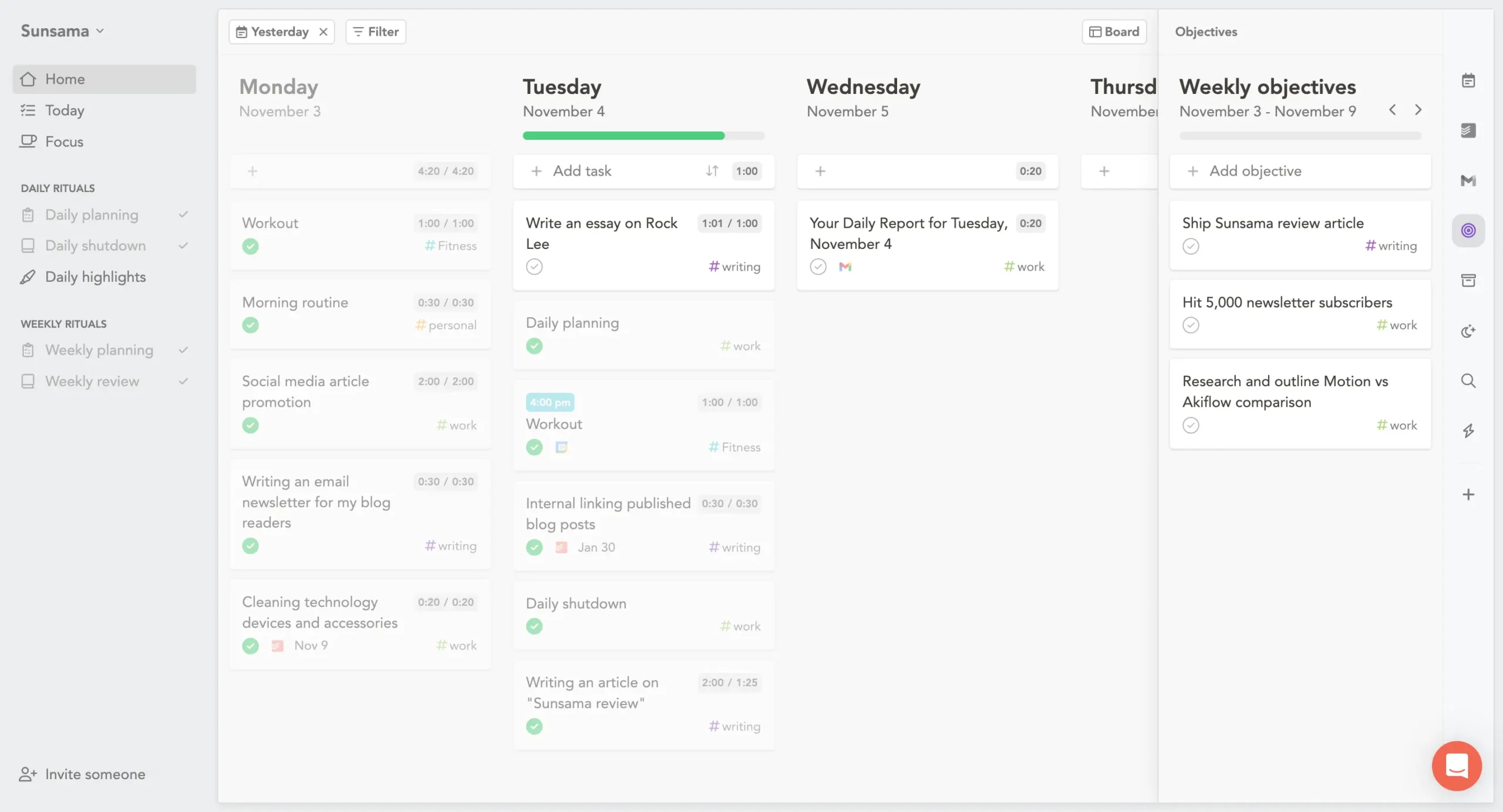
Tasks are what you do. Objectives are what you’re trying to accomplish.
Say your objective is “Ship new onboarding flow.” You have tasks for copy, design, building, testing. They span multiple days. But they all point at the same objective.
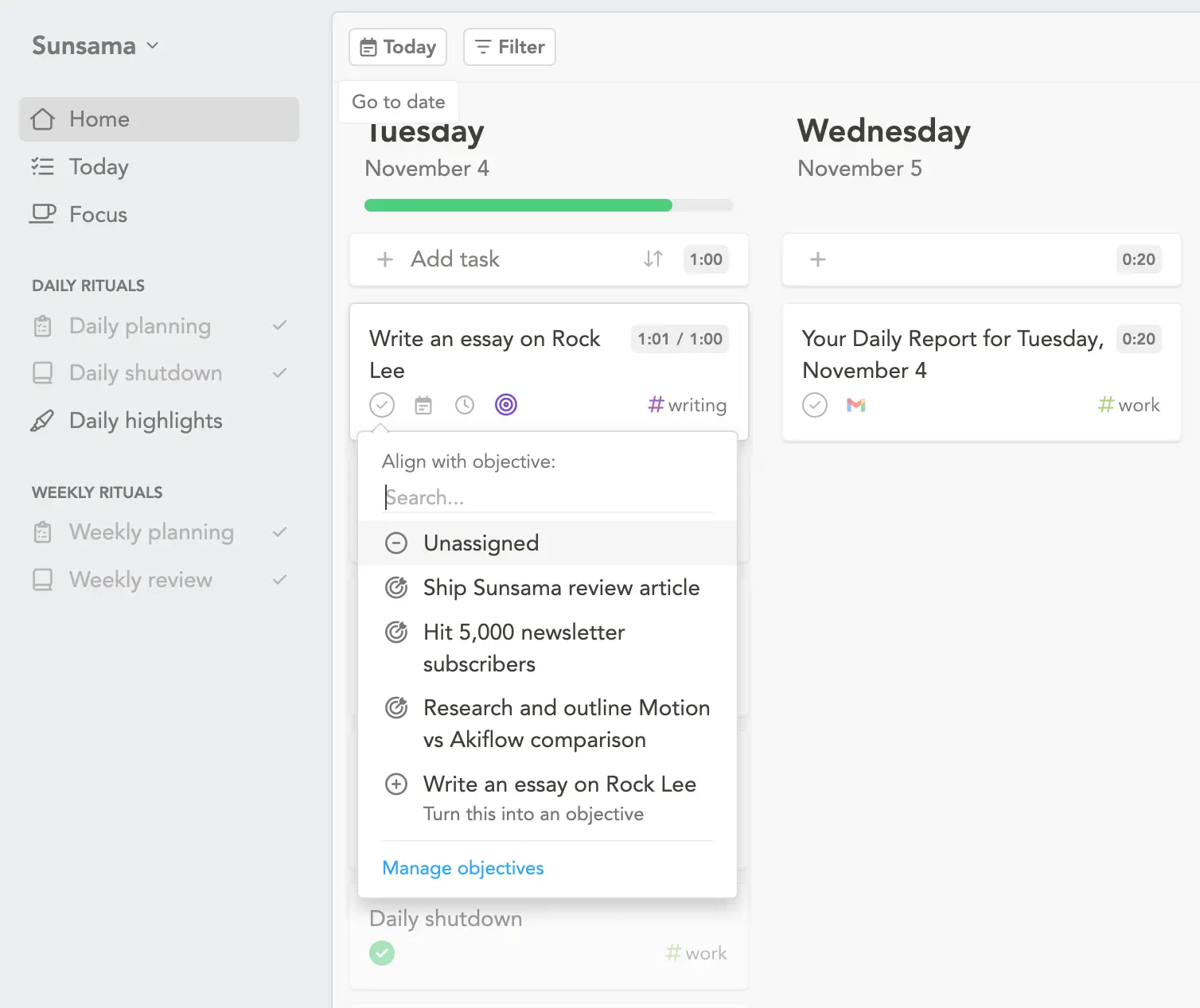
Hover over any task and press R to align it with an objective. A purple target icon appears.
At the end of the week, Sunsama shows how much time you spent on objectives versus everything else. Most people discover they’re not working on what they said mattered.
Objectives don’t roll over. Each week starts fresh.
Backlog – What it is and when to use
The backlog is for “someday” tasks. Press Shift + B to open it.
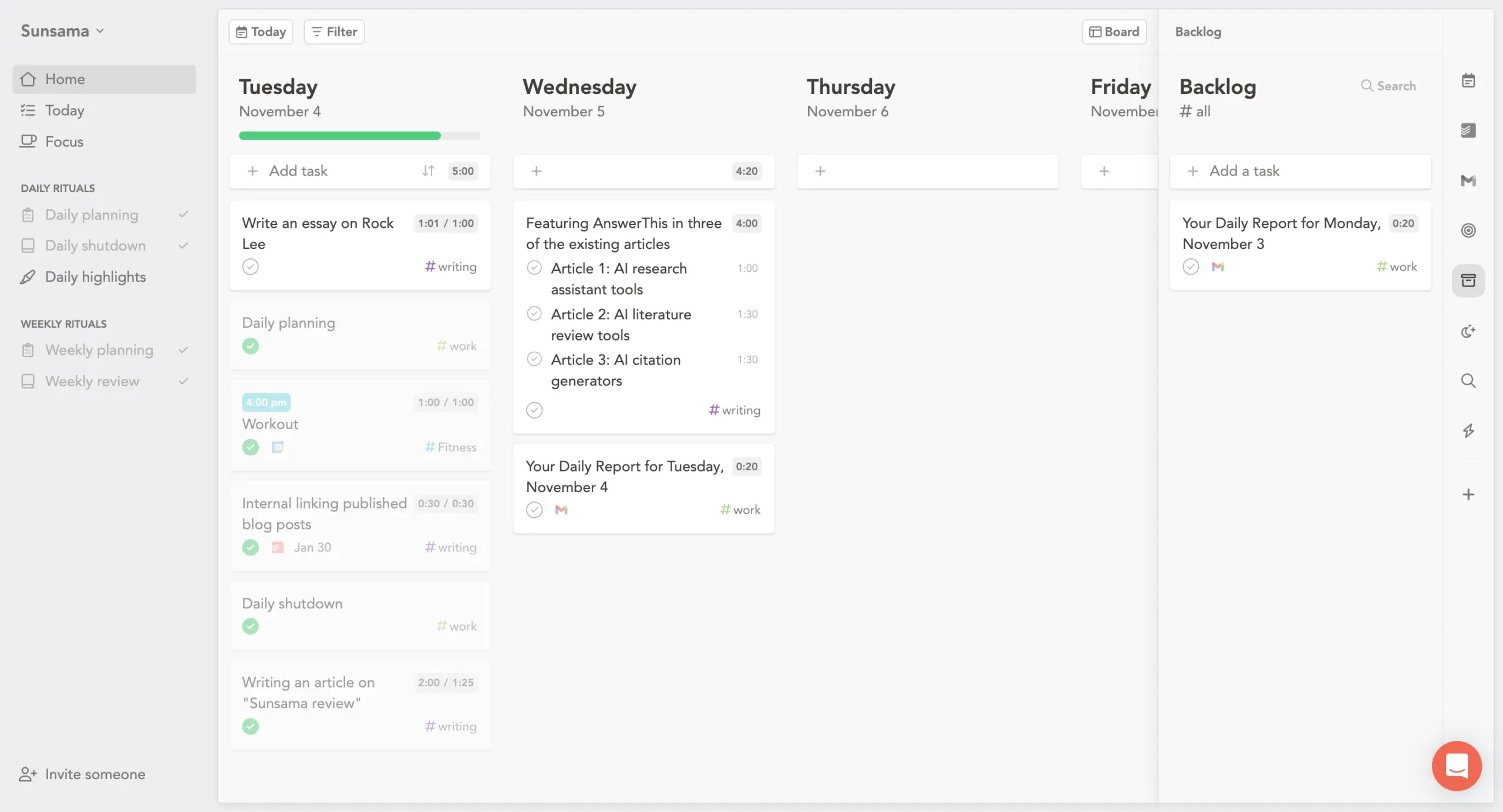
This isn’t a project management tool. It’s a holding area for small, one-off tasks without deadlines. “Research new CRM.” “Call dentist.” “Write that blog post idea.”
During daily planning, pull tasks from the backlog into today. Or don’t. Both are fine.
If you’re worried about forgetting things, create a recurring task called “Review Backlog” for Monday mornings.
Pro tip: Some people use it for templates. Create a task with all the subtasks you need, assign it to a #Templates channel, then duplicate it when needed.
Archive – Automatic after 4-day rollover
Tasks that roll over four days in a row move to the archive automatically. You can change the threshold to anywhere from 2 to 14 days.
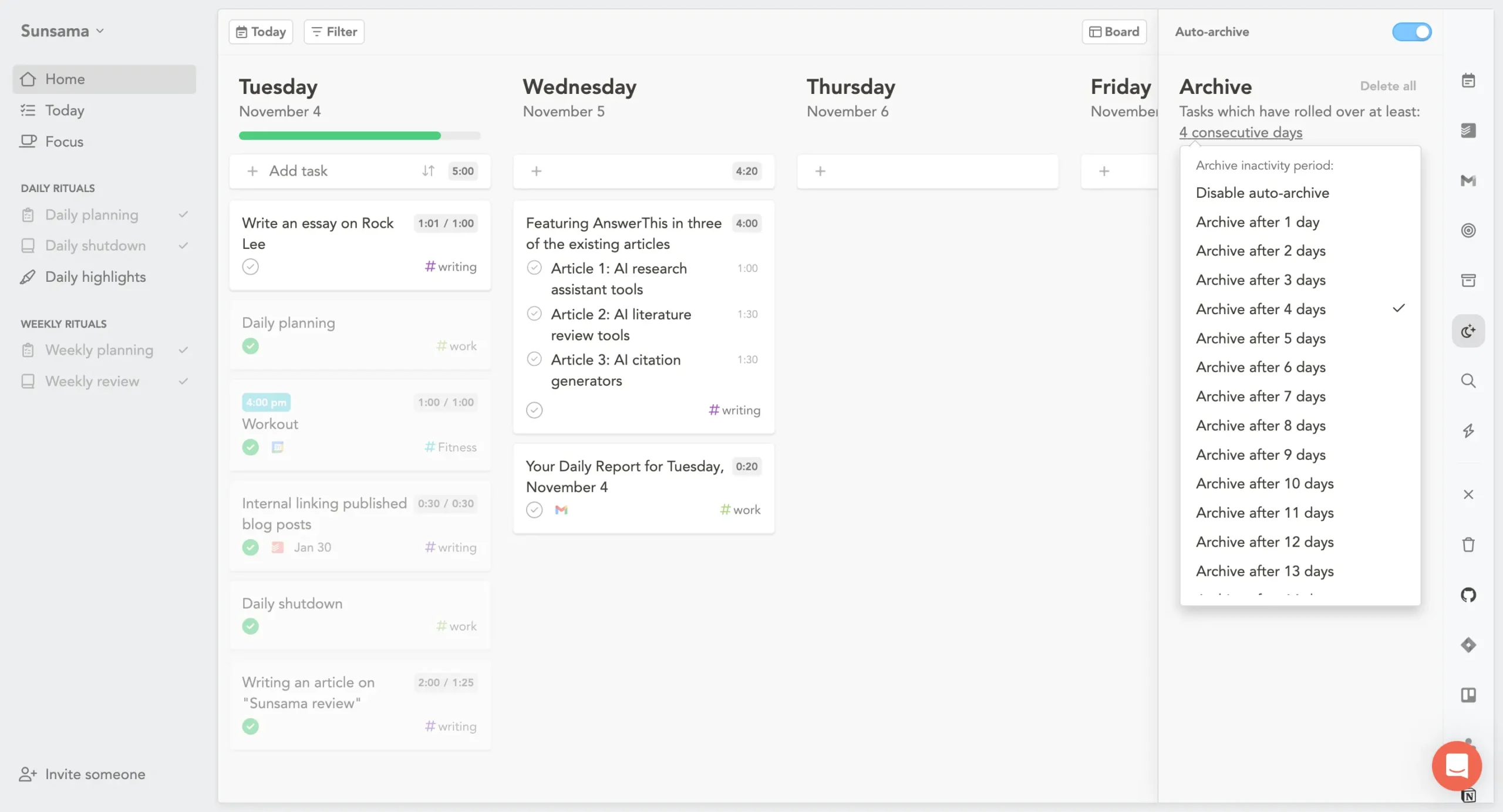
When tasks hit the archive, ask why.
Not important? Delete it.
Overcommitting every day? Plan less.
Procrastinating on something that matters? Block time for it.
Recurring Tasks – Setup and management
For work you do regularly but not at fixed times.
Create a task, open it, click the three-dot menu, select “Repeat.” Pick your frequency and set a “roughly at” time.
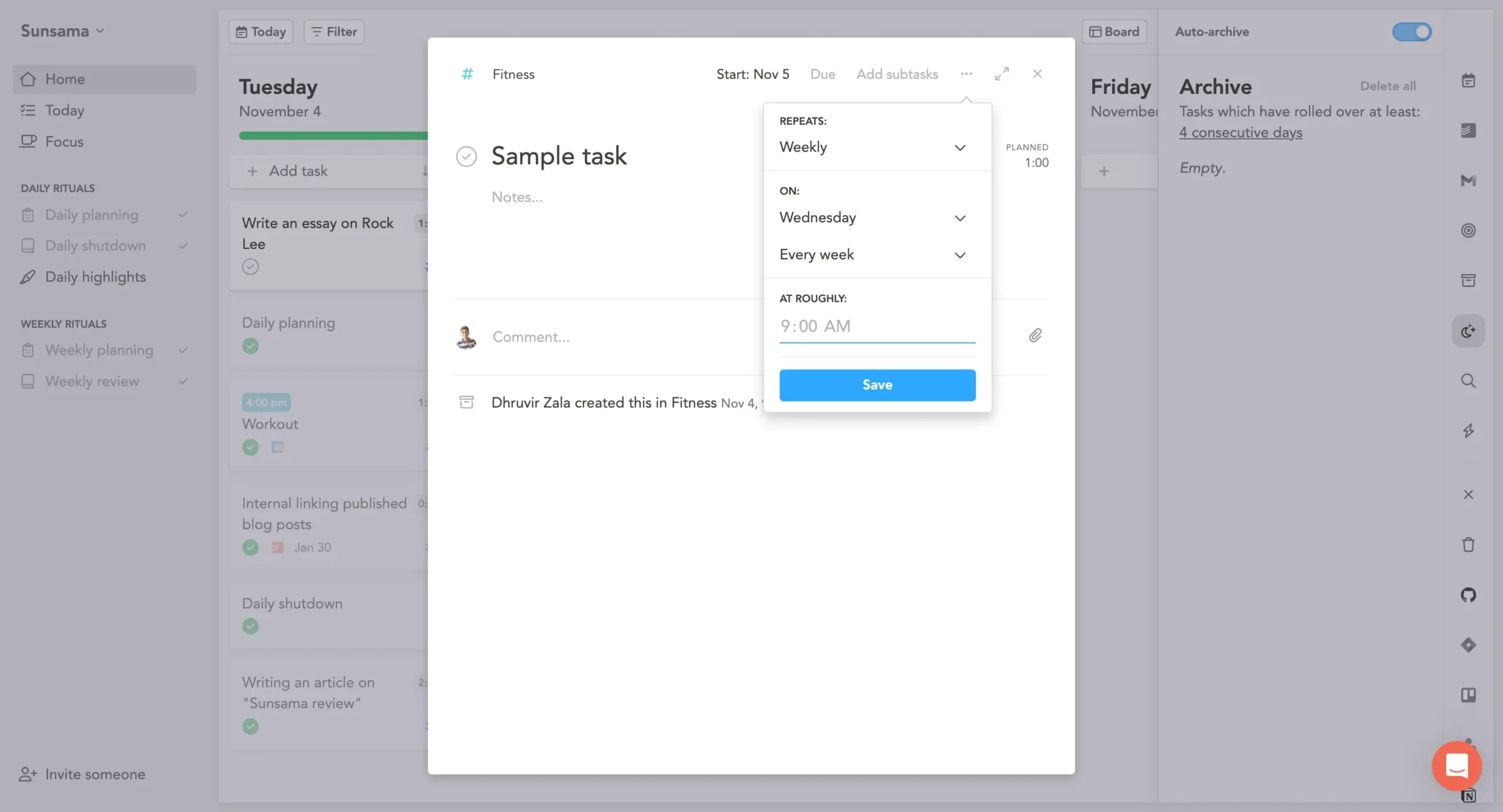
The “roughly at” time determines where the task appears in your list. “Daily journaling” at 7:30 AM always shows before “Check email” at 9:00 AM.
Recurring tasks don’t stack if you skip them. Miss today’s instance, and tomorrow you only see tomorrow’s. Unless you added notes or subtasks—then Sunsama preserves both.
For fixed appointments, use recurring calendar events instead.
Subtasks – When to use them
Subtasks break tasks into pieces. Each gets a checkbox and timer.
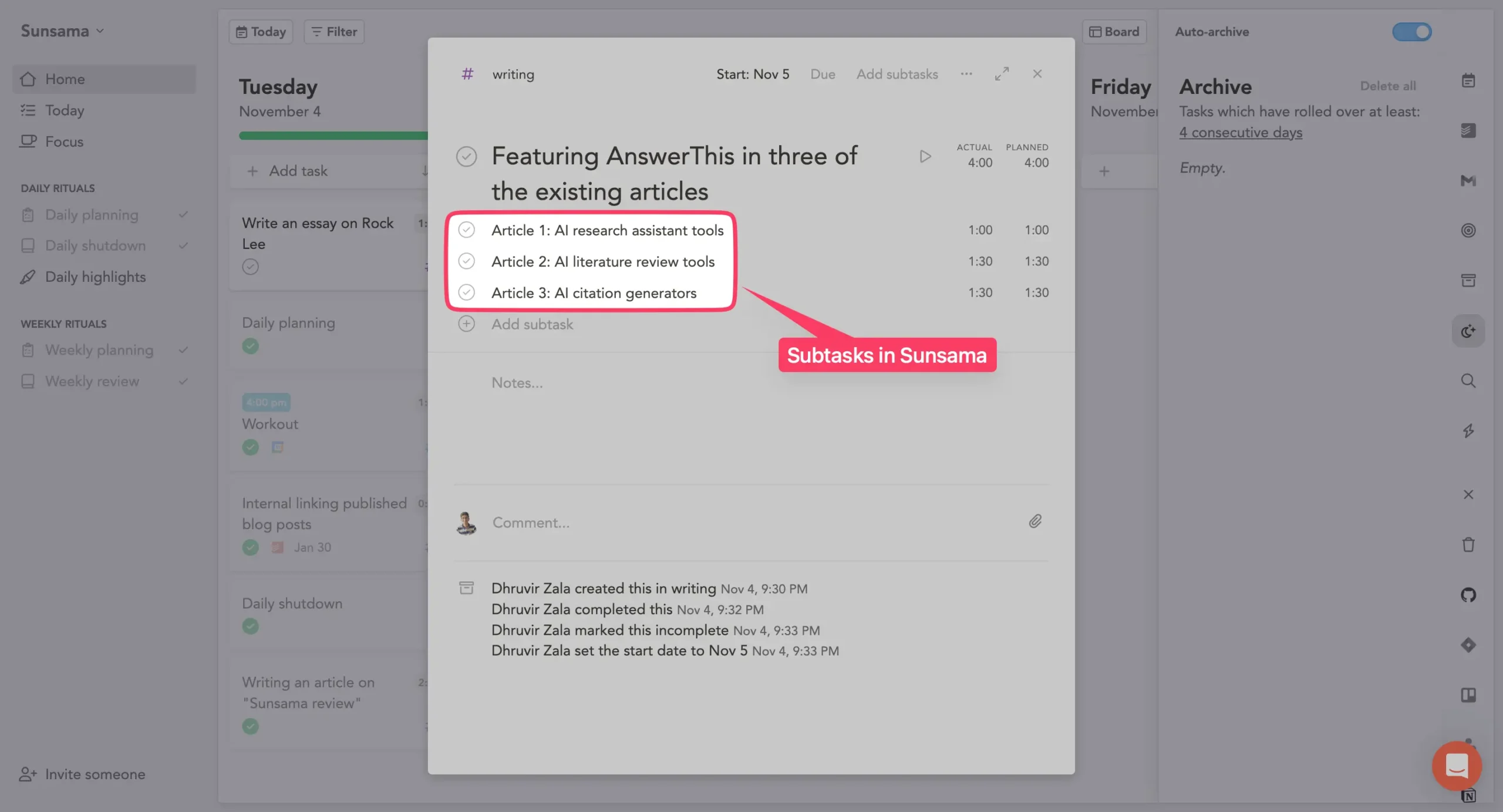
Use them for checklists inside a single work session. “Write draft” with subtasks for research, outline, introduction, body, edit.
Don’t use them for multi-day projects where each piece happens separately. Create full tasks and align them to the same weekly objective instead.
If you need to schedule pieces independently, they should be separate tasks.
Shutdown ritual
At the end of the day, most people just close their laptop mid-thought. No sense of what got done. No transition out of work mode.
Sunsama won’t let you do that.
When your shutdown time hits—the one you picked during morning planning—a notification appears. Time to wrap up.
This is the daily shutdown ritual.
The first screen shows your progress. What you worked on. How long you spent. A pie chart breaks it down by channel.
Click “Next,” and you move to Daily Highlights.
Daily Highlights (Beta) – Auto-generated accomplishments
Most people hate writing end-of-day summaries. Your brain is tired. You’ve forgotten what you did. You’re rushing to get to dinner.
Sunsama automates it.
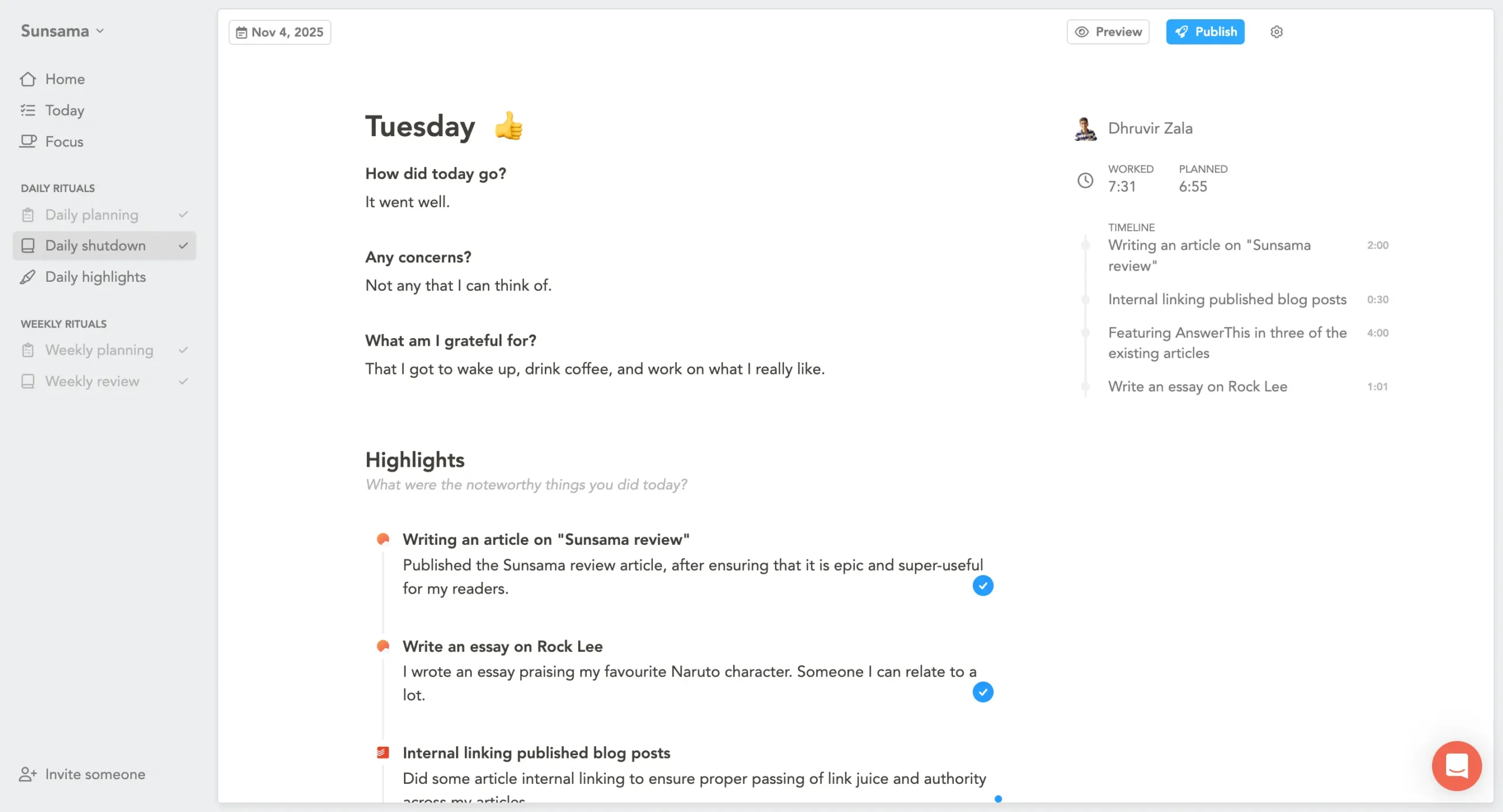
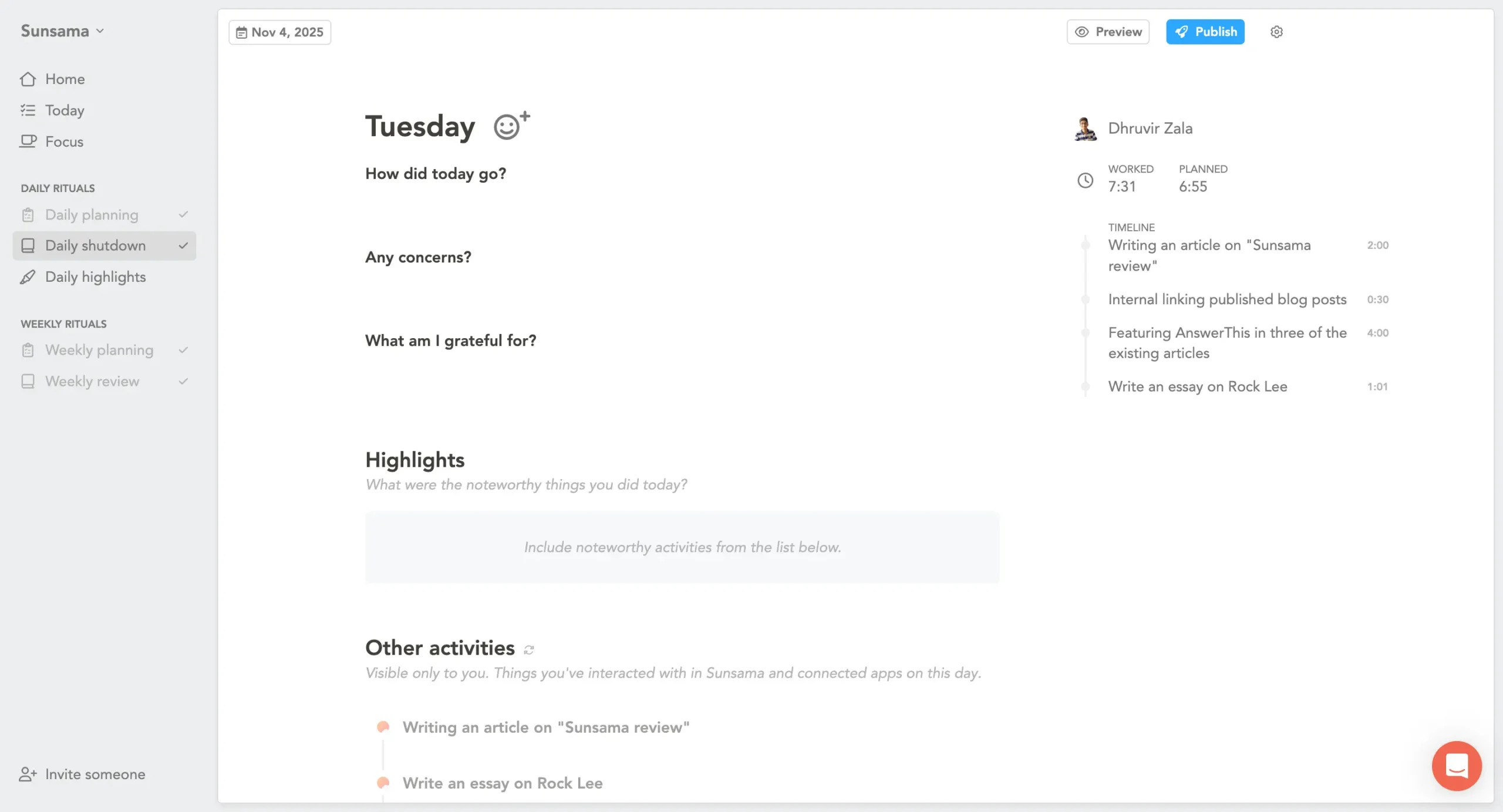
The interface has two sections: Highlights (what you’ll share) and Other activities (everything else).
Sunsama’s AI pre-selects what matters based on time spent and task importance. A task you spent an hour on? Probably a highlight. A five-minute admin task? Probably not.
When you include something, the AI writes a summary. Not generic text—actual summaries based on your task notes and what you did in connected tools.
Say you worked on a GitHub pull request. The AI pulls context from GitHub and writes: “Implemented user authentication flow with OAuth integration and added tests.”
Not perfect every time. But good enough that you edit instead of writing from scratch.
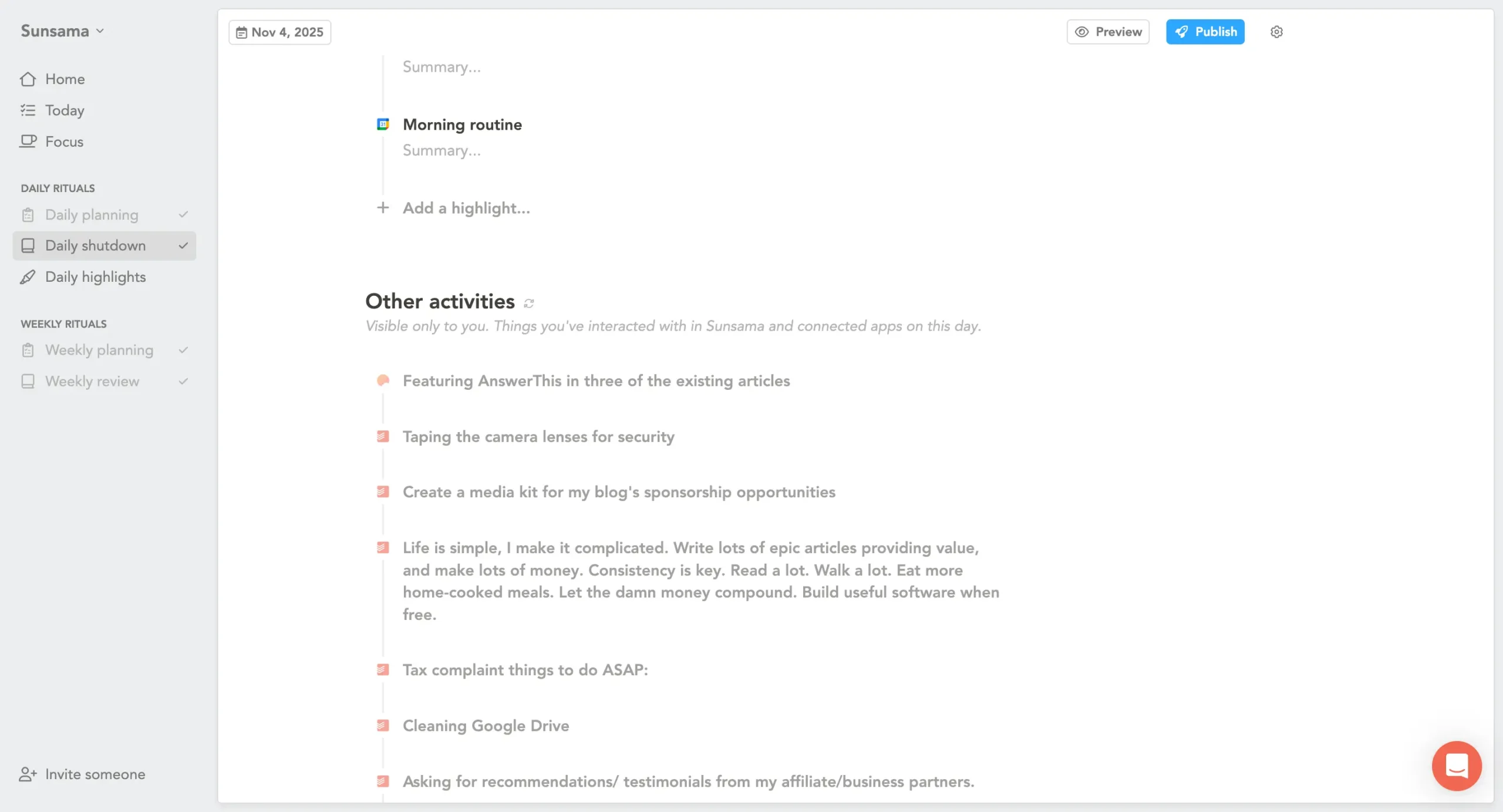
You can reorder highlights, nest them, and star the important ones. At the top, there’s space for reflection. Write whatever you want. Or nothing.
When you’re done, click “Publish.”
Sharing options (Slack/Teams/private)
You can send highlights to yourself via email. Post to Slack or Teams. Email specific people. Or just keep them private in Sunsama.
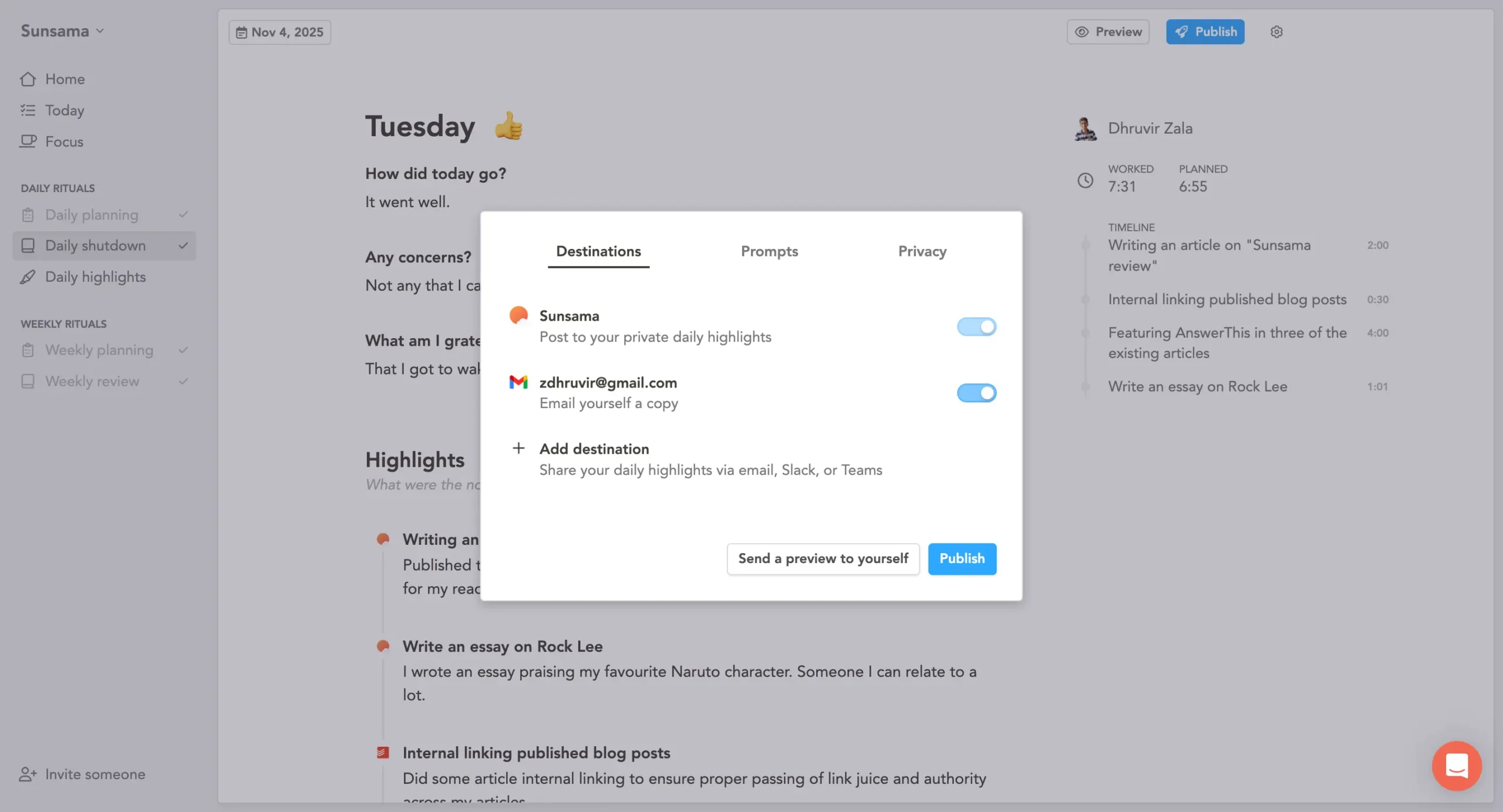
The privacy settings let you hide time tracking, hide your task timeline, or hide weekly objectives when sharing.
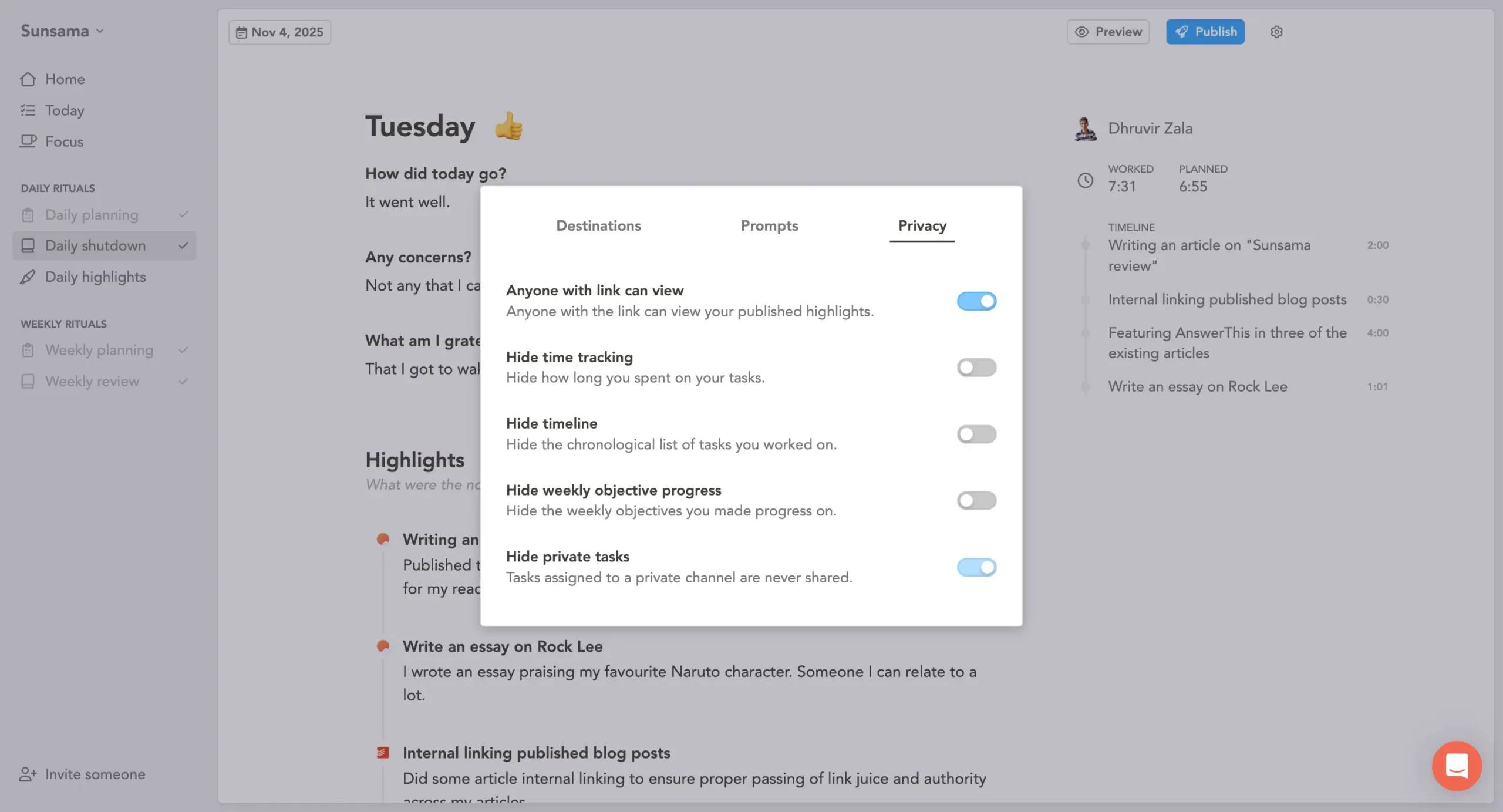
If your team does daily standups, this replaces them. Write your update once, post it to Slack. No meeting required.
Why this matters for work-life balance
The shutdown ritual actually makes me stop working.
Not because Sunsama locks me out. But something about writing “here’s what I did” makes it harder to keep going. The day has a shape now. Beginning, middle, end.
Closing the laptop feels natural instead of arbitrary.
I don’t use Daily Highlights every single day. Some days are just maintenance—meetings, emails, small tasks. Nothing worth documenting.
But the shutdown ritual itself?
Every day. Two minutes. See what I did, mark the day done, close the laptop.
That’s what changed how I work. Not the AI summaries. Just acknowledging the workday is over.
Weekly analytics
Sunsama has a dedicated Analytics page that shows you where your time actually went.
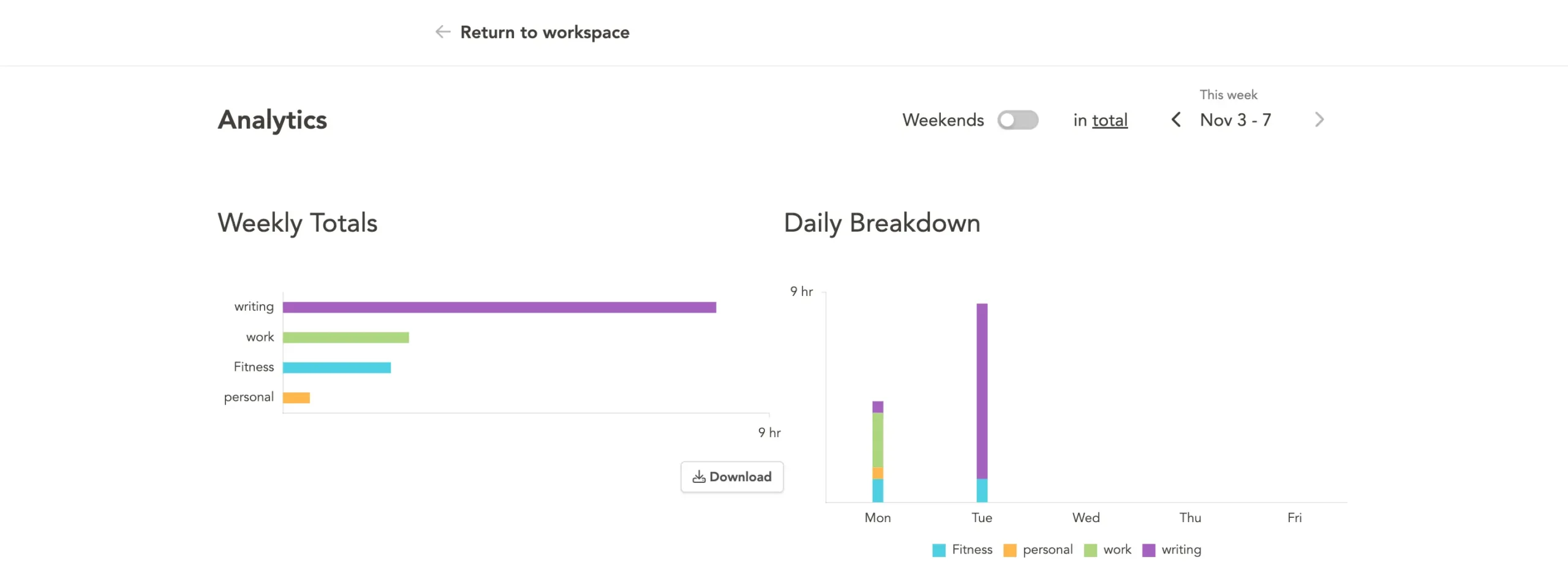
Click “Analytics” in the sidebar.
You see two main views: Weekly Totals and Daily Breakdown.
A bar chart shows time per day. A summary shows total hours. Toggle “Weekends” on or off. Switch between viewing one context or your total time.
That’s it.
The catch: analytics only work if you track time. If you don’t run the timer on your tasks—or at least manually add actual time when you complete them—the page stays empty.
The real value shows up when you’ve been using channels consistently.
Say you have #meetings, #writing, #admin, #product-work. The breakdown shows: 12 hours in meetings, 8 hours writing, 4 hours admin, 2 hours on product.
Suddenly it’s obvious.
You spent three times longer in meetings than building a product. Maybe that’s fine. Maybe it’s not. But at least you know.
Most people guess at this. They feel busy but can’t explain where the time went. Channels turn that feeling into data.
Click “Download” at the bottom, and you get a CSV file. Task names, channels, planned time, actual time, dates. Nothing fancy. But enough if you need to bill clients or build your own reports.
What’s missing: anything beyond a single week. No month view. No quarter view. You can navigate week by week, but there’s no way to see “how did I spend my time in Q3?” People have been asking for this. It’s clearly a gap.
Honestly, Sunsama’s analytics are too basic for serious time tracking.
I check the weekly breakdown during review to see if my time matched my priorities. But for actual, detailed analytics, I use Rize (review).
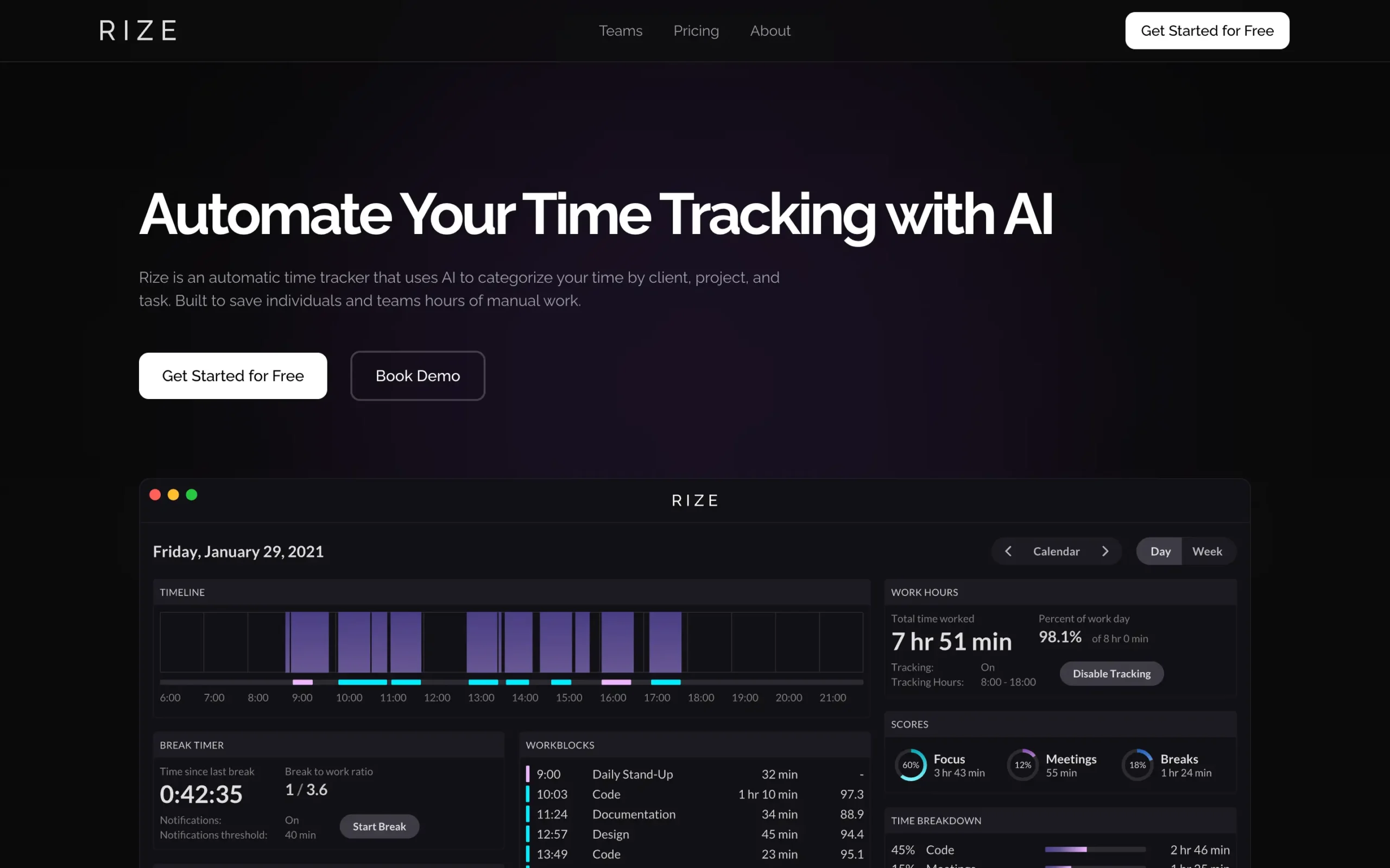
It tracks everything automatically in the background—no timers to start, no manual logging—and gives you AI-powered insights about focus time, meeting overload, and productivity patterns.
If you want real-time tracking data, Sunsama won’t cut it. Use it for weekly gut checks. Use something like Rize for the actual numbers.
Sunsama pricing plans
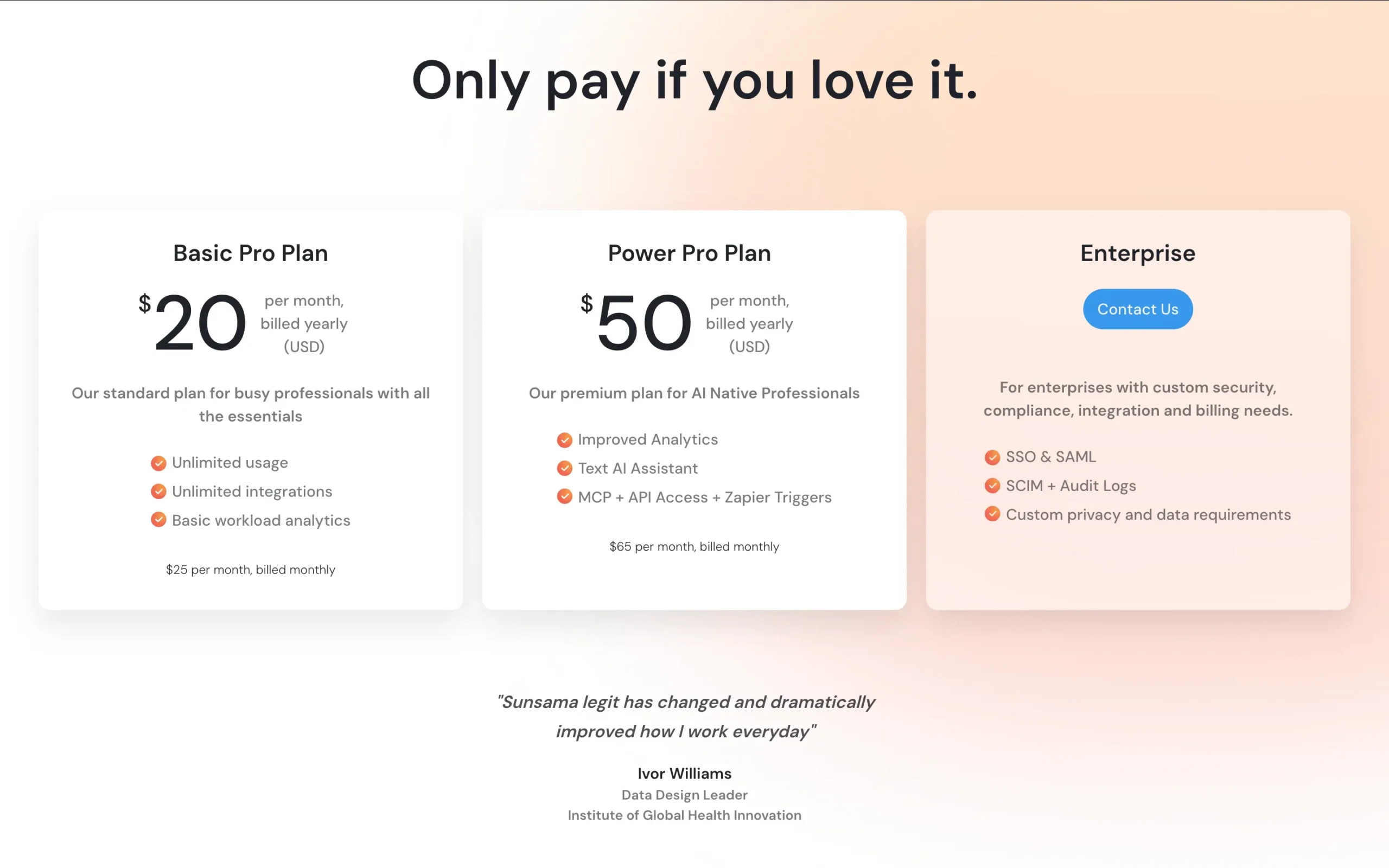
Sunsama costs $25 a month if you pay monthly. $20 a month if you pay for the year upfront.
The 30-day trial doesn’t ask for a credit card. You get full access to everything. If you don’t fall in love with it, you just walk away.
Why $25/month when most task managers are free?
Because Sunsama isn’t trying to be for everyone. They charge enough to stay sustainable without selling your data or chasing venture capital. The product stays focused.
If you’re juggling five different tools and losing two hours a day to context switching, $25 is nothing. You’ll make that back in saved time within a week.
If you’re just looking for a fancier to-do list, it’s expensive. Use Todoist instead.
Side note: They recently made changes to the pricing and introduced a new plan, the Power Pro Plan, that costs $65/month ($50 if you bill yearly).
It adds improved analytics, a Sunny AI voice assistant, which is still in beta (basically a voice assistant that listens to your commands and executes them in real-time), and Zapier Triggers.
Conclusion
Sunsama centralizes scattered tasks and forces you to build realistic plans instead of impossible ones.
Use it if you’re jumping between five tools all day and regularly work past 6 PM because you can’t tell when you’ll finish.
It’ll probably save you.
Share this article:
